Define Report Cube
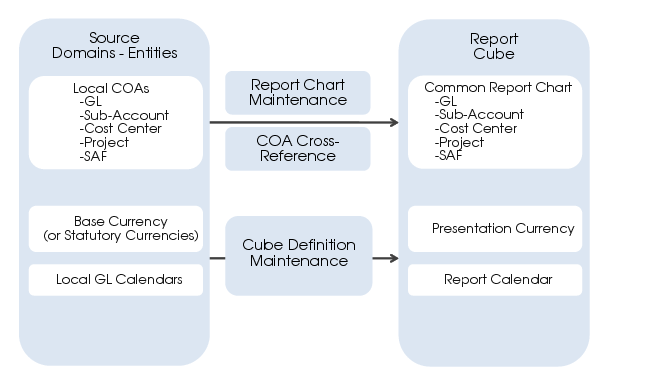
In this section, you create parameters for the report cubes. The parameters determine how the consolidated financial data is stored in the reporting tables FRWCubeDim and FRWCubeMeas.
Create Report Cube Parameters
Set up the presentation currency (PC) and the exchange rates to use when converting from base currency or statutory currency to PC. After you have selected the entities in the report chart, you can also define the report calendar and a selection of entities to include in each cube. In Report Cube Definition, you refine your earlier selections.
Report Cube Definition
Use Report Cube Definition to set up report cubes.
Report Cube Definition: Provide Cube Code and Status
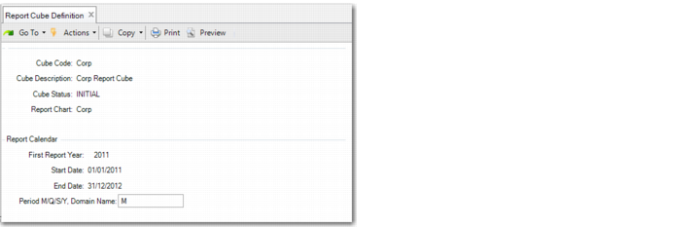
Cube Code
Specify a code for the report cube.
Cube Description
Specify a maximum of 40 characters for the description of the cube.
Cube Status
Specify the cube status. There are five cube statuses:
• Initial
• Building
• Operational
• Needs Rebuild
• Inactive
New cubes are assigned the status Initial. When you generate the cube data (using another program), the system updates the cube status to Operational. If the cube generation fails, the daemon process to update the cube fails, or the cube definition is changed, the cube status is automatically updated to Needs Rebuild. If the cube rebuild is successful, you can change the cube status back to Operational.
If you no longer need the cube, change its status to Inactive, which means that the cube is retired. You can change the status of inactive cubes back to Needs Rebuild. The daemon can only update Operational cubes. The following table provides an overview of the possible status transitions.
Possible Status Transitions
Status | Set Where | Can Go To | Set Where |
Initial | Cube definition (create) | Building | Cube generate (start building) |
Building | Cube generate
(during generations) | Operational
Needs Rebuild
Needs Rebuild
Inactive | Cube generate (successful end)
Cube definition by user or after changing cube parameters
Cube generation (when not successful)
Cube definition (by user) |
Operational | Cube generate | Needs rebuild
Inactive | Daemon (corruption), cube definition (after changing the cube parameters)
Cube definition (by user) |
Needs rebuild | Daemon (corruption)
Cube definition | Building
Inactive | Cube generate (start building)
Cube definition (by user) |
Inactive | Cube definition | Needs rebuild | Cube definition (by user) |
Report Chart
Specify the report chart to use for the cube. Many report cubes can use the same report chart.
Delete Cube Data
Select Delete Cube Data to delete the report cube data. This field is only available if the cube already has data associated with it. You can use Delete Cube Data to update cube settings for a read-only cube that has data associated with it. After you select the Delete Cube Data field, the cube data is cleared and the cube definition remains. You can then change the cube data.
Report Cube Definition closes after you successfully delete the cube data, and a message is displayed to indicate this. Reopen Report Cube Definition to update the parameters for the cube.
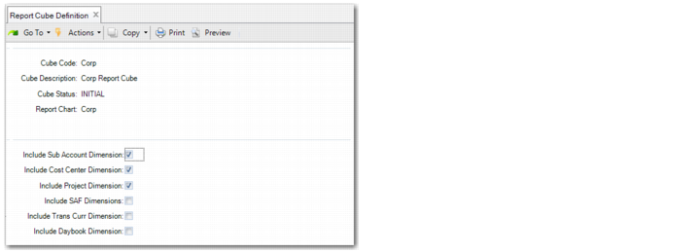
Include Sub Account/Cost Center/Project/SAF/Trans Curr/Daybook Dimension
Select the relevant fields to indicate which dimensions to include in the cube.
Clear the appropriate fields to exclude dimensions you do not intend to use, which makes the cube smaller and increases reporting speeds. If a dimension is already excluded from the report chart setup, it is automatically set to Not used in the cubes linked to that report chart.
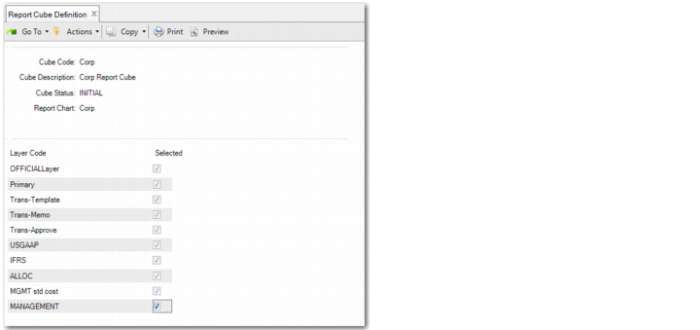
On the next screen, you can specify the layers to include in the cube. You can exclude layers you do not want to include in the reports; for example, the transient layers used for storing posting templates. You can also create a cube for management reporting that includes management layers and another cube for statutory reporting that only includes the official layer. You can also filter out layers later in the report definition, but this can have a negative impact on performance.
Report Cube Definition: Specify Layers
Report Cube Definition: Specify Exchange Rates
Presentation Currency
Specify the presentation currency for the cube. You can specify any currency in the system, provided the required exchange rates are available.
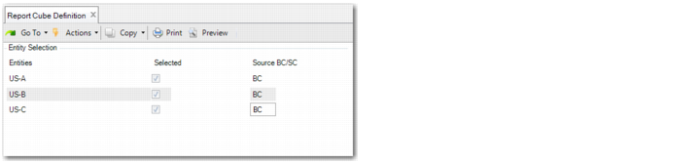
Source BC/SC
Specify the (default) base currency or statutory currency to start from.
Exchange Rates Shared Set
Specify the shared set to retrieve the exchange rates from.
Transl.Method(1)=Cube(2)=GL
Specify whether to use the currency translation methods defined in the cube or the methods defined in the GL.
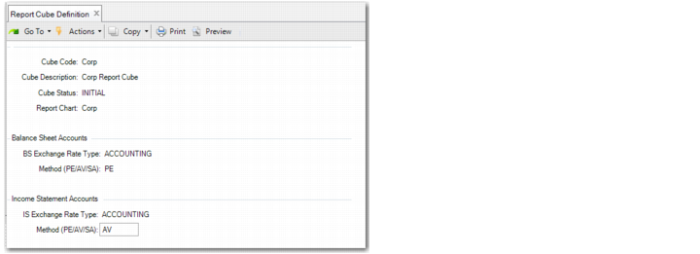
If you use the method defined in the cube (separate settings for balance sheet and income statement accounts), you must complete the BS Exchange Rate Type and Use Rate PE/AV/SA fields.
If you use the consolidation setup from the GL accounts, the system uses the consolidation settings defined in the GL account of the shared set of the report chart. For more information on consolidation, see
Consolidation.
The currency translation method indicates the exchange rate. You can choose from:
• Period End rate: The system uses the exchange rate at the end of each period and the total balance of the account is translated with that rate. The period end rate is typically applied for Balance Sheet accounts.
• Simple Average rate: All the rates for the period are added together and divided by the number of rates.
• Weighted Average rate: All the rates of the period are multiplied by the number of days they were valid, and then added together and divided by the total number of days in the period. Average rates are typically applied for P&L accounts.
• Historical rate: The rate on the day of the detail transaction. This option can cause the cube to build slowly because the system must read detailed transactions. Historical Rate is a GL account consolidation setting. It is used if you choose method 2 GL Conso as the currency translation method and the GL accounts are configured to use this setting.
IS Exchange Rate Type
Specify the exchange rate type for the Income Statement. You can choose from three exchange rate types:
• Accounting—the default
• Statutory
• User-defined rate table
Method (YE/PE/AV/SA)
Specify the rate to use. The options are:
• PE: Period end
• AV: Period-weighted average
• AR: Simple average
• HI: Historical rates
Report Cube Definition: Specify Periods
First Report Year
Specify the first report year to create in the report calendar.
Start Date/End Date
To identify the total duration of the cube calendar, enter a start and end date.
Period (M/Q/S/Y, Domain Name)
Specify the type of period to use. The options are:
• M: months
• Q: quarters
• S: semesters
• Y: years
• Domain Name: Specify the name of an existing domain to use the domain GL calendar for reporting.
Report Cube Definition: Period Start and End Dates
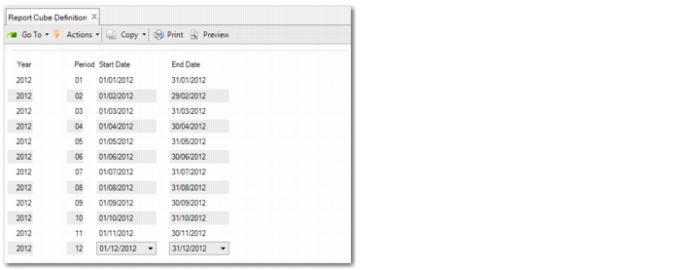
Start Date/End Date
Review the proposed start and end dates for each report period.
Note: You can remove the first or last proposed Reporting period by entering “?” in the Start and End date for that row.
Review the Report Periods
Select this field to review the proposed start and end dates for each report period.
Selected/Source BC/SC
The entity selection lists the entities you specified in the report chart. For each entity you select, you can change the starting base currency (BS/SC).
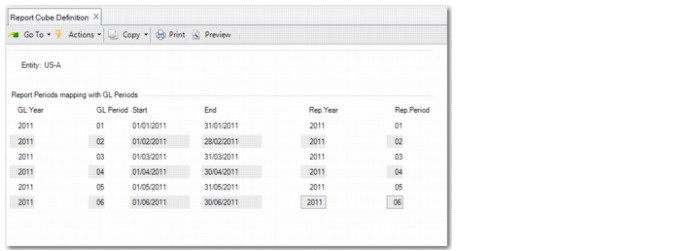
For each entity you select, you can review how the GL calendar is mapped to the report calendar. The GL periods of the source entities are mapped to report periods. Based on the start and end dates, the system makes the best matching mapping proposal. However, you can modify the default mapping. The start and end dates of the GL periods can be different from the start and end dates of the report periods. However, a GL period cannot be split over multiple report periods.
Note: You can remove the first or last mapped GL period by entering 0 in the Report Year and Report Period for that row.