Value Stream Modeling in QAD Lean – Quick Setup
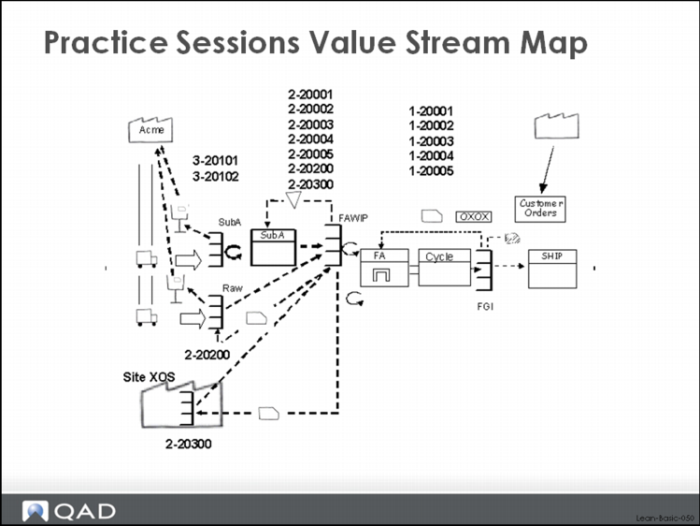
Practice Sessions Value Stream Map
These are the basic steps required to model your value stream in the QAD Lean software, assuming that you have already generated a value stream map and created basic data in QAD EA (Normal item master setup? Sites defined? Inventory locations defined? Supplier/vendor master setup?).Typically the best way to setup a value stream in QAD Lean is to start with a value-stream map.The map can help you identify specific processes and supermarkets and structure the kanban loops appropriately for how you are or want to operate the pull and flow systems. So that you can practice setting up data in the system, we’ve provided you with a value stream map and it is shown in the image above. This map reflects the decisions about how to group manufacturing work centers into processes, where there should be supermarkets and where there should be FIFO lanes, and where the kanban loops are in the lean system. You will be using this value stream map to enter data into the system and demonstrate system functionality.
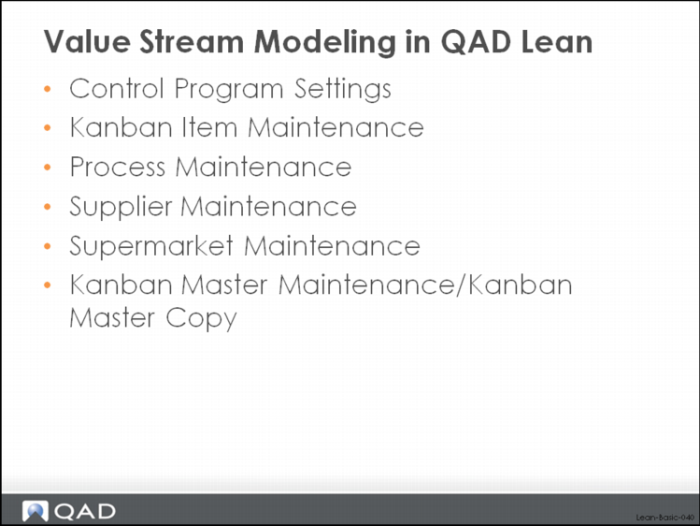
Basic setup steps include:
• Identify and set controls for default settings and default behavior
• Identify items that are kanban controlled: Kanban Item Master Maintenance
• Identify controlled inventory points: Supermarket Maintenance
• Identify sources of supply: suppliers, processes, inventory: for manufactured parts – Kanban Process Maintenance, for purchased parts and raw material – Supplier Maintenance, for items sourced from inventory located elsewhere – Supermarket Maintenance.
• Identify kanban loops: Kanban Master Maintenance, Kanban Master Copy
As you create your value stream model in the system, there will be several key decisions that you will be asked to make regarding how you would like to operate each loop or process:
• One or Two Card System?
• Accumulators: Lot Sized? Or Fixed Interval Ordering?
• FIFO Processes or Supermarkets?
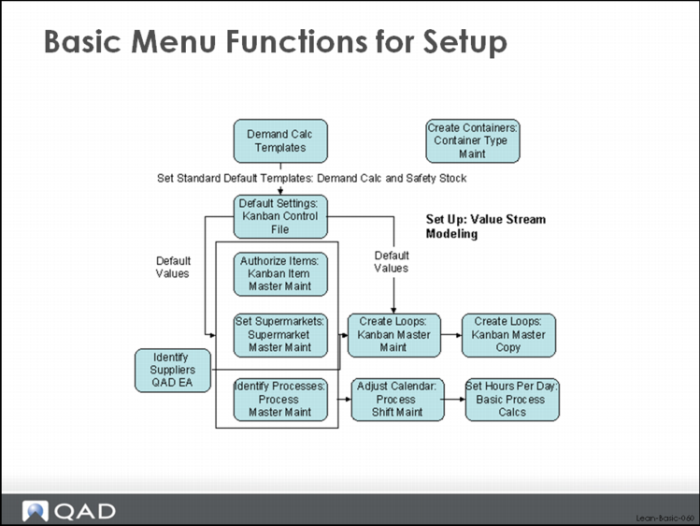
Basic Menu Functions for Setup
This image shows the basic menu functions involved in setting up data in QAD Lean.
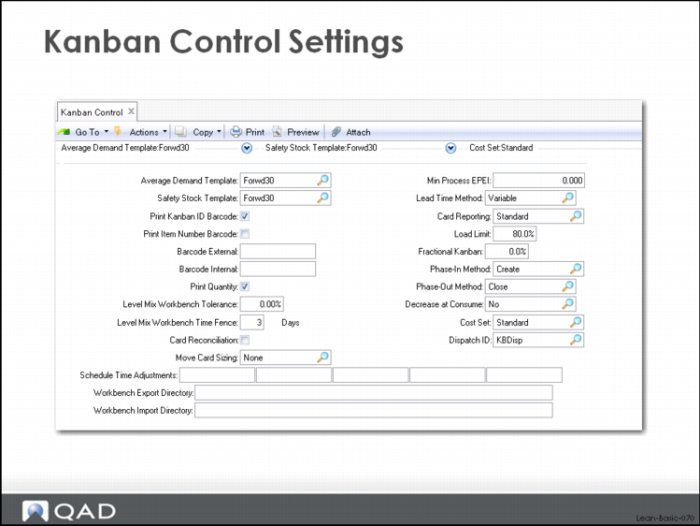
Kanban Control Settings
The Kanban Control function of the system establishes the basic default data and default behavior of the QAD Lean module. There are three distinct frames of data, covering basic kanban controls, transaction controls, and kanban event (status change) controls.
The values shown in the Kanban Control record above reflect decisions to:
• Calculate average demand and safety stocks using a template called Fut30 (Average Demand Template, Safety Stock Template). To enter a template name here, you must first create the template using the appropriate menu function.
• Print the kanban card ID—in the form of a barcode - and the kanban quantity on the card (Print Kanban ID Barcode and Print Quantity).
• Check the leveled schedule against a tolerance of 0% (sum of the detailed schedules must exactly equal the total volume for the day because Level Mix Workbench Tolerance = 0.00%).
• Level with three days firm (Level Mix Workbench Time Fence).
• Reconcile automatically when loop sizes are changed, typically by a system card sizing calculation (Card Reconciliation).
• Calculate lead times (Lead Time Method = Variable) for manufactured parts. Can be set to Fixed in which case the user is responsible for stating the lead time.
• Establish a limit on loading the resource (Load Limit = 90%). The load limit is used in evaluating load against a process: if the load exceeds X% (the load limit) of the total available time, then the system generates an exception message.
• Phase in new cards by creating new ones (Phase-in Method = Create), phase out old cards by closing them (Phase-out Method = Close). Alternatively the Phase-in Method could be set to Activate (if inactive cards exist for the item, activate them before creating new cards), and the Phase-out Method could be set to Deactivate (immediately deactivate cards rather than closing them). These controls only apply to situations where the Card Reconciliation control has been checked.
• Require that the user confirm the cards that are being taken out of a loop (Decrease at Consume).This control only applies to situations where the Card Reconciliation control has been checked.
• Use standard cost for calculating average inventory values (Cost Set = std). Any valid cost set can be specified here.
These are generally workable values for getting started with the initial setup. Many people will probably prefer to switch off the automatic reconciliation process so they are in total control of their kanban cards, and come back later to adjust the values of all the settings.
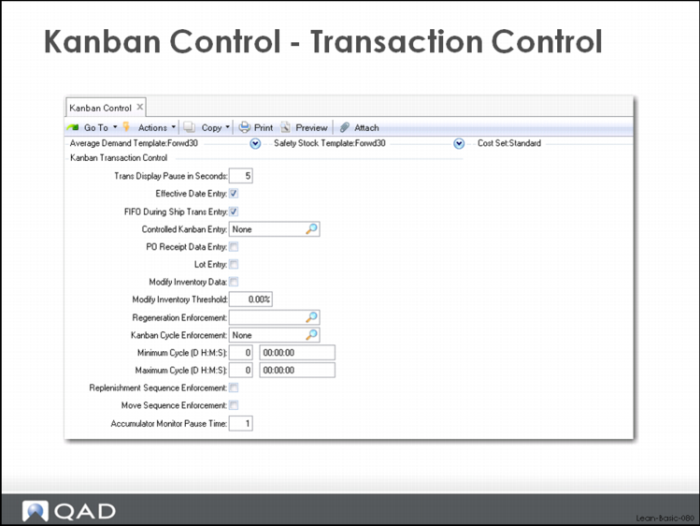
Kanban Control - Transaction Control
The values shown in the Kanban Transaction Control data above reflect decisions to:
• Suppress any feedback done as part of the kanban consume, authorize, acknowledge, ship or fill transactions (Trans Display Pause in Seconds = 0). This applies to situations where the transaction is being processed in a character or character-like UI format. A character-like UI includes bar code data collection and the associated hand-held device displays.
• Report FIFO movements using the ship transaction (FIFO During Ship Trans Entry). When this box is checked, the user is prompted to enter the process the parts are being shipped from. The system preloads this value, but the user can override it. If this box is unchecked, then the system simply moves the material through the FIFO lane, one FIFO process after another after another.
• Skip card regeneration (Regeneration Enforcement = None). If this is set to Warning, the system will generate a warning message anytime a card is being processed that needs to be regenerated. If this is set to Error, the system will block any transactions related to the kanban cards. The only way to process card updates for an item would require regeneration of the cards.
• Warn the user anytime the Minimum Cycle is exceeded (Kanban Cycle Enforcement). In other words if a kanban card is being processed less than some specified amount of time since the last processing, produce a message. This can be set to None (no message), Warning (warn the user but don’t block the update) and Error (warn the user and block updating). This control is used in conjunction with the Minimum Cycle (D HH:MM:SS) field.
• Enforce the sequence (consume – authorize - acknowledge – ship – fill) for replenishment loops (Replenishment Sequence Enforcement is checked). When this control is specified, an additional frame (below) provides a way to specify which transactions are required,
These are also workable values for getting started with the initial loading of data.