Kanban Process Maintenance
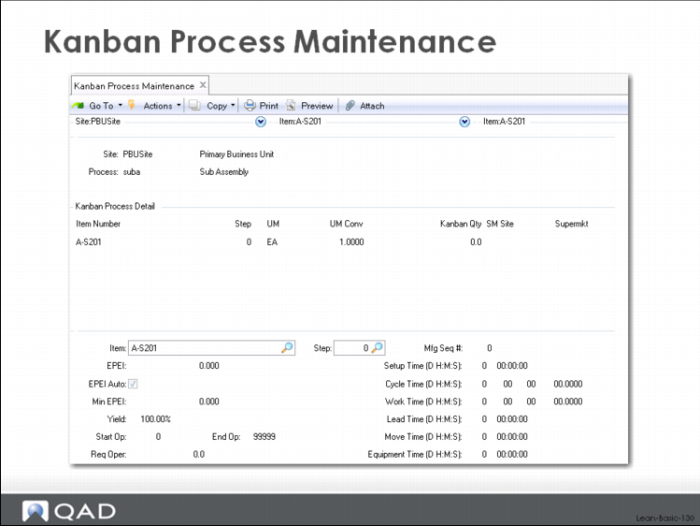
This maintenance screen allows you to maintain the individual items produced in the process along with key manufacturing data for each of them. You are not required to create and maintain this data since it will be done automatically for you when you create kanban loops. However, there are several good reasons for using this function:
1 Identifying the items produced in an area is the responsibility of one person while loop maintenance and kanban planning is someone else’s. In this case, the manufacturing or industrial engineer responsible for the process data would maintain the data in this screen and a kanban planner would maintain basic loop data.
2 You will be bringing data from the routing into the lean system to load or update the cycle time, work content and/or setup time data, and the process does not cover all the operations in the routing. In order to bring routing data across, you must tell the system the correct starting and ending operations (Start Op, End Op) so that it picks up those and only that range of operations. The routing data will be transferred to the cycle time, work content and setup time fields stored here.
3 You don’t want to use routing data and want to maintain cycle time, work content and setup time directly. There are functions for a kind of simplified maintenance to update these fields, but it is as easy to maintain the data using this screen.
In the middle frame of the screen shown above you can see a list of items already associated with the process. You can scroll up and down through this list to select an item to maintain.
After moving to a specific item and step and hitting the forward arrow, the system will open the lower frame and load the item number and step you selected. If you hit the forward arrow again the system will give you access to the detailed data in the rest of the frame. If you clear the item number or step and specify a new one, the system will add a new record and give you access to the detailed data. In each case the detail data includes (reading down the columns):
EPEI
The EPE I being used for this item and step. If the EPE I Auto box (below) is checked, this EPEI will be the calculated EPE I for the process. If the box is unchecked then you can override the value here and it will be used as the interval for the item.
EPEI Auto
Indicates whether you want the EPE Interval for this item to be based on the normal calculated production interval for the process, or whether you want to override the calculated interval.
Yield%
Yield from this and all subsequent processes in the loop for this item and step.
Start Op
Manufacturing steps for this item and step correspond to those in the routing starting at this operation. This field indicates which operations to consider when retrieving standards data (standard run time and standard setup time) for this item and step.
End Op
Manufacturing steps for this item and step correspond to those in the routing ending with this operation.This field indicates which operations to consider when retrieving standards data (standard run time and standard setup time) for this item and step.
Req Oper
Number of operators required to meet takt time (Work Content divided by Takt Time)
Mfg_Seq
– product wheel sequence for this part (if needed), this field is used in the sequencing of items from the leveling process in the system, and is also shown on the dispatch list to provide a visual indicator of sequencing considerations.
Setup Time
Setup time for the item.
Cycle Time
Engineered cycle time for the item and operations specified above.
Work Time
Total work content for the item across all the operations specified above.
Lead Time
Not used.
Move Time
Not used.
Equip Time
Not used.
The time and yield data can be populated from the detailed routing using the Process Item Operation Rollup program of the system.
Supplier Replenishment Sources: Supplier Maintenance
Of course, not all your inventory will come from internal processes. Raw material and purchased parts will come from outside suppliers, and these too must be modeled in the system. In addition, before you can actually receive purchased parts and raw material through the kanban system, you will need to create a purchase order, blanket order, or supplier schedule in the purchasing system.
Create suppliers in QAD Enterprise Applications using the maintenance functions there. If you can set up the purchase order, blanket order or supplier schedule before you actually create the loop in QAD Lean, then the loop record can reference that purchasing authorization so that your receiving people won’t have to specify the purchase order when any kanbans are subsequently filled.
Inventory Replenishment Sources: Supermarket Maintenance
As noted above, if you have supermarket to supermarket loops, you will need to create a supermarket record for the source. You’ve probably already done this since it’s likely that same supermarket is a destination for some other loops. Use the supermarket maintenance function described above if you need to add or change supermarket data.
Kanban Loops: Kanban Master Maintenance and Kanban Master Copy
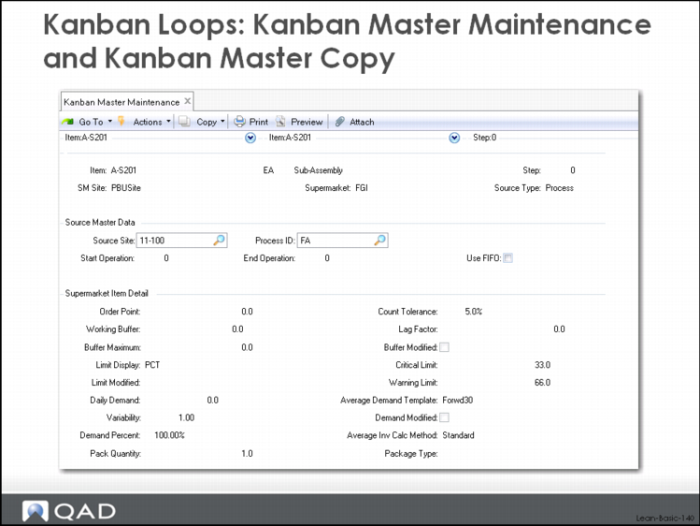
After identifying items that will be kanban controlled, the supermarkets that items can be stored in, and the sources for replenishment, it’s time to create the kanban loops themselves. This is done using either the Kanban Master Maintenance or Kanban Master Copy function of the system. The initial screen for Kanban Master Maintenance is shown above:
Most of the data that is required for a kanban loop (often called the plan for every part) can be loaded from workbenches or using simplified maintenance driven by browse functionality. You could go through and create or maintain that data using this transaction, but there are nine individual screens to go through. So we’ll look at a way to load a minimal amount of loop data for a representative item, copy that to other similar items, and then use the workbench/simplified maintenance screens to add or adjust data as needed.
Here is the data that you should be prepared to enter in the initial load of kanban loops:
1 To uniquely define the kanban loop
a Item and step
b Supermarket site and supermarket
2 Source data
a Source site and process, starting and ending operations, FIFO lane identifier, or
b Supplier ID, purchase order and line item (actually the purchase order and line item are optional, but it is good practice to enter them in loop maintenance rather than waiting for the receipt of the product and entering the data as part of the kanban fill), or
c Supermarket site and source supermarket.
3 FIFO data
4 Basic kanban data
a One or two card kanban loop.
b Number of kanban cards (if you want to operate the kanban system without kanban sizing functionality).
c Quantity in a kanban.
d Accumulator type (default is quantity, if you have loops that will operate to a fixed time interval or fixed schedule rather than to a fixed quantity.
e Time accumulator data (next date and time, hours per interval, fixed schedule)
f Transaction control parameters – behavior of kanban transactions. Most default from the control record but several must be specified here.
Kanban Master Maintenance, FIFO Lane Data
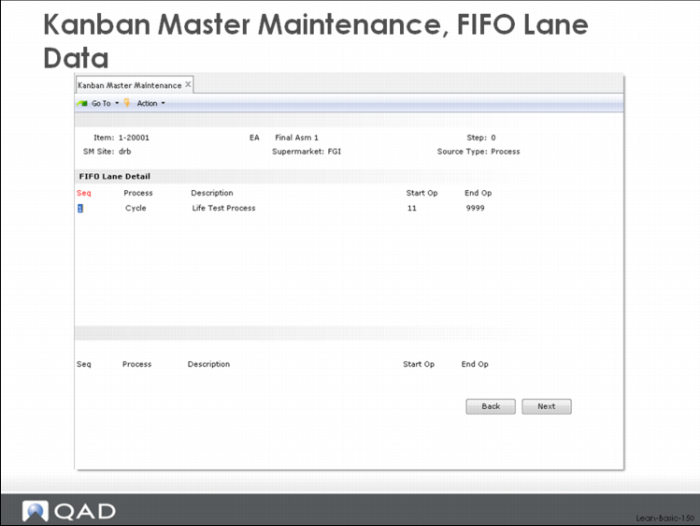
The FIFO lane data for a kanban loop that includes one or more FIFO processes is typically defined here by checking the Use FIFO box. The system will return the following maintenance frames:
This screen shows the FIFO information associated with the current loop, a single FIFO process Life Test Process, that corresponds to operations 11 through 9999 of the routing. The routing data normally is loaded as start op = 0 and end op = 9999 and you must change them in the Process Maintenance: Process Item Detail Maintenance function of the system. To add a process to the FIFO lane, selecting an existing process and click Next. Clear the Seq field, or specify a new sequence number yourself and the system will add a process to the FIFO lane.
FIFO Lane
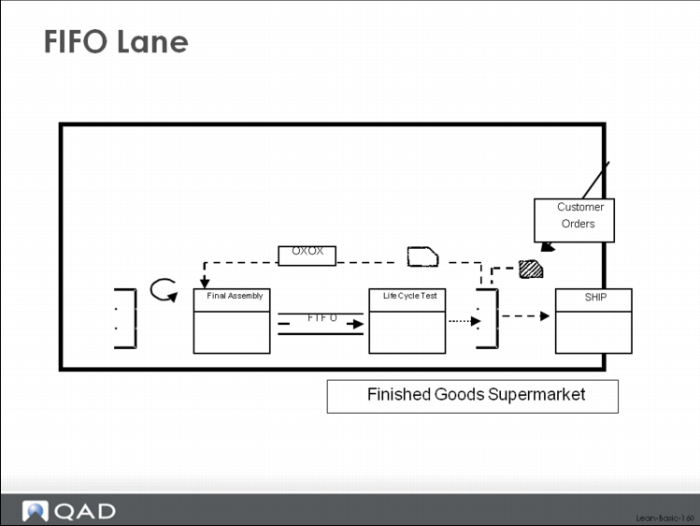
The previous data models the following loop above.
Another thing that should specify for each of your replenishment loops is whether they operate as a one card loop (a single set of cards handles movement in and movement out of the supermarket) or a two card loop (replenishment cards move material into the supermarket, withdrawal cards move material out of the supermarket). The diagram of the loop above is a two-card loop and to model this in QAD Lean you would use the following control.
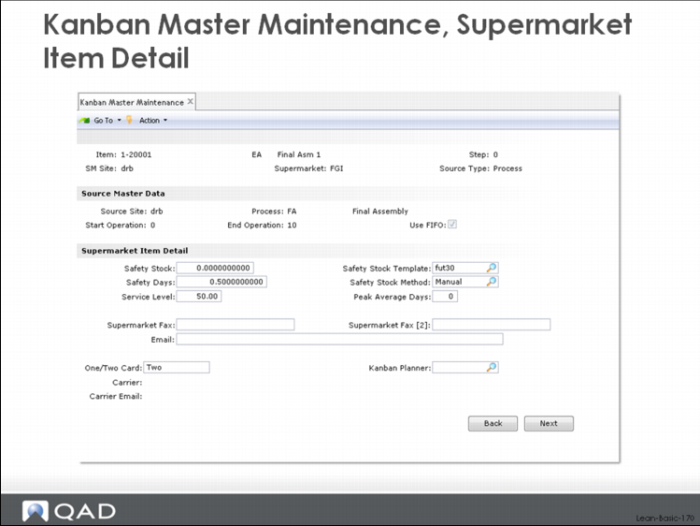
Kanban Master Maintenance, Supermarket Item Detail
The basic kanban loop data that you should set up is shown in the following screens.