Kanban Management and Tracking
Functions for Creating, Printing, Updating...
So far we’ve looked at some of the basics of setting up the pull system in QAD Lean, including the basic control settings, how to authorize items for kanban control, functions for establishing supermarkets and specifying replenishment sources (processes, suppliers, supermarkets), and how to set up kanban loops. There are some additional important setup steps that we are going to skip for now and will return to in a later section of this course. These additional steps include rolling over cycle and setup times from your routing, calculating average daily demand, calculating safety stock, computing precise values for daily working time, takt time, pitch, EPE Interval, etc. A lot of this work is related to sizing kanban loops so that you are holding the proper amount of inventory and producing sensible lots sizes based on your manufacturing environment—critical if you really want to make pull systems work.
However, in the earlier section we set up some of the most basic kanban system, including the number of cards for each kanban loop. What we’ll discuss now are the functions in the system for actually creating the cards, printing them, distributing them (attaching them to material in the shop or placing them on kanban boards), and managing them. Then, in the next section, we’ll look at the basic kanban transactions available in the system.
These are the functions covered in this section of the class:
• Create, print, re-print cards
• Activate, deactivate, close cards
• Delete cards from the system
• Manage limited use cards (Saturday Set, Joker Cards, and so on)
• Modify authorized date/time for dispatching
• Modify other card data
Remember that the job is not over when you create or remove cards from kanban loops in QAD Lean. Kanban cards are equivalent to inventory—either inventory that exists in a supermarket, in process going through a kanban loop, or inventory that needs to be produced to keep the loop running. If you create new cards for a loop, you need to do one of two things: find existing inventory and put the card with it or put the card on a kanban board (typically a load assembly board) or post so that when you do produce the item you can attach the card to the inventory.
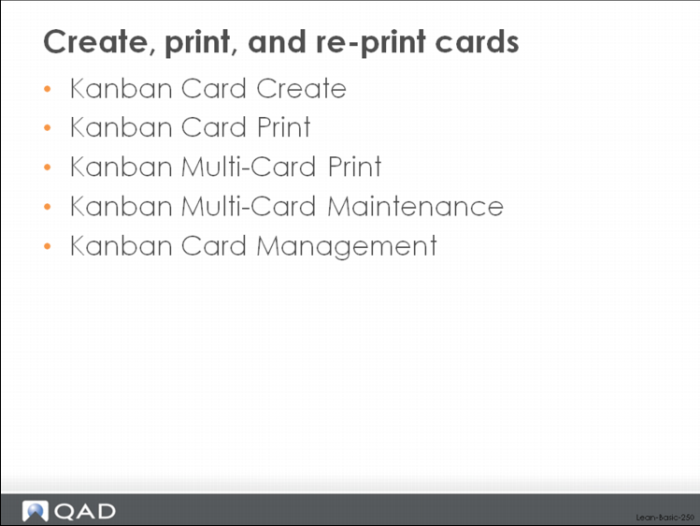
Create, print, and re-print cards
There are multiple functions in the system for creating and printing kanban cards. These functions can be found in the Card Management menu of the system.
Kanban Card Create
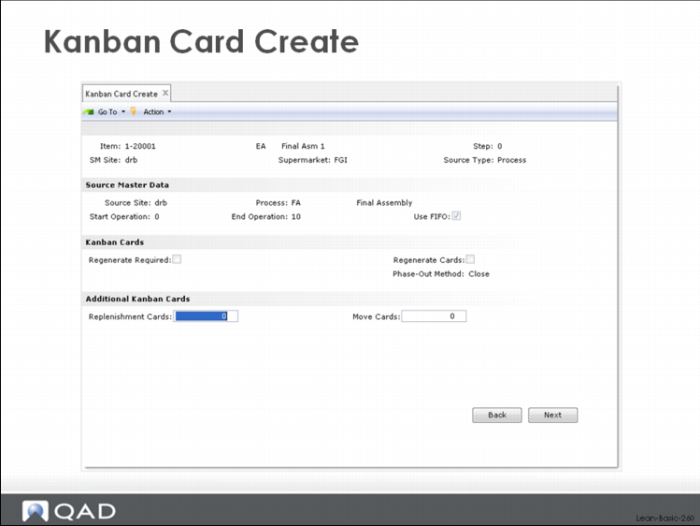
The most basic card creation function is Kanban Card Create shown above.
Use this function to create one or more kanban cards for a loop. You’ll be asked for the loop identification (item, step, supermarket site and supermarket) and, after the system retrieves the source data, the number of kanban cards you’d like to create. You can create replenishment cards and, if the loop is a two card loop, move cards. If you’ve authorized cards for the loop (perhaps manually through maintenance or through the kanban workbench of the system), but have not yet created them, the system will preload the number of cards to be added in the Replenishment Cards or Move Cards fields in the transaction.
Once the cards have been created, the transaction continues with an additional prompt (checkbox) that will allow you to print the kanban cards it has created.
Kanban Card Print
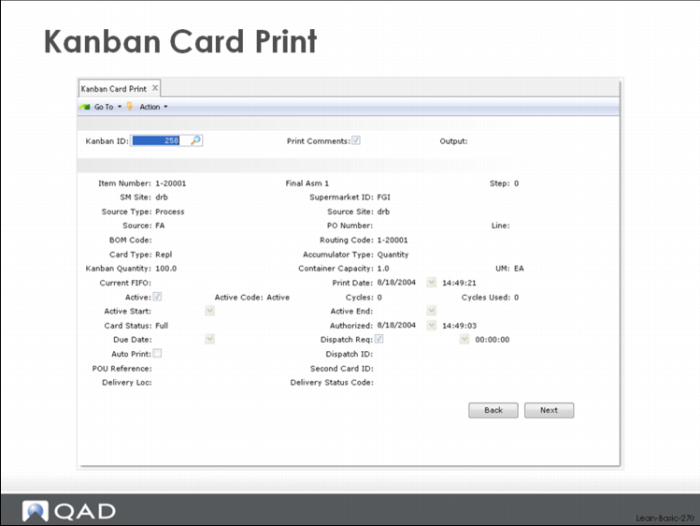
If you choose not to print kanban cards as part of the Kanban Card Create function, or you need to reprint a card sometime later, you can use either the Kanban Card Print function or the Kanban Multi-Card Print functions of the system. The Kanban Card Print function, shown immediately below, allows you to print an individual card by specifying the card number.
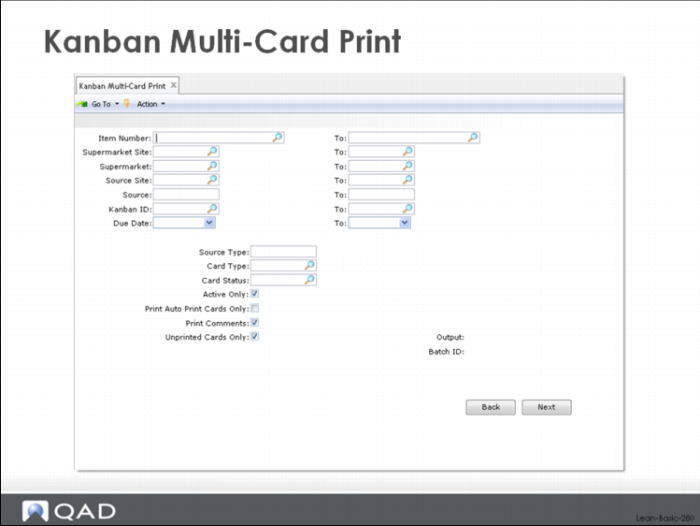
If you need to print several cards for an item, or cards for a range of item numbers, use the Kanban Multi-Card Print below. Here you can enter a specific range of item numbers, sites, supermarkets, sources, card numbers or due dates to select the specific cards you want to print. The selection criteria for this transaction work in the normal way for QAD EA transactions, where the second and subsequent criteria act as a qualifier to the prior criteria. Notice that you can also specify whether you want all cards selected to be printed, or only the unprinted cards.
Kanban Multi-Card Print
Kanban Multi-Card Maintenance
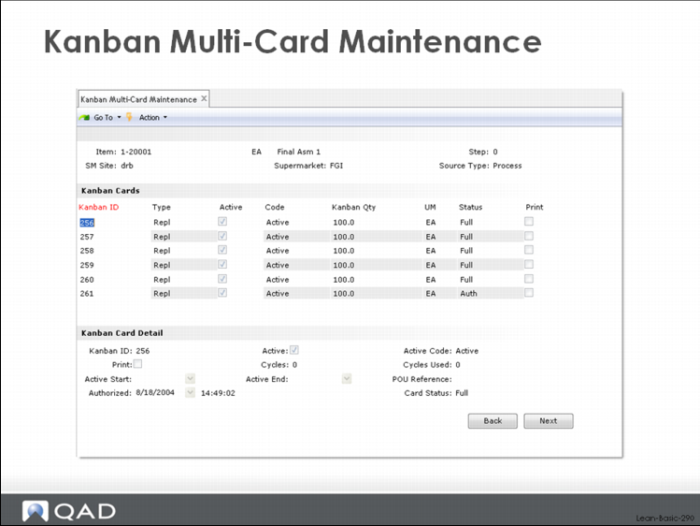
You can also create and print kanban cards using the Kanban Multi-Card Maintenance function of the system shown above.
Make your selection by specifying the loop identification (item, step, site, supermarket). The system will return all existing kanban cards for the specified loop. If you want to print an existing card, simply select it and check the Print control. If you want to add a new card for the loop, select an existing card and hit enter. Then clear the Kanban ID field in Kanban Card Detail and hit enter again. This will select the next available card number and create a new card. Again, if you want to print it, simply check the Print control.