Kanban Card Management
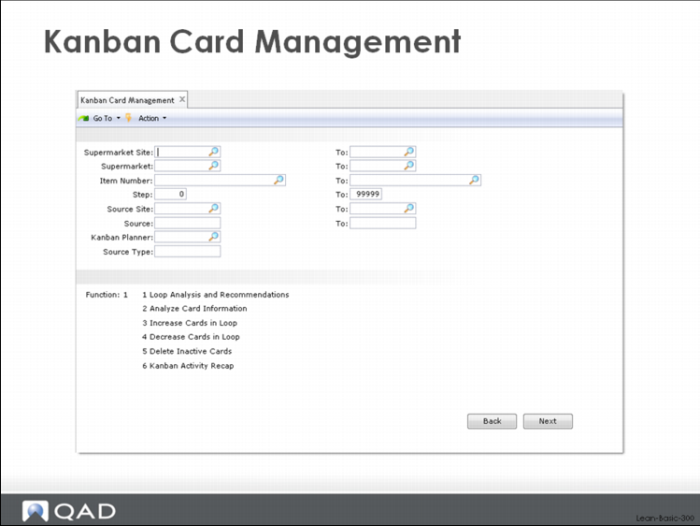
The most comprehensive card creation and printing function is Kanban Card Management shown above.
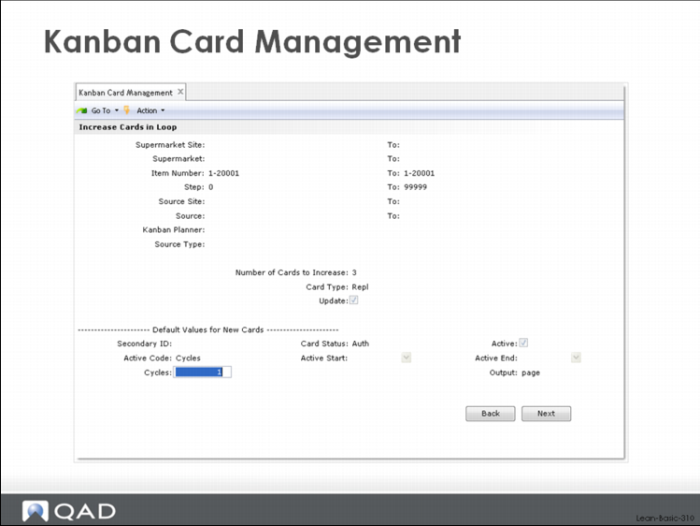
You can use options 1 – 3 for creating additional cards in the loops selected. Options 1 and 2 present an analysis of the selected loops and indicate which loops need additional cards, and in cases where you specify updating, will create the correct number of additional cards. For option 3, you specify the number of cards that should be added to each of the selected loops and the system will add that specific number of cards to each loop. Each option allows you to create and print cards.
These options can also be run in simulation mode where you can review the loops that will be changed if you actually run the function with update specified.
Activate, deactivate, and close cards
There are times when you need cards for an item and inactive cards already exist in the system. Similarly you might have downsized a loop and need to eliminate one or more existing cards. QAD Lean provides functions to accomplish both of these.
Kanban cards, and the associated card numbers, may have been retired in the system without being physically deleted from it. To activate an existing card, use one of the following functions:
• Kanban Card Maintenance
• Kanban Multi-Card Maintenance
• Kanban Card Activate
• Kanban Card Management
Both the Kanban Card Maintenance and Kanban Multi-Card Maintenance functions allow you to reactivate a card by changing one or more of its status fields. Specifically, you can check the active checkbox to activate the card, and then you can change the active code to one of the valid statuses (active, period, cycle). However, the system will not allow you to reactivate an existing card if it has invalid data. For example, you cannot reactivate a card whose routing code is not consistent with the routing code currently associated with the loop. It is possible for you to correct the invalid or inconsistent data, in which case the system will allow you to reactivate the card.
Kanban Card Activate allows you to activate a specific card without changing any other data in the card. As above, the system will not allow you to reactivate an existing card if it has invalid data.
Kanban Card Management will automatically activate cards for loops that need to be increased in size, as long as the control parameters are set properly, and cards already exist that can be activated. The control setting for Phase-In Method must be set to Activate. In cases where there are existing cards, but some of the card data is inconsistent or invalid, the system will create new cards rather than reactivating ones needing correction.
Kanban cards can be closed, deactivated or in some cases, deleted from the system using the following transactions:
• Kanban Card Maintenance
• Kanban Multi-Card Maintenance
• Kanban Card Close
• Kanban Card Deactivate
• Kanban Card Management
Both the Kanban Card Maintenance and Kanban Multi-Card Maintenance functions allow you to deactivate a card by changing a single field. Specifically, you can uncheck the active checkbox to deactivate the card. Deactivated cards cannot be transacted against.
These transactions also provide you with a way to close a kanban card, which essentially moves the card to a status midway between active and deactivated. A kanban card that has status = close can be transacted against, up to the point where the card has been emptied. When a closed kanban card is emptied, the system will automatically deactivate the card.
The way you close a kanban card in either of these transactions is to change the card’s active code to close.
You can delete a kanban card completely from the system by hitting the delete button in Kanban Card Maintenance, or in Kanban Multi-Card Maintenance.
Kanban Card Management will automatically close or deactivate cards for loops that need to be decreased in size, as long as the control parameters are set properly. The control setting for Phase-Out Method must be set to either Inactive or Close. The Inactive setting will cause the system to immediately retire cards when the loop needs to the downsized. In the case of the Close setting, the system will move one or more cards to the Close status, and then when the card has been emptied, update the status to deactivate the card.
Delete cards from the system
You can delete a kanban card completely from the system by hitting the delete button in Kanban Card Maintenance, or in Kanban Multi-Card Maintenance.
You can also delete a range of inactive cards from the system, using the Kanban Card Management function and option 5 (Delete inactive cards).
Manage limited use cards (Saturday set, joker cards, system fill cards, and so on)
Kanban systems operate on a consumption-based replenishment model that assumes inventory exists in advance of demand. However, it is possible to operate kanban for make to order products and make to order components. Joker (or temporary) kanbans can be used to handle these kinds of items.
In their simplest form, joker kanbans are one-time authorizations. They authorizes the supply source to produce (or deliver in the case of a purchased part) an item. When the part is received, the card will be attached to the container and the inventory placed in the supermarket. However, when the inventory is consumed, the card is detached and destroyed. It cannot be filled again—hence. its designation as one-time. However, the system actually supports more complicated joker card situations: you can designate that a card will circulate for more than a single cycle, or you can indicate that it should continue to circulate as long as the date is between some start date and some specified end date. If the card has circulated the specified number of times, or the end date has been reached, the card will be retired automatically when it is emptied.
Joker kanbans can actually be used in a variety of situations: to handle MTO products and spare parts, to anticipate a temporary spike in demand and produce inventory in anticipation of it (so-called system fill kanbans), to temporarily increase the level of inventory in the supermarket for a defined period of time, to authorize specific items to be produced on an overtime day (a Saturday set), etc. The joker card is one method for handling a temporary increase in demand because of seasonality (from one date to another date). In QAD Lean, joker kanbans cancan exist for a specified number of cycles (n consume/fill cycles) or for a specified period of time (from date x to date y).
Joker cards can be most easily created using any of the following functions:
• Kanban Multi-Card Maintenance
• Kanban Card Management
In Kanban Multi-Card Maintenance, use the same method for creating a new card as explained above, with Active = yes (checked), Active Code = cycles (for a joker usable for n cycles) or period (for a joker usable between date x and date y). For a cycles card, specify the number of cycles which in most cases will be 1. For a period card, specify the starting and ending dates.
In Kanban Card Management, specify the loop or loops to which you want to add joker cards and then use option 3 to add the correct number of joker cards to the loops. Change the default values for the cards to indicate the kind of joker cards you want to create.
Modify authorized date and time data for dispatching
One maintenance capability that you should be aware of has to do with changing the authorized date and time on kanban cards that have been authorized in the system.
The system produces a dispatch list, a kind of electronic control board, showing the items that are authorized for replenishment, and this list is typically prioritized according to the date and time the card was authorized. Kanbans that were authorized first will appear first on the dispatch list. Kanbans authorized later will appear later. The basic assumption in the system is that if work is being pulled at a leveled rate, then an item triggered first will be needed first. The system has no other mechanism to prioritize work, although it can show the mfg_seq, a kind of product wheel based sequence indicator, on the dispatch list along with other part information. However, the mfg-seq indicator is shown for reference only and has no effect on the order of work shown in the dispatch list.
If you have situations where you need to override the normal dispatch list sequence, and want to indicate that on the dispatch list, use the Kanban Card Maintenance and Kanban Multi-Card Maintenance functions of the system. Using either of these transactions, simply find the card or cards that are in question and specify a new authorized date and/or time.
Modify other card data
The Kanban Card Maintenance and Kanban Multi-Card Maintenance functions also allow you to change other data associated with the Kanban Card. For example, you can change the due date, the print code, secondary card references, point of use reference, delivery location, and dispatching data.