Kanban Consume / Post Transaction
\
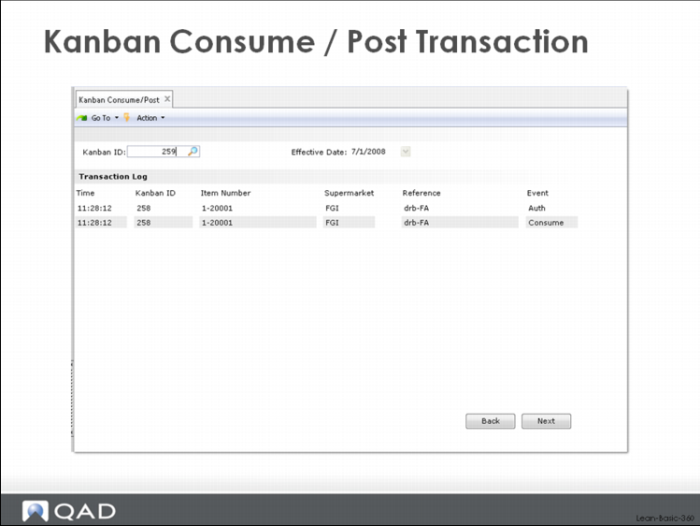
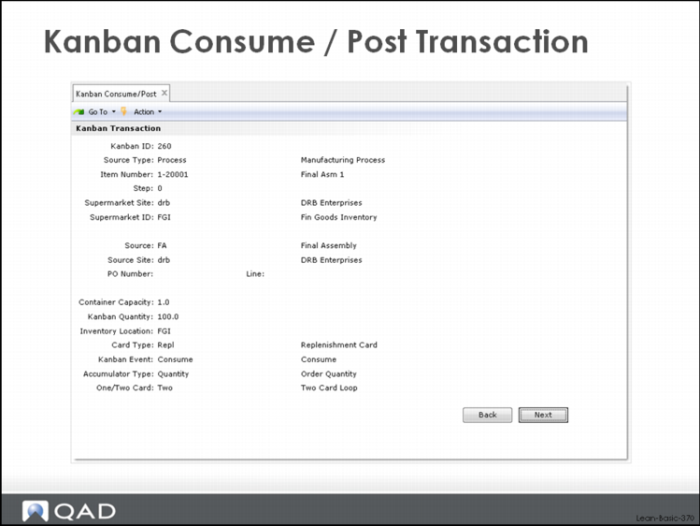
The Consume/Post Kanban transaction is shown in the displays above. As with all the kanban transactions in the system, you need only to enter the kanban card ID, a unique identifier for the card, and hit enter. No additional data would be required to process the kanban card, and in this case, record the kanban card as empty, if the control parameter Controlled kanban entry is set to None, and the parameter Effective date entry is unchecked. The system does present an initial screen prompting for a POU reference (the point of use for the material being consumed) but this can be left blank; just hit enter to continue to the screen shown below. If you enter a point of use reference when you launch the transaction, then the same POU will apply to all transactions processed in the session.
In the transaction display, you are being prompted for the Kanban ID, which is the unique card number that you want to process. Either type the card number into the Kanban ID field, or use a wedge, light pen or some other kind of bar code scanning device to enter the proper ID. The Transaction Log data in the lower frame of the screen shows recently processed kanban transactions.
Depending on how the control and loop values are set, the system can prompt for additional data, or display status data on the effect of the transaction. For example, if the controlled kanban entry parameter is set to either Warning or Error, then you will be prompted for additional card identification fields including the item number, source, destination supermarket, etc. If the parameter Effective date entry is set, then you must enter the actual date of the transaction. This would typically be used only when the system has been down for some time and getting the transactions into history with the correct transaction date is important.
In this situation you might toggle the Effective data entry setting back and forth to first enter the transactions that were unprocessed from when the system was down, and then reset the system back to normal processing using the automatically assigned system date.
An audit or status display is shown when the control setting for Trans delay in seconds is greater than zero. You should be aware that when the status screen is presented, it will remain on display for only the specified time if the display is a bar code display or uses the older character user interface.If you are using the .NetUI, then you must clear the screen by clicking Next. Here is an example of the status display.
The rest of the kanban transactions (Kanban Authorize, Kanban Acknowledge, Kanban Ship, Kanban Fill) look similar to the consume/post transaction, with a single prompt for the Kanban ID and the log of transactions processed recently. Additional related displays are controlled by the user’s control and loop settings.
Kanban History and Inventory History
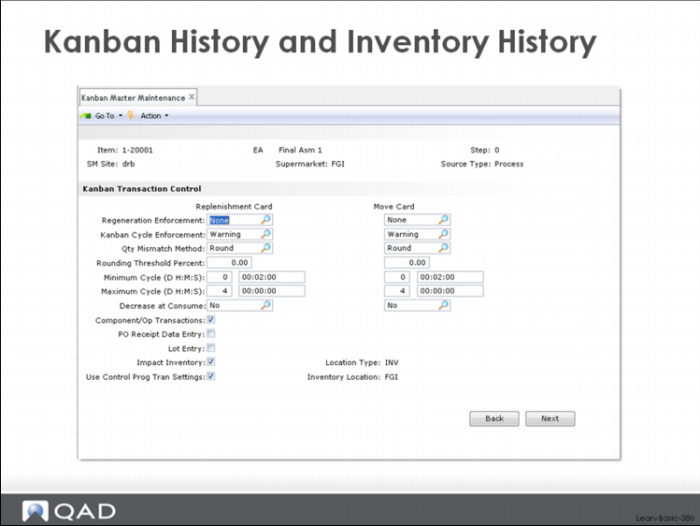
All kanban transactions are stored in a special kanban history table, kb_hist, in the system. Any inventory transactions that were generated from kanban activity will be stored in the normal system tr_hist table. Inventory transaction generation is controlled by the control and loop settings in the system, Component/Op Transactions and Impact Inventory. These controls are located in the Kanban Transaction Control frame of the Kanban Master Maintenance transaction (above).
The Component/Op Transactions setting determines whether the system should backflush material and labor when the kanban fill transaction is reported against a replenishment loop. The Impact Inventory setting determines whether a receipt transaction for the item sourced in a replenishment loop should be generated.
Normally the inventory transactions that will be generated by the system will be among the following:
P O Receipt
This is the inventory transaction generated by a kanban fill against a supplier loop, if Impact Inventory = yes (checked).
W O Receipt (Unplanned)
This is the inventory transaction generated by a kanban fill against a manufacturing loop, if the loop covers the final operation or operations of the item’s routing and if Impact Inventory = yes (checked).
Transfer Receipt
This is the inventory transaction generated by a kanban fill against an inventory loop, if Impact Inventory = yes (checked).
Unplanned Issue
This transaction will be generated against the item in a loop if the destination supermarket is a WIP supermarket, if Impact Inventory = yes (checked). (For example, if the fill transaction for a supplier loop is to a WIP supermarket, the system will generate the P O Receipt above to receive the part into stock and immediately generate an Unplanned Issue to move the part out of stock and into WIP.)
Backflush Issue
A backflush issue transaction will be generated for each of the component items associated with the loop, backflushed on the kanban fill transaction, if Component/Op Transactions = yes (checked).
Transfer Issue
This is the inventory transaction generated against the item in the source supermarket in an inventory loop. It is the equivalent of the backflush of component items in the bill of material, if Component/Op Transactions = yes (checked).