Dispatching Functions in QAD Lean
Dispatching and Visualization Functions in QAD Lean
The essence of kanban systems is visual control. Assuming that the visualizations will be done electronically and not via a traditional visual control board, the mechanisms for doing this in QAD Lean are:
• Kanban Dispatch List
• Kanban Visualization (part of Supply Visualization)
These electronic versions of the traditional mechanisms can be especially helpful when there isn’t a close proximity between the person who needs the information and the source of the information. For example, a supplier in a distant city may need to see kanban authorizations and the status of the kanban loop and yet he is a thousand miles away. Or the vice president in charge of manufacturing might be interested in the status and performance of a particular machining center but isn’t in the shop at the time. Or someone in customer service may need to know when a particular job is scheduled in the assembly cell in order to provide feedback to the customer. Information about each of these situations is provided by the visualizations in QAD EA.
Kanban Dispatch List
The Kanban Dispatch List shows all the work authorized in the pull system. It provides the same function as a visual kanban control board.
This capability in the system provides a way to signal suppliers when new kanbans have been authorized, as well as to show them all the outstanding replenishment signals. In an internal production process, it shows the work that needs to be done, in the order in which it was authorized (or in some other specified sequence), for the authorized lot sizes.
Kanban Dispatch List Processing
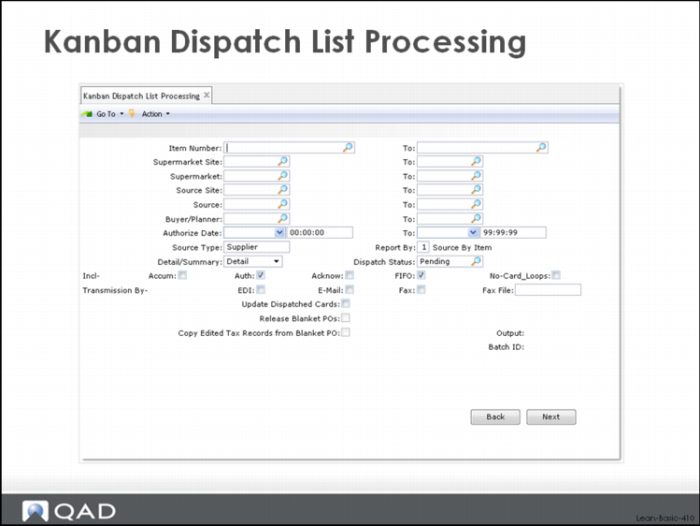
The Kanban Dispatch List is initiated by selecting Kanban Dispatch List Processing in the Kanban Dispatch Menu. The user will be presented with the following selection screen above.
Selection Criteria and Restrictions
These selection criteria work in the normal way and along the lines of other selection screens in QAD Enterprise Applications. The user can specify a range of items, supermarket sites and supermarkets, source sites and sources (process, supermarket, supplier), a range of kanban planners, as well as a range of dates. The user can restrict the selection to a specific type of source (supplier, internal process, supermarket) and specify the sort sequence (Report By), indicate whether the dispatch report should show each individual kanban card (Detail/Summary = Detail) or a single summary line for all authorized cards at the same time for a part (Detail/Summary = Summary), as well as whether kanban cards that have already been communicated via the dispatch list should be displayed again (Dispatch Status = Pending means show only newly authorized cards, = Dispatch means show only the cards that have already been communicated, = All means all cards).
For a dispatch list being produced for an internal manufacturing process, the normal report by sort sequence option is 3: sort by date and time of authorization.
Types of Kanban Cards Displayed
Normally the dispatch list would show the authorized kanban cards for the specified source or sources. However, the user can specify that the report should show cards that have other statuses as well. Simply check the appropriate status box or boxes (Accum, Auth, Acknow, FIFO) to specify which type or types of kanban cards will be displayed.
Checking the Auth and FIFO boxes produces a dispatch list of all authorized work for the source.
The Accum box causes the system to show cards that are currently empty and accumulating to the lot size or the fixed ordering interval. If you were to select only cards in this status you would generate the equivalent of the visual load assembly board, which shows empty cards that have not yet been authorized.
Check the Acknow box to include cards that have already been communicated to the source and which the source has acknowledged will be filled. Sometimes, especially for internal process sources, companies using the software use the acknowledged status to indicate the cards that have been authorized and are now set up and/or running.
Communications Mechanism
Check boxes allow the user to specify how the dispatch data should be communicated to the source of supply:
• EDI
• Email
• Fax
These transmission methods are in addition to the printed report which could be mailed to the supplier. Notice that to use the options for EDI, email and fax, you will need additional setup in the system.
Processing and Updating Options
Several updating options are shown at the bottom of the display:
Update Dispatched Cards: By selecting this option, the system will mark each of the cards selected in this run of the dispatch list as dispatched. In subsequent runs of the dispatch list, with Dispatch Status = Pending, these cards will not be re-reported. This is the option of use if you only want to communicate newly authorized cards.
Release Blanket POs: This option causes the system to generate purchase order releases against blanket POs when cards in loops with blanket orders have been authorized.
Copy Edited Tax Records from Blanket PO: Refer to the system documentation for detail on this accounting related functionality.
Example
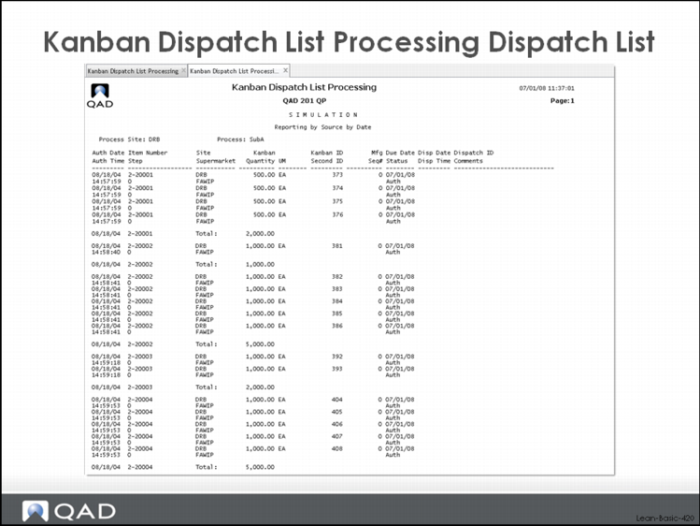
A typical dispatch list, run in detail mode, and sorted by authorized date/time within source is shown above.
In this display, you can see for each source:
• Authorized date and time for each card.
• Item number and step associated with each card.
• Destination site and supermarket.
• Kanban quantity and unit of measure.
• Kanban ID (unique card number) and Secondary ID (user field).
• Mfg Seq (fixed product wheel sequence).
• Due date and time.
• Dispatch date and time (when the card was communicated to the supplier).
• Dispatch ID (system identifier for each group of cards communicated to a supplier).
Normally, work would be done in a strict FIFO sequence. The jobs authorized first would be produced first. However, in situations where there is a fixed product sequence, or at least some sequencing consideration that affects the setup time between items, the Mfg_Seq information shows the relationship between different items. Where it is possible to run in the product wheel sequence and still meet the due dates, then a team leader in an area might choose to do the work in something other than the strict FIFO sequence.
Kanban Visualization
The module of QAD Enterprise Applications provides extensive functionality for communicating with suppliers and for managing customer/supplier relationships. An important part of Supply Visualization is the Kanban Visualization function that shows the status of kanban cards and kanban loops and provides a way to offer visual control boards over long distances. However, it is also possible to use the Kanban Visualization functions to support these visual control boards for internal manufacturing processes as well. The Kanban Visualization displays can be used as a graphical alternative to the Dispatch Report, or they can be used in conjunction with it.
The Kanban Visualization function provides:
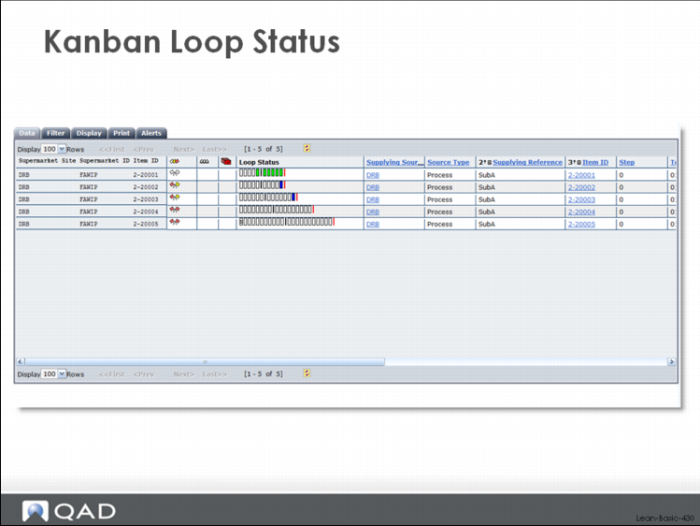
• Kanban loop status displays
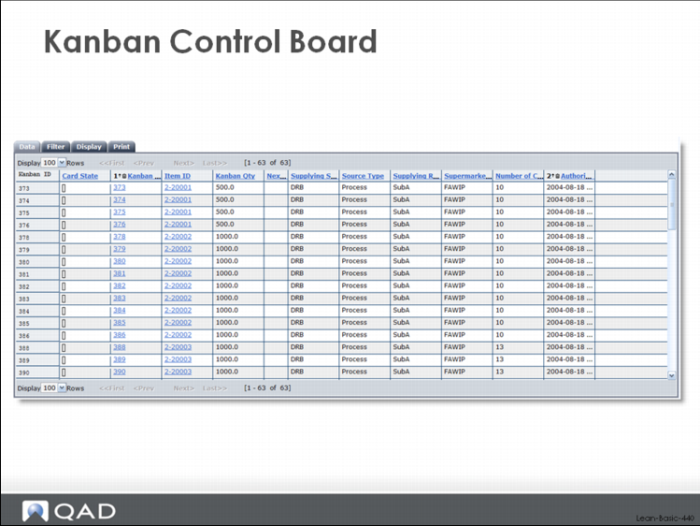
• Kanban control board (dispatching) displays
• Kanban transaction recording
Kanban Loop Status
Kanban Control Board