Value Stream Modeling in QAD Lean
Kanban Control
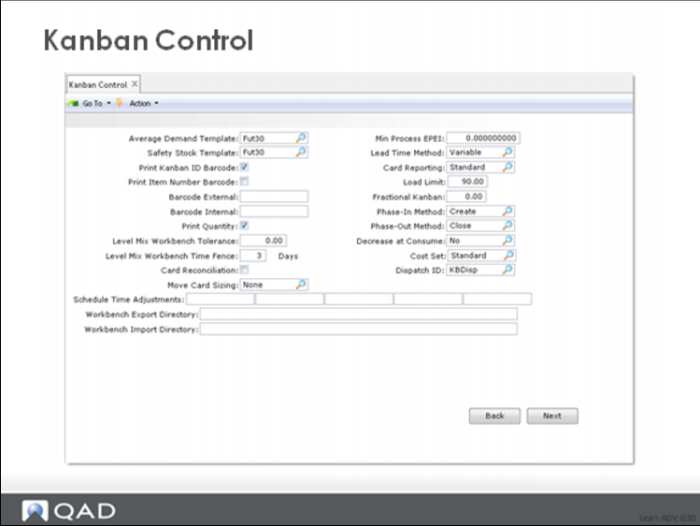
As we saw earlier, the Kanban Control function of the system establishes the basic default data and default behavior of the QAD Lean module. Three distinct frames of data cover basic kanban controls, transaction controls, and kanban event (status change) controls, as shown above.
The additional controls in the Kanban Control record (not covered earlier in this class) include:
• Print the item number, in the form of a barcode, on the kanban card (Print Item Number Barcode checkbox). Use this if you want to scan each card twice, once for the card number and the second time as a verification of the item number.
• Internal and external barcode format references (Barcode External, Barcode Internal). Use these to indicate which of the many barcode formats should be used.
• Move card sizing logic to be used (Move Card Sizing, none = no move card sizing, MaxBuff = adjust the number of cards to match the size of the new maximum inventory for the part after sizing, ReplCrd—adjust the number of move cards to equal the new number of replenishment cards for the same part).
• Calendar categories that normally will be the defaults for the Level Mix Workbench calendar adjustment categories (Schedule Time Adjustments). You must set up categories with these names in your calendar in advance of running the workbench, but then you can change the time by individual day for any of the five categories you’ve created.
• Input and output directories for the import and export files for workbenches. If you plan to use your own workbenches (Kanban Workbench, Level Mix Workbench, Supermarket Workbench) you will be creating import and export files so you can use data from the QAD Lean database, and then bring updated data back to it. The output directory indicates where you want the system to create the export file. The input directory indicates where the system should look for the import file.
Recall that in the earlier discussion of these control settings, we set the Phase In and Phase Out methods to create and close respectively. Here is some additional information you might want to consider when setting these two controls:
• Phase-in Method
• Phase in Method set to Create will create new cards for the loop for the required quantity. Even if there are existing cards that have been retired (deactivated), new cards will be created.
• Phase in Method set to Activate will find any cards that have been retired and try to reactivate them. Only cards that are an exact match—same part number and loop, same kanban quantity, same BOM and Routing Code, same source and destination, same purchase order number (if purchased part)—will be reactivated. If there aren’t enough cards to reactivate, the system will create new cards.
• Phase-out Method
• Phase-out Method = Close) will find cards that should be taken out of the loop. This is done as part of the reconciliation process in the system. In the case of cards that are empty and not authorized, it will immediately deactivate the card. It will look for additional cards in the following sequence: full cards, shipped cards, acknowledged cards, and finally empty-authorized, and change the active code to close. This allows these cards to continue to circulate until the point where they have been emptied. When a closed card has been emptied (processed by the Consume transaction, the system will change it to deactivated. Once the card has been deactivated, it cannot be transacted against using the normal Consume, Authorize, Acknowledge, Ship, and Fill transactions.
• Phase-out Method = Deactivate will find cards that should be taken out of the loop and change the card to deactive (inactive). This is done as part of the reconciliation process in the system. It will look for cards in the following sequence: empty cards, full cards, shipped cards, acknowledged cards, and finally empty-authorized. Notice that when this option is used, the system can deactivate cards that are in circulation in manufacturing or with the supplier. Once the card has been deactivated, it cannot be transacted against using the normal Consume, Authorize, Acknowledge, Ship, and Fill transactions, so you should use this alternative with care.
Here’s some additional information about the Decrease at Consume option. As you should remember, the basic logic of the system is to take cards out of a loop at the point that the card is emptied (transacted against with the Consume transaction). However, while this is the basic logic, there is one additional piece of information that you should know:
• The system will still try to find cards that can safely be retired without additional processing. These cards would be ones in empty status.
Depending on how much control you want over the process that retires cards, the best choices for automatic reconciliation are probably either Decrease at Consume = yes, or Decrease at Consume = no and Phase-out Method = Close.
Finally, you should note that nearly all the Control Settings default into the appropriate record when the record is created. In most cases, the appropriate record is the loop (Kanban Master) record although in some cases it is the Process Master.
If you change Control Settings, the new values will apply to records created after the change. If you want the new settings to apply to the older, existing Kanban Master or Process Master records then you must change the values in the records themselves.
Kanban Control - Transaction Control
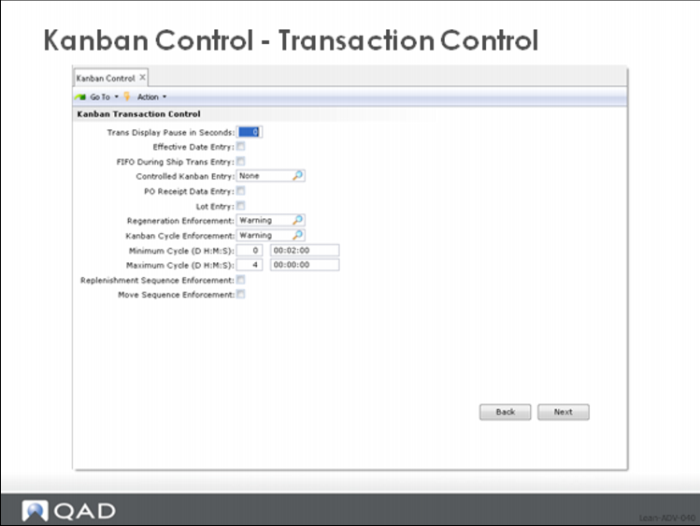
The additional controls in the second frame of the Kanban Control record (not covered earlier in this class) include:
Effective Date Entry
You might be familiar with a similar option in the core QAD EA functionality. When this option is set to no (unchecked), the system automatically assigns the transaction date based on the system date (today’s date). However, what this means is that if the computer has been down for an extended period of time—perhaps just a few hours at night but spanning two different days—the date of the transaction might be incorrect. Since kanban transactions can generate inventory receipts and issues generated by backflushing, this might mean that the financial postings are in the wrong fiscal period. To make sure that this doesn’t happen, you can toggle the Effective Data Entry value to yes after the computer system comes back on-line. As long as the value in this control remains set to yes, the system will require the transaction date to be input as part of the transaction itself.
Controlled Kanban Entry
This is a kind of belt and suspenders option in QAD Lean. Normally you would set this control to none in which case the system would require only the entry of the Kanban Card ID in the kanban transactions. The Kanban Card ID is after all a unique identifier so that the system can determine the item number, supermarket destination, etc. from the card itself.
PO Receipt Data Entry
Check this option if you want various purchase order receipt data (receiver slip id …) to be recorded as part of the kanban fill transaction for purchased parts.
Lot Entry
This option provides a kind of poor man’s lot control. Check it if you want lot information recorded as part of the kanban fill transaction. This lot information will be carried into the kanban history table with the other information for the transaction.
Maximum Cycle (D H:M:S)
The maximum cycle time defines the maximum frequency between transactions against a kanban card. For example, if you feel that each kanban card should be transacted against at least every four days, set the maximum cycle to 4 00:00:00. The maximum cycle for each kanban loop is used as part of the process for identifying potentially missing cards.
Move Sequence Enforcement
Check move sequence enforcement if you want the system to ensure that a move card is not processed out of sequence.
Kanban Transaction Event Control
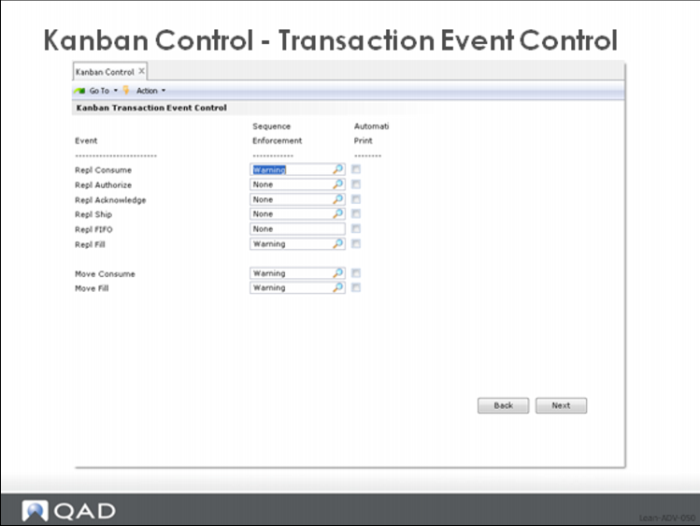
As we saw earlier, the settings in the Kanban Transaction Event Control Frame reflect decisions about which of the transactions (consume, authorize, acknowledge, ship/fill and fill) will enforced for replenishment loops. The same thing is true of kanban transactions associated with the move loops out of a supermarket and to a point of use. You have the choice of no enforcement (None), warn on error (Warning) or reject completely (Error) for both the consume (Move Consume) and fill (Move Fill) transactions.
In the display above, the move and fill transactions for each move loop using the control settings will be enforced with a warning.
As before, the auto print boxes allow the user to specify the point in the move loop where the cards are to be reprinted.
Please note that the Transaction Event Control Settings work somewhat differently than the other control settings. Other Control Settings related to kanban loops default into the loop record when it is created. In the case of the Transaction Event Control Settings though, each loop has a checkbox Use Control Prog Tran Settings, which when used, indicates that the control settings themselves should be used for validating the kanban transactions. If the check box is unchecked, then the user can set different enforcement values for the loop being maintained.