Additional Kanban Master Maintenance
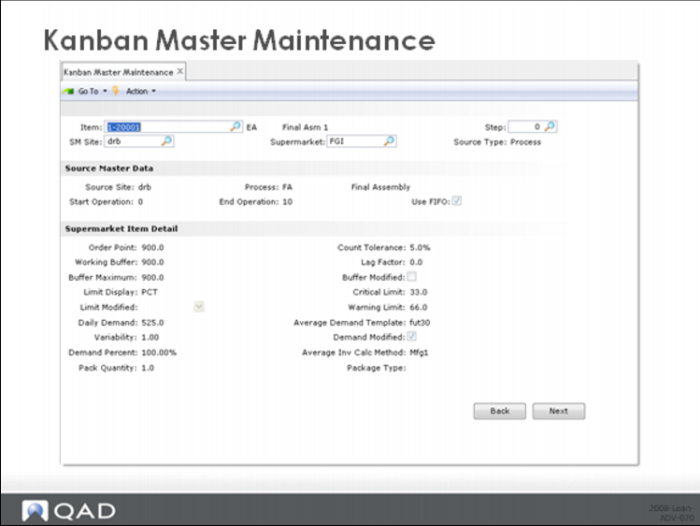
The Kanban Master Maintenance screens are shown on the next pages.
Kanban Master Maintenance
Here are the fields that you can maintain in the first Supermarket Item Detail frame of each kanban loop:
Order Point
Typically calculated and updated by the Kanban Workbench, the order point is the demand during the replenishment lead time plus safety stock, rounded to a multiple of the kanban quantity.
Working Buffer
The current amount of inventory in the kanban loop, based on the actual number of non-joker kanban cards and the kanban quantity. For example, a loop with 6 kanban cards and with a kanban quantity of 100, the working buffer is 600.
Buffer Maximum
Typically calculated and updated by the Kanban Workbench, the authorized maximum amount of inventory in the kanban loop: buffer maximum = order point plus order quantity.
Limit Display
This controls how the critical and warning limits used in the historical buffer evaluation are interpreted. PCT = percent. QTY = quantity.
Limit Modified
The system displays the last date when the value of Critical Limit or Warning Limit was modified. A blank indicates that the fields are still set to their initial values.
Daily Demand
Average daily demand, typically calculated and updated in the Average Demand Calculation. If you want to update this value, you can also do it using the Kanban Workbench.
Variability
A kind of management adjustment to the order point calculation in the system. The sum of the demand during the replenishment lead time and the total safety stock is multiplied by the variability factor to generate the preliminary order point. Variability = 1.00 means no variability. Variability = 1.05 inflates the order point by 5% (in effect +5% variability) while variability =.95 reduces the order point by 5%. If you want to update this value, you can also do it using the Kanban Workbench.
Demand Percent
Indicates what percentage of total demand for the part is satisfied by this loop. If you want to update this value, you can also do it using the Kanban Workbench.
Pack Quantity
Number of units in one standard packaging unit. Pack quantity x number of packs per kanban = kanban quantity. You can leave pack quantity equal to one, in which case number of packs per kanban is really the number of units per kanban.
Count Tolerance
Specify the allowable percentage of variation between the kanban inventory or WIP quantity (depending on the location type specified in Supermarket Maintenance), calculated as the number of full kanbans times the kanban quantity, and the QAD inventory balance, adjusted by the quantity represented by Lag Factor. The default is 5%.
Location Type
Supermarket location type (WIP, INV)
Inventory Location
Supermarket location number.
Buffer Modified
The system indicates whether the initial buffer size has been updated.
Critical Limit
Specify the percentage of the Buffer Maximum value or the quantity the system should use in determining whether the supermarket buffer size is too small. When you run Historical Buffer Evaluation or Supermarket Workbench, the system analyzes the actual performance of the buffer size as it relates to this value.Each time inventory drops below the critical limit the system records the stockout exposure. Stockout exposure is the difference between the critical limit and the actual inventory (based on full kanbans). The cumulative stockout exposure during the period being analyzed and can cause the system to recommend increasing the buffer maximum.
Warning Limit
Specify the percentage of the Buffer Maximum value or the quantity the system should use in determining whether the supermarket buffer size is too large. When you run Historical Buffer Evaluation or Supermarket Workbench, the system analyzes the actual performance of the buffer size as it relates to this value. If the actual inventory (based on full kanban cards) is never less than the warning limit, then you probably have too much inventory and would be justified in cutting it.
Average Demand Template
The template used to calculate average daily demand.
Demand Modified
Indicates whether the average daily demand has been changed manually.
Average Inventory Calculation Method
This control determines how the average loop inventory is calculated in the system. The standard calculation (Standard) models a typical saw tooth diagram like the one shown in the diagram earlier in the class. The alternative calculation (MFG1) is a more complicated calculation that attempts to model inventory behavior accounting for the fact that all the material is not received into the supermarket all at the same time. If you want to update this value, you can also do it using the Kanban Workbench.
Package Type
Specify the type of packaging that holds the quantity shown in Pack Quantity. For example, this could be box, pallet, or case.
Lag Factor
Specify the number of kanbans that are expected to be in process at any particular time where the component has not been backflushed. The default is 0 (zero). When you run Inventory Validation Report for this loop, the system accounts for the kanban quantity currently in process by multiplying the Lag Factor value by the kanban quantity, then subtracting the result from the QAD quantity on-hand. It then compares the result with the kanban inventory level and determines if the difference is out of tolerance based on the specified percentage. You can specify a lag factor when a kanban item is a component that is backflushed when the parent item is received sometime later than when the kanban is reported as consumed.
Kanban Master Maintenance FIFO Lane Detail
as
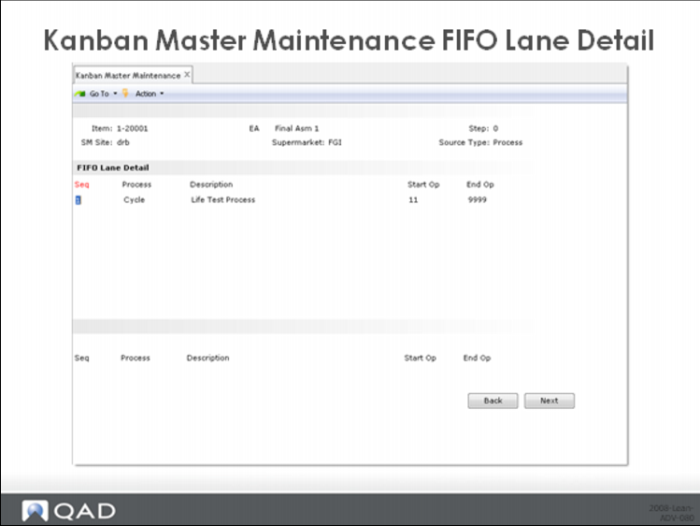
The FIFO Lane Detail maintenance frame was explained earlier in the class. However, it is worth noting the relationship between data here and the FIFO time (internal and external) defined in one of the subsequent frames. QAD Lean does not attempt to break down the FIFO lead time into the individual lead time elements associated with each FIFO process. Instead, you define the FIFO Lane (here) and then the total amount of time in the FIFO Lane for internal FIFO processes and the total amount of time in the FIFO lane for external processes.
It is even possible to define the FIFO Lane without FIFO time, or vice versa. Someone wanting to provide for the additional time required in a FIFO lane, but who didn’t want the burden of defining the lane and subsequently tracking work through it can ship this display and simply add internal or external FIFO time.
Kanban Master Maintenance Supermarket Item Detail
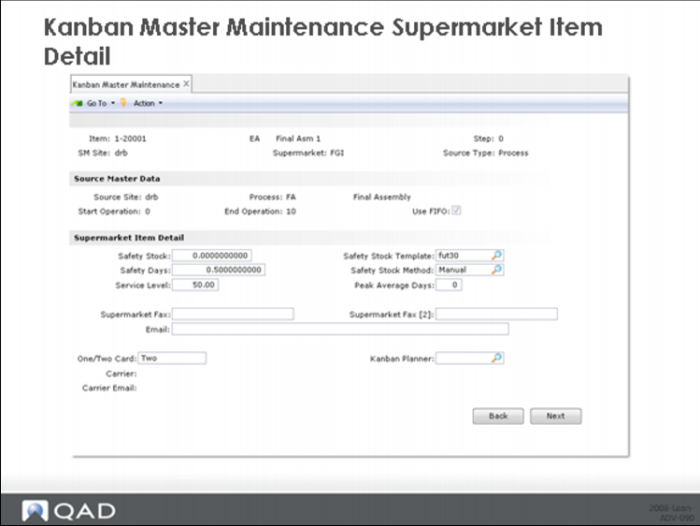
Here are the fields that you can maintain in the second Supermarket Item Detail frame for each kanban loop:
Safety Stock
Quantity to buffer demand or supply variability. If you want to update this value, you can also do it using the Kanban Workbench.
Safety Stock Template
Template used by the safety stock calculation program to specify which demands are used in the calculation.
Safety Days
Number of days of safety stock used to buffer demand variability. Safety days are converted to additional safety stock by multiplying by the average daily demand. If you want to update this value, you can also do it using the Kanban Workbench.
Safety Stock Method
Specifies how safety stock should be calculated.
• Manual = safety stock is specified manually.
• Simple = calculate safety stock based on demand variability and specified service level. Demand variability is computed as the standard deviation. The number of standard deviations of demand is determined by the service level. Safety stock = number of standard deviations based on service level x standard deviation quantity.
• Peak = calculate safety stock based on difference between average maximum demand and average daily demand. Average maximum demand is based on a moving average (peak average days).
Service Level
Service level for the Simple statistical safety stock calculation.
Peak Average Days
The number of days used in the moving average calculation of average maximum demand.
Supermarket Fax
Fax number for the destination supermarket.
Supermarket Fax [2]
Second fax number for the destination supermarket.
Email
E-mail address for the destination supermarket.
One/Two Card
One card or two card loop? One card loops are loops where a single set of cards handle both movement and replenishment. Two card loops are loops where two sets of cards—replenishment cards and move cards—are used. Move cards handle withdrawal from the supermarket and delivery to the point of use. Replenishment cards handle replenishment of the supermarket.
Kanban Planner
Person responsible for administration of the loop.
Carrier
Record the company handling transportation for the item.
Carrier Email
E-mail address for the carrier.
Kanban Master Maintenance Card Tracking Control
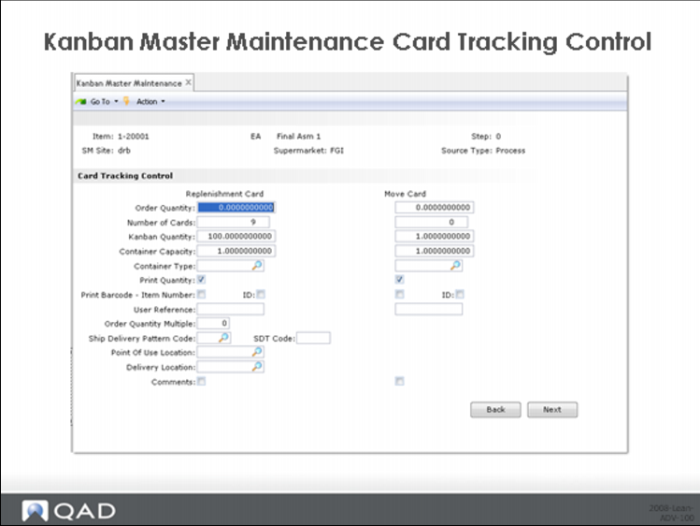
Use the two Card Tracking Control frames to specify detailed information about the cards used in a kanban loop.
The first frame lets you enter sizing and control information for the kanban cards. (When you use Kanban Workbench, you can have the system update much of this data based on kanban sizing calculations.)
If you do not choose to use Kanban Workbench to size cards, you can enter the size and number of cards in this frame. Depending on the data you enter, the system might display warning messages recommending changes to some values.
After you finish setting up and sizing the loop, you can create and print the cards using Kanban Card Create.
If you are setting up a two-card loop, two sets of fields display so you can enter different data for the replenishment card and the move card, as shown in Figure above.
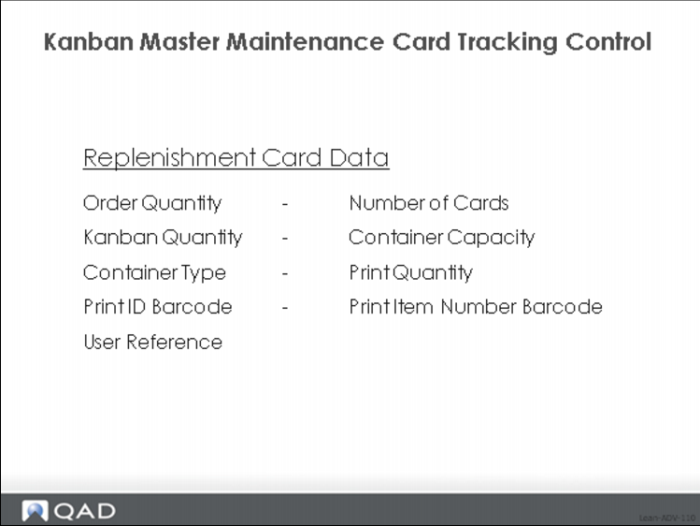
Replenishment Card Data
Order Quantity
Enter the number of units the supplying source will replenish when the inventory level at the supermarket reaches the order point. This can be represented by a single card or by an accumulated quantity from multiple cards. (The Kanban Workbench can determine whether multiple cards have to be accumulated or you can use the next frame to specify whether multiple cards are accumulated based only on the quantity or on a combination of the quantity and interval-based factors. This quantity should be a multiple of the value specified in Kanban Quantity.
Number of Cards
Enter the number of cards to be included in this kanban loop. The system can update this field when the supermarket maximum buffer size is modified in the Kanban Workbench.
Kanban Quantity
Enter the number of items per kanban. It should be a multiple of the value specified in Pack Quantity.
Container Capacity
This field identifies a physical constraint placed on the container or item, which could be any of the following:
• Maximum quantity held by a carton or container
• Standard supplier package size
• Production constraint such as size of an oven tray
• For unwieldy or heavy items, the maximum amount that can be handled
• The system displays a warning message if you set this field to 0 (zero).
Container Type
Enter the type of container for this kanban item. This field defaults from Kanban Item Master Maintenance. If you enter a value, it must be defined in Container Type Maintenance (17.22.5).
Print Quantity
Enter Yes to print the kanban quantity on each kanban card.This value defaults from Kanban Control.
Print ID Barcode
Enter Yes to print a kanban ID barcode on each kanban card. This value defaults from Kanban Control.
Print Item Number Barcode
Enter Yes to print an item barcode on each kanban card. This value defaults from Kanban Control.
User Reference
Optionally enter an alphanumeric reference (up to eight characters) to this kanban loop. This value displays on various reports and inquiries.