Move Card Data
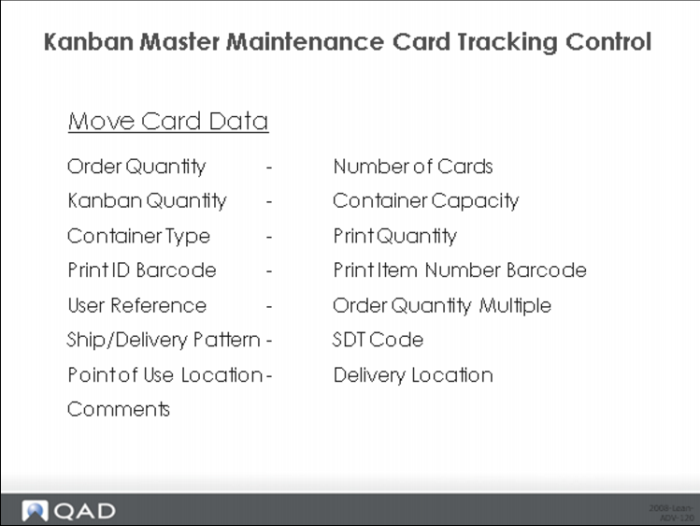
Order Quantity
Enter the number of units the supermarket will transfer to the point of use when the point of use needs additional inventory.
Number of Cards
Enter the number of cards to be included in this kanban loop.
Kanban Quantity
Enter the number of items per kanban. It should be a multiple of the value specified in Pack Quantity.
Container Capacity
This field identifies a physical constraint placed on the container or item, which could be any of the following:
• Maximum quantity held by a carton or container
• Standard supplier package size
• Production constraint such as size of an oven tray
• For unwieldy or heavy items, the maximum amount that can be handled
• The system displays a warning message if you set this field to 0 (zero).
• Container Type
• Enter the type of container for this kanban item.
Print Quantity
Enter Yes to print the kanban quantity on each kanban card. This value defaults from Kanban Control.
Print ID Barcode
Enter Yes to print a kanban ID barcode on each kanban card. This value defaults from Kanban Control.
Print Item Number Barcode
Enter Yes to print an item barcode on each kanban card. This value defaults from Kanban Control.
User Reference
Optionally enter an alphanumeric reference (up to eight characters) to this kanban loop. This value displays on various reports and inquiries.
Order Quantity Multiple
Enter the number of kanbans that serves as the lowest common denominator for system loop-sizing calculations. If you do not want to enforce an order quantity multiple, leave the field set to the default 0 (zero). If you enter a value here, Kanban Workbench increases the order quantity until it is a multiple of this value. For example, if you enter 3, the system cannot size the loop at 2 or 5 cards. Instead, it rounds up the order quantity to the next multiple of 3, resulting in a number of cards that is also a multiple of 3: a loop size of 2 would become 3, a loop size of 5 would become 6, and so on. The system applies fractional kanban and card reporting method logic before adjusting the order quantity to meet the order quantity multiple requirement.
Ship/Delivery Pattern
Enter the one or two-character code that specifies the ship or delivery patterns for this kanban loop. Entries are validated against codes defined in Generalized Codes Maintenance - The ship/delivery pattern typically specifies the frequency when shipments or deliveries are accepted; for example, any day Monday through Friday, or Tuesday only.
SDT Code
Enter a two-character shipping delivery time (SDT) code associated with this kanban loop. SDT codes typically relate to exact times for supplier deliveries. Daily item requirements can be split into hour and minute buckets based on these codes. However, this field is for reference only. It is not associated with SDT codes used elsewhere in QAD EA.
Point of Use Location
Enter a code representing the location where the kanban item supplied by this loop is used.
Delivery Location
Enter a code representing the location where the kanban item supplied by this loop is delivered.
Comments
Enter Yes to update or enter comments related to cards in this kanban loop; otherwise, enter No. When Comments is Yes, the transaction comments screen displays for you to enter or review comments regarding the cards.
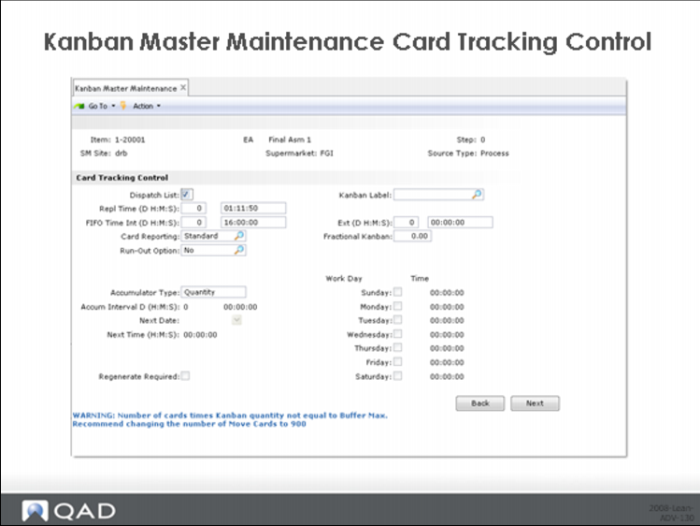
Kanban Master Maintenance Card Tracking Control
Here are the fields that you can maintain in the Card Tracking Control frame for each kanban loop:
Dispatch List
If you want this item included on the dispatch list for the source, check this box.
Kanban Label
This is an optional identifier for a kanban label definition associated with this loop. This value must be defined in Kanban Label Definition Maint (17.22.16.18).
Repl Time (D H:M:S)
Enter the replenishment time required. Replenishment time is the time required by the source (primary process, supplier, supermarket) and is expressed as days/hours/minutes/seconds, but is not the same thing as replenishment lead time. Replenishment time is the amount of clock time required (that one day is 24 hours of time) but when converted to elapsed days based on the calendar might be significantly longer in terms of elapsed days. For example, the Replenishment Time might be set to 1 day (24 hours). If the primary process is currently working one eight hour shift per day, then the Replenishment Lead Time will be 3 days (it takes 3 eight hour days to equal the replenishment time of 24 hours). You can see the details of this calculation in the Kanban Workbench.
FIFO Time Int (D H:M:S)
Enter the amount of time—in days, hours, minutes, and seconds—required for this item to complete the total number of internal FIFO processes defined for the kanban loop. If you have three internal FIFO processes in the FIFO lane for the loop, put the total time required across the three processes, including queue, move and transit as well as processing time.
This value is used in due date calculations and the calculations performed by Kanban Workbench. If you modify the internal FIFO time in that program and save your changes, the system updates this value.
Ext (D H:M:S)
(FIFO Time External) - Enter the amount of time—in days, hours, minutes, and seconds—required for this item to complete the externally performed FIFO processes defined for the kanban loop.
The Process Item Operation Rollup will calculate total external FIFO time for any items that have operations with subcontract lead times (specified in Routing Maintenance), and enter that value here.
This value is used in due date calculations and the calculations performed by Kanban Workbench. If you modify the external FIFO time in that program and save your changes, the system updates this value.
This field applies only to loops that are supplied by a primary process that includes one or more FIFO processes with subcontract operations.
Card Reporting
The number of cards you need in a kanban loop can be different depending on whether you report a kanban card empty when the first piece is removed from the container or when the last piece is taken out. For example, if you report the card empty when the first piece comes out, the signal to replenish will be sent immediately even though there might be some inventory left in the container. This inventory effectively acts as a kind of invisible safety stock that is available during the replenishment period. If you report the card as empty when the last piece comes out, there isn’t any such safety inventory and you will be running, in some sense, closer to the vest when it comes to inventory replenishment.
To get the same basic coverage when you have some kanbans reported empty on the first piece out and others reported empty on the last piece out, loops with last piece reporting should have one additional card.
To accommodate this in the system you can set the Card Reporting option to:
Standard: Create the number of cards indicated by the normal kanban loop sizing logic.
Add: Add one card to the loop after calculating the loop size in the normal logic.
Remove: Subtract one card from the loop after calculating the loop size in the normal logic.
This setting affects kanban sizing calculations performed using Kanban Workbench.
Fractional Kanban
The Fractional Kanban value (%) for the loop lets you control the point at which the system reduces the kanban loop size to a single card. When both the preliminary order point and the preliminary order quantity are greater than zero but less than this percentage of the kanban quantity, the system recognizes that the loop can be run with a single card without any risk of running out of material. Consequently, the system eliminates the order point card that would have otherwise been created.
One caveat in using the Fractional Kanban though: the fractional kanban logic to force the loop to a singe card only makes sense if you are reporting the card empty when the first piece is removed from the kanban (container). In this situation there will be enough material left in the container to cover the replenishment lead time.
That will not be true if you report the card empty when the last piece comes out of the container. In this situation, the material will all be gone and there will be nothing available to cover requirements during the replenishment lead time.
Run Out Option
This is a reference only field, designed to indicate that when running this item, the operator should consider running out (using all of) the raw material rather than using the exact quantity required based on the kanbans. For example, it might be less expensive to simply use up the portion of a steel coil after producing what is required than it is to dismount it and store it for subsequent use.
Accumulator Type
Specify how the system accumulates empty replenishment cards for this kanban item. If cards are accumulated based on quantity, then they will be authorized for replenishment only when enough cards have been emptied to reach the order quantity. If you accumulate on time or schedule, then all the empty cards for an item will be authorized when you reach the appropriate point in time.
The accumulator type can be:
Quantity: When the sum of empty replenishment cards reaches the total amount specified in the order quantity, the system authorizes them regardless of how much time has elapsed.
Time: When you use this type, enter a time in Accum Interval field to indicate how frequently you want cards authorized (and communicated with the supplier). Each time the specified interval elapses, the system looks at all empty cards in the loop. If the total of the individual cards meets or exceeds the order quantity, all cards are automatically authorized. In most cases, unless there’s a minimum container size larger than the kanban quantity, the order quantity will be zero, so all empty cards will be authorized.
Schedule: Access the fields on the right side of the frame to specify days and times when the system evaluates the number of empty cards. If the total of the individual cards meets or exceeds the order quantity, all cards are automatically authorized. As before, in most cases unless there’s a minimum container size larger than the kanban quantity, the order quantity will be zero, so all empty cards will be authorized.
Accum Interval (D H:M:S)
Specify the amount of time between authorizations when Time is the accumulator type. For example, if you communicate kanban authorizations with your suppliers every four hours then set Accum Interval equal to 0 04:00:00.
Next Date
Specify the next date for authorization for this item when Time is the accumulator type. Normally this value is maintained by the system based on the last actual authorization date and time and the accumulator interval, but when you are initially loading the system you should load a value here.
Next Time (H:M:S)
Specify the next time for authorization for this item when Time is the accumulator type. Normally this value is maintained by the system based on the last actual authorization date and time and the accumulator interval, but when you are initially loading the system you should load a value here.
Work Day and Time
(Sunday – Saturday) for Schedule Accumulator. Specify which days and times are authorization points, when Schedule is the accumulator type. Please notice that you cannot have multiple authorizations in a single day when the schedule accumulator is used.
Regenerate Required
This display-only field indicates whether key loop information has changed that might require you to regenerate and reprint kanban cards. Key loop information includes things like the kanban quantity, the supplier or the purchase order, the routing or BOM code, etc.
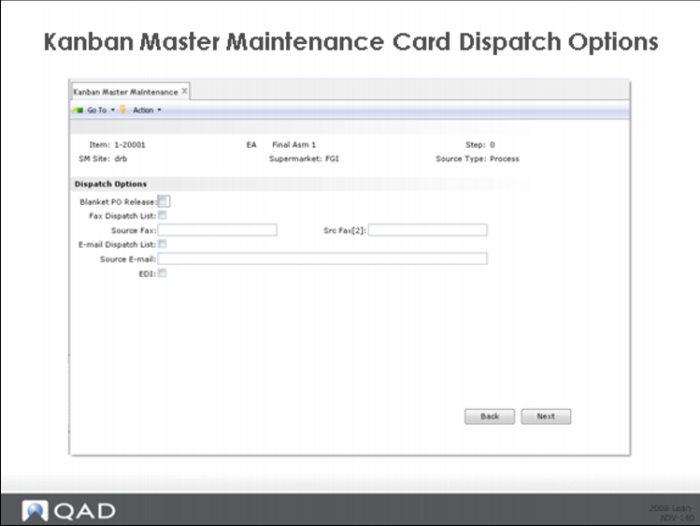
Kanban Master Maintenance Card Despatch Options
Kanban items can be included on or excluded from the dispatch list based on settings found in this frame, and a user can control some basic dispatch processing using these settings. Here are the fields that you can maintain in the Dispatch Options frame for each kanban loop:
Blanket PO Release
Specify whether dispatch list processing attempts to release a PO from a blanket order. When this is Yes and you enter a valid blanket PO number in the Purchase Order field in the Source Master Data frame, dispatch list processing uses that blanket order as the default. When the loop does not specify a blanket PO number, the system attempts to find an available blanket order matching the supplier and item.
Fax Dispatch List
Indicate whether to allow selection of this kanban when dispatch lists are processed in fax format. When set to No, this kanban is not included in dispatch list fax reports.
Source Fax
Enter the fax number for the supplying source. This number is used when dispatch lists are reported by source. When this field is blank, the system uses the fax number defined in the supplier or site address. When a dispatch list is sorted by supplying source and printed in fax format, this fax number, preceded by a # symbol, is printed on the first line of the report.
E-mail Dispatch List
Indicate whether to e-mail dispatch lists for this kanban. When set to No, this kanban is not e-mailed or included in dispatch list e-mail reports.
Source E-mail
Enter the e-mail address for the supplying source. This address is used when dispatch lists are reported by supplying source. When this field is blank for a loop supplied by an external supplier and you are using the PRO/PLUS Supplier Performance module, the e-mail address defined for the supplier is used. Otherwise, the system does not search further.
EDI
Enter Yes to generate dispatch lists for this loop in electronic data interchange format for export to the loop supplier using EDI ECommerce. The default is No.
When you select this option for a supplier kanban, the system verifies that an EDI ECommerce trading parameter called Send Kanban Dispatch exists for the supplier and has been set to Yes. This is a logical parameter in Trading Partner Parameter Maintenance (35.13.10). If this is not defined, a warning displays.
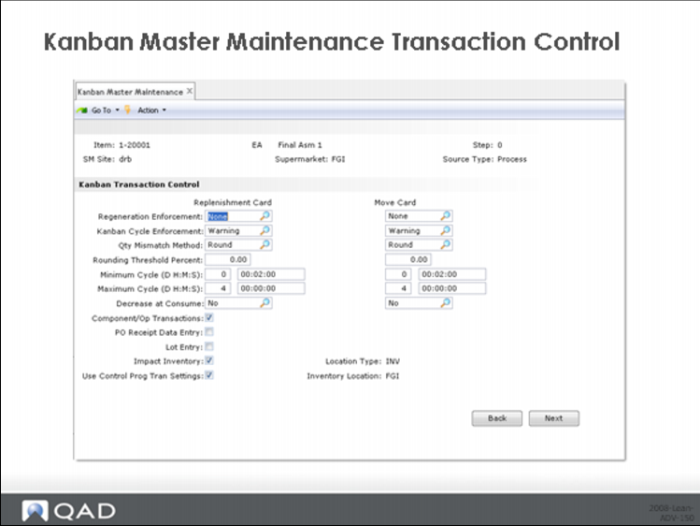
Here are the fields that you can maintain in the Kanban Transaction Control frame for each kanban loop:
Kanban Master Maintenance Transaction Control
Here are the fields that you can maintain in the Kanban Transaction Control frame for each kanban loop: