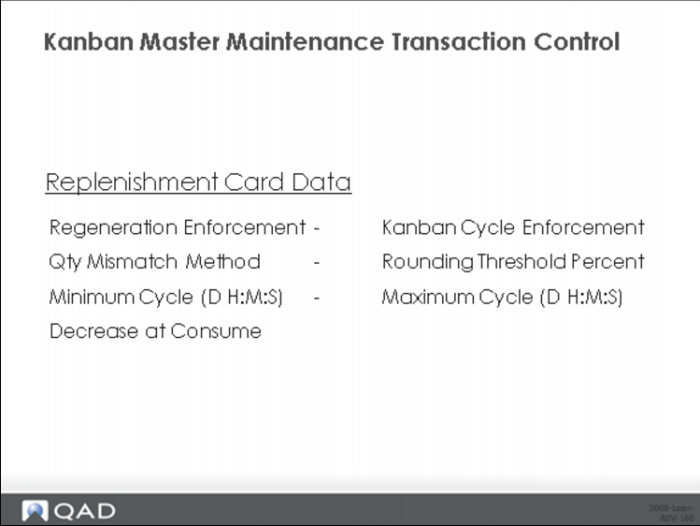
Replenishment Card Data
Regeneration Enforcement
Specify how cards are managed for this loop when they are recorded in one of the programs on the Kanban Transactions Menu and the system determines that cards should be regenerated. This occurs when certain card-detail values are no longer synchronized with loop values. For example, if the kanban quantity has changed since the cards were created then the data is no longer consistent (synchronized) and the cards should be regenerated.
This field defaults from Kanban Control. Valid values are:
• None (the default)
• Warning
• Error
Kanban Cycle Enforcement
Indicate the level of minimum kanban loop cycle enforcement. This field defaults from Kanban Control. If the amount of time since the last update to a card is less than the minimum cycle then the system can produce a warning or error message based on this setting. For example reporting a card empty and then full within a few minutes might not make sense in your manufacturing environment. If this is the case, then it can make sense to set the minimum cycle to a few minutes and the cycle enforcement to produce a warning or error message.
Valid values are:
• None (the default): Don’t check the minimum cycle.
• Warning: Produce a warning message that the user can override.
• Error: Produce an error message that the user cannot override.
Qty Mismatch Method
Use this field in combination with Rounding Threshold to control how the system manages partial kanban quantities for this loop during certain automated processing functions. These functions determine which cards are selected based on loop and quantity information rather than card ID. They are associated with the following programs:
• Kanban Consumption Import (17.22.19.20).
• EDI ECommerce Document Import (35.1) when used to import advance ship notices (ASNs).
• PO Shipper Receipt (5.13.20).
The system uses the logic defined here when the reported item quantity does not represent an exact number of kanbans. For example suppose an item reported through an import file from Kanban Consumption Import includes a quantity of 47, even though the kanban quantity is 20. In other words what is being reported is 2 cards with a remaining quantity of 7. The system uses Quantity Mismatch Method and Rounding Threshold to determine whether to round the number of cards selected up to 3 or down to 2, or to display an error message and not select any cards for update.
Valid values are:
• Round (the default). The system rounds the remaining quantity based on the value specified in Rounding Threshold and generates kanban history records without acknowledging that rounding took place.
• Warning. The system rounds the remaining quantity as specified in Rounding Threshold, creates kanban history records, and displays a warning message on the output report.
• Error. The system does not complete processing for the loop unless the quantity specified is an exact multiple of the kanban quantity. An error message displays on the output report.
In many respects, this control provides an automated way to avoid dealing with a fundamental problem: why is more or less than the kanban quantity being reported? In the case of the transactions reporting ASNs and PO Receipts, one quantity was ordered and another quantity delivered. You should really determine why this is and work with the supplier to resolve it; the pull system really only works well when there is predictable and consistent reporting of results.
Rounding Threshold Percent
Specify the percentage of kanban size the system uses to round off partial kanban quantities in determining the number of cards to select for automated processing.
This value is used in combination with Quantity Mismatch Method. It applies only when that field is set to Round or Warning. When it is Error, the system does not process loops unless the specified quantity is an exact multiple of the kanban quantity.
Leave Rounding Threshold set to the default 100.00 to always round partial quantities down. Change it to 0.00 to always round them up. Any other value represents the percent of the kanban quantity that must exist before the system rounds up to select an additional card. If the excess quantity is less than this percentage, the system rounds down.
For example, suppose the kanban quantity is 20, and Rounding Threshold is 25.00% for an item. This means that any remaining quantity of 5 or more will be rounded up. So a record imported using Kanban Consumption Import with a quantity of 47, or 2 cards with a remaining quantity of 7 will be rounded to 3 cards because 7 is greater than the threshold of 5. In the same scenario with Rounding Threshold set to 50.00%, the system would report only 2 cards, since the remaining quantity of 7 does not meet the threshold requirement of 10.
Minimum Cycle (D H:M:S)
Enter the minimum kanban loop cycle time in days, hours, minutes, and seconds. Values default from Kanban Control. Leave these fields blank if you do not want to enforce a minimum kanban loop cycle.
Maximum Cycle (D H:M:S)
Enter the maximum kanban loop cycle time in days, hours, minutes, and seconds. Values default from Kanban Control. Leave these fields blank if you do not want to enforce a maximum kanban cycle.
Decrease at Consume
Specify whether you want to have cards that are no longer needed removed from this loop the next time they are consumed, as well as whether the system prompts for confirmation before removing them. This value defaults from Kanban Control.
Card Reconciliation must be Yes in Kanban Control to activate the Decrease at Consume feature on the system level. When it is No, this field has no effect.