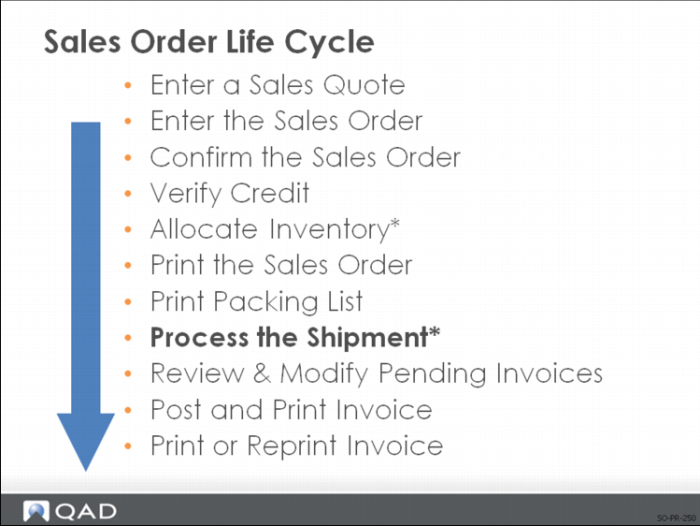
Process the Shipment
There are several methods to do shipping in QAD Enterprise Applications:
• Sales Order Shipments method
• Container/Shipper method
• Global Shipping method
Only Sales Order Shipments are discussed here. The other methods are discussed in Training Guide: Allocations and Shipping.
Sales Order Shipments
Use Sales Order Shipments to:
• Record the shipment of a sales order
• Approve the order for invoicing
• Reduce the quantity on hand for products shipped
• Increase the Cost of Goods Sold
• Recalculate freight if using freight functions
• Add additional items to the shipment
Processing an SO shipment record that you have fulfilled all or part of your commitment to a customer. The shipment flags the order as ready for invoicing.
To process a shipment:
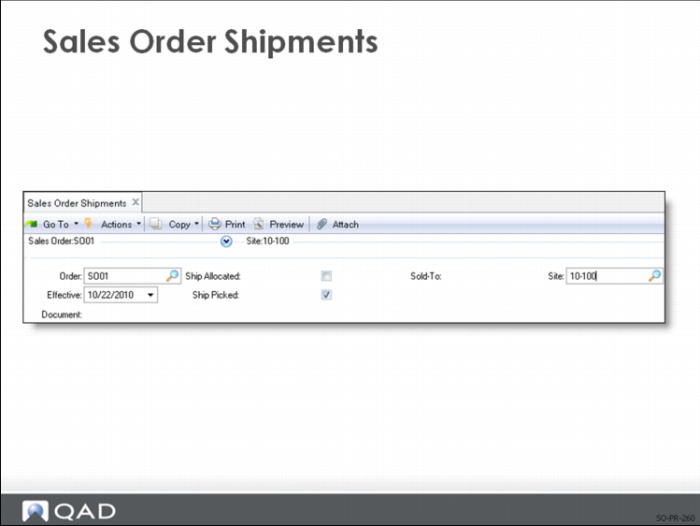
1 Specify the SO number, which lists the line items and the quantity open (ordered but not yet shipped).
2 Most companies use the packing list (which lists the items and quantities to ship) to control the shipping process. If every item on the packing list was shipped, set Ship Picked to Yes to process the shipment quickly, which sets the Quantity to Ship to the Quantity Picked for each line item. Press Go to process the shipment.
If using picklists:
Ship Allocated: No
Ship Picked: Yes
If you do not print the packing list, but you do use allocations to reserve inventory for shipment, set Ship Allocated to Yes to process shipments quickly. Like Ship Picked, this operation sets the Quantity to Ship for you. With either of these methods, you can always override the shipment information.
If using allocations:
Ship Allocated: Yes
Ship Picked: No
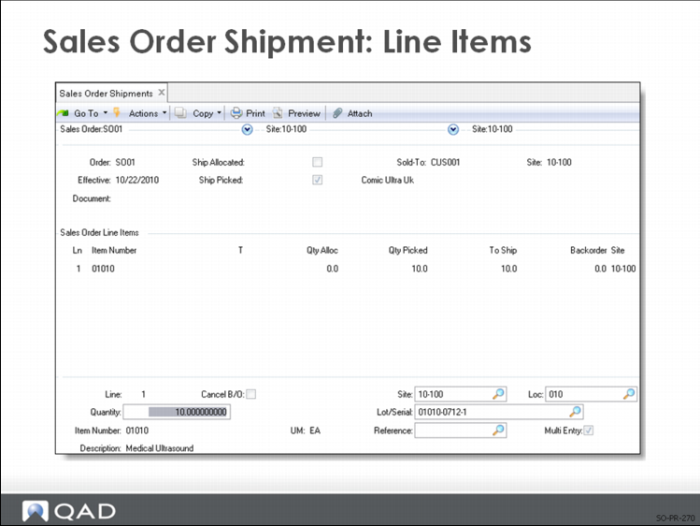
3 The next frame displays all open line items and quantities for the specified order.
a For each line item, enter the quantity to ship and the Site, Location, Lot/Serial, and Ref.
• If you set multi-entry to Yes, another screen appears for you to enter a list of sites, locations, lot/serial, and lot reference numbers, and a quantity for each one.
• In multi-database environments, you can ship from sites in remote databases for any line item; however, the remote site must be entered as the line item site in Sales Order Maintenance.
b Once all of the information has been entered, press Go.
• Optionally, another screen displays a summary of what you just entered. If it is correct, press Go to process the inventory update; otherwise, enter No or click Back to go back and change it.
A warning message displays:
• When the order value (in base currency) is less than the value in the Minimum Shipment Amount field in Sales Order Control
• When the cumulative quantity shipped exceeds the maximum order quantity
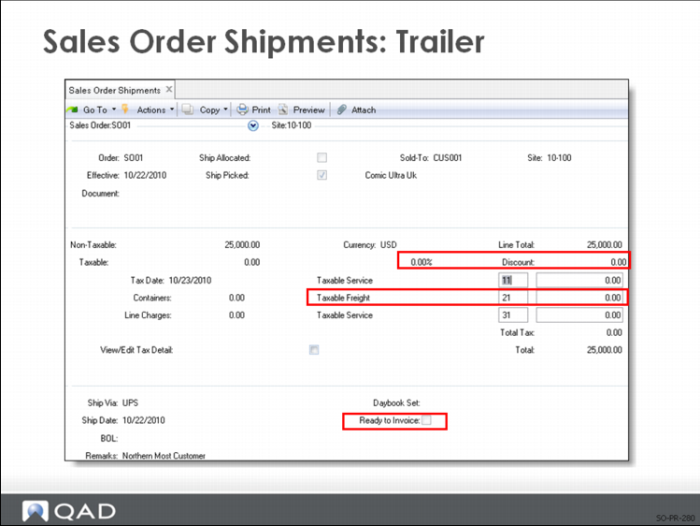
4 Once all the shipping information is entered and you have verified items to ship, the trailer for the order is displayed. You can now enter:
• Freight charges
• Special charges
• Bill of lading (BOL) numbers
• Carrier information
• Invoicing information
5 When the order ships, they system automatically marks it as ready for invoicing and sets the Quantity to Invoice equal to the Quantity Shipped.
a You can create an invoice for each shipment or set Ready to Invoice to No to hold up invoicing until the order is shipped completely.
b Once you have shipped and invoiced all line items on an order, the system deletes the SO.
Note: The days to retain a sales order can be controlled with a setting in Sales Order Accounting Control.
A complete audit trail of all inventory transactions is maintained in transaction history (tr_hist). You can review the information using Transactions Detail Inquiry (3.21.1). Each transaction has a transaction number and a transaction type. The transaction type is ISS-SO.
General Ledger Effects
GL transactions created by inventory movements (type IC) are stored in the unposted transaction table until they are posted using Operational Transaction Post. Review unposted transactions with Unposted Transaction Inquiry and Register.
Shipping items creates the following GL transactions, unless the ship type is non-blank. Memo shipments do not affect Inventory or COGS accounts. However, posting an invoice updates Accounts Receivable (AR) balances regardless of the ship type.
• Shipment credits the Inventory account defined in Inventory Account Maintenance for the product line, shipment site, and location. If the shipment includes items from more than one site, the appropriate balancing entries are made to the Cross-Company Inventory Control accounts defined for the domain referencing the intercompany codes associated with the entities.
• Shipment debits the COGS Material, COGS Burden, COGS Labor, COGS Overhead, and COGS Subcontract accounts defined in Sales Account Maintenance for the product line, shipment site, sales channel, and customer type.
Note: If the Sum LL Costs Into Matl Cost field is Yes in Inventory Control, all lower level manufacturing costs are posted to the COGS Material Acct.
Correcting a Transaction
If you process an incorrect quantity in this transaction, you can reverse the transaction by processing the same transaction again with a negative quantity. Be sure to enter the same site, location, lot/serial, and lot reference numbers as you entered on the original transaction. After you reverse out the original entry entirely, process this transaction again with the correct quantity. This maintains a complete audit trail.
If the SO no longer exists, reenter it in Sales Order Maintenance. All information must match the original SO.
It is possible to bypass the Sales Order Shipments step. A SO can be entered and shipped using Pending Invoice Maintenance. Use it only for non-inventory shipments or miscellaneous credits, since entering a Quantity to Invoice in Pending Invoice Maintenance decreases inventory balances.
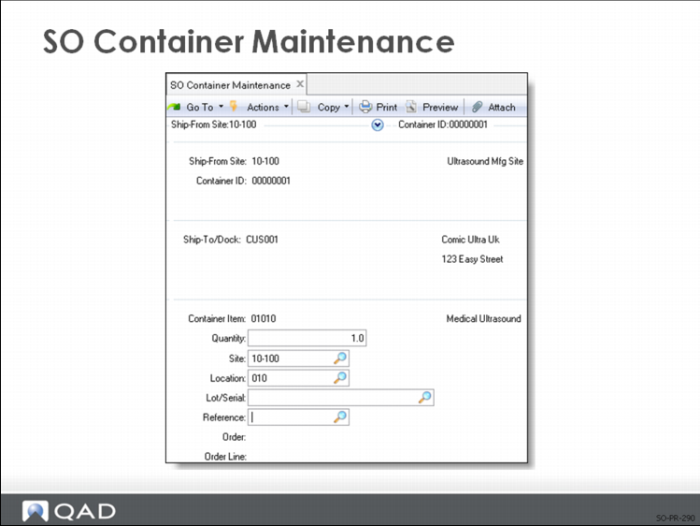
SO Container Maintenance
You can assign items to containers. You can confirm shippers in fewer steps, such as container by container rather than item by item. SO Container Maintenance records details on:
• Racks
• Boxes
• Crates
• Bags
• Other conveyances used to package and transport items (other than containers)
A container is a subset of a shipper, holding any number of different items or other containers. Containers conveniently group items, but are not a required part of a shipper. You can list items directly under the shipper. Since containers can be nested, first enter containers that hold items only. After those containers are detailed, you can define containers that consist of other containers, such as boxes within crates.
You are prompted for containers first (the containers must already be defined in the Item Master), until you press End. Then you can enter any items that are not in containers. When you finish processing items, press End to enter the Measurements frame.
You can send container information to a customer as part of an ASN (advanced ship notice) when your shipment leaves the dock. You can also send it with the shipment, like a packing list. When you confirm the shipper in Pre-Shipper/Shipper Confirm, inventory and financial effects occur. Creating containers and shippers has no financial effects.
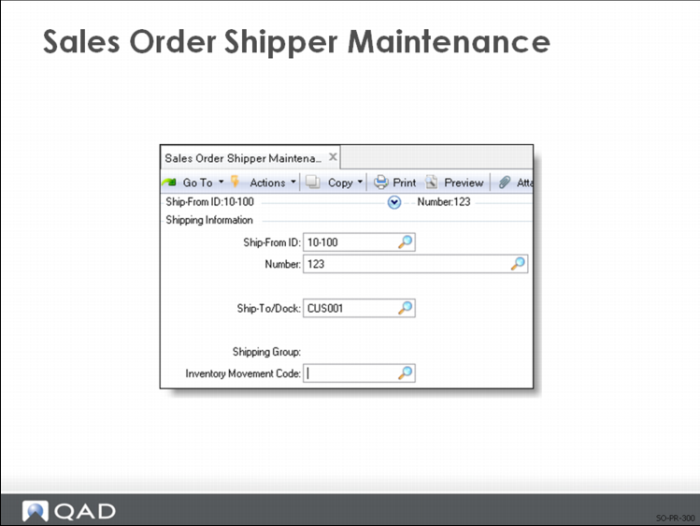
Sales Order Shipper Maintenance
Create a shipper by first using SO Container Maintenance to specify the items in each container. Then use SO Shipper Maintenance to group the containers and add any items not in containers to create a complete shipment. When the items are shipped, Pre-Shipper/Shipper Confirm takes the items out of inventory exactly as described on the shipper. A shipper is used to select and ship inventory. A shipper record/packing list can be printed, and an ASN (advance ship notice) can be transmitted when the shipment leaves your dock.
SO Shipper Maintenance records:
• Item numbers
• Quantities
• Purchase orders being shipped
Each shipper can contain any number of containers as well as items that are not in containers.
• You are prompted for containers first, until you press End
• Then you can enter any items that are not in containers
• When you finish processing items, press End again
At the top of the line maintenance frame titled Contents (Items) are four fields used to select the order this shipper line is being prepared for: Item, PO Number, Order, and Line.
If this shipper item is from a Customer Scheduled Order:
• Specify Item and PO Number. Press Go. Order and Line will fill in
Or
• Specify Item, Order, and Line. Press Go. PO Number will fill in
Or
• Specify PO Number, Order, and Line. Press Go. Item will fill in
Or
• Specify Order, and Line. Press Go. Item and PO Number will fill in
If this shipper item is from a sales order:
• Specify Order, and Line. Press Go. Item and PO Number will fill in
Note: If there are no scheduled orders in the database, Item and PO Number are not prompted.
Containers are predefined in PO Container Maintenance, so when you specify a container ID, that container’s items are implicitly attached to this shipper.
When you confirm the shipper in Pre-Shipper/Shipper Confirm, inventory and financial effects occur. SO Shipper Maintenance only sets up the shipper.
Note: This function does not update inventory balances or create GL transactions for SO receipts and inventory accounts.
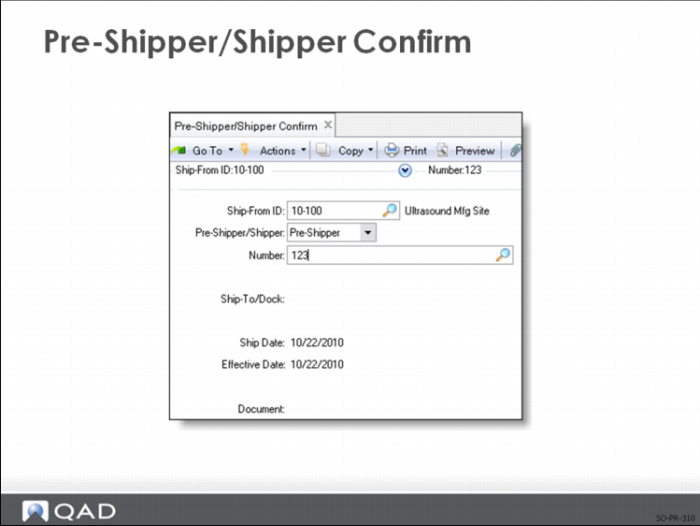
Pre-Shipper/Shipper Confirm
Use Pre-Shipper/Shipper Confirm to record shipments of orders and to do the following activities in the process:
• Decrease inventory and update the general ledger
• Transform pre-shippers into shippers
• Create, print, and post invoices based on shipments
• Export a shipper as an Advance Shipping Notice (ASN)
When you confirm a pre-shipper:
• The system converts it to a shipper before the actual confirmation process occurs
• The shipper number is assigned based on the Number Range Management (NRM) sequence ID from the shipping group of the shipment, or from Container/Shipper Control
• If the NRM sequence is an internal sequence (system generated), the system generates and displays the shipper number
• If the sequence is external, the system prompts you for an entry and validates the results
• The system propagates the new shipper numbers to all records linked to the converted pre-shippers, including containers, line items, and carrier detail records
The following applies when confirming pre-shippers or shippers:
• Canceled shipments (status X) cannot be confirmed
• To select a shipper for confirmation, you must have access, as defined in Inventory Movement Code Security
• If Container/Shipper Control specifies that trailer amounts cannot be maintained, the system does not display the trailer amount maintenance frames during confirmation
• If the document format of the shipper indicates that the printed shipper is also used as an invoice, the system does not let you print an invoice
• Invoice processing occurs, but no invoice is printed
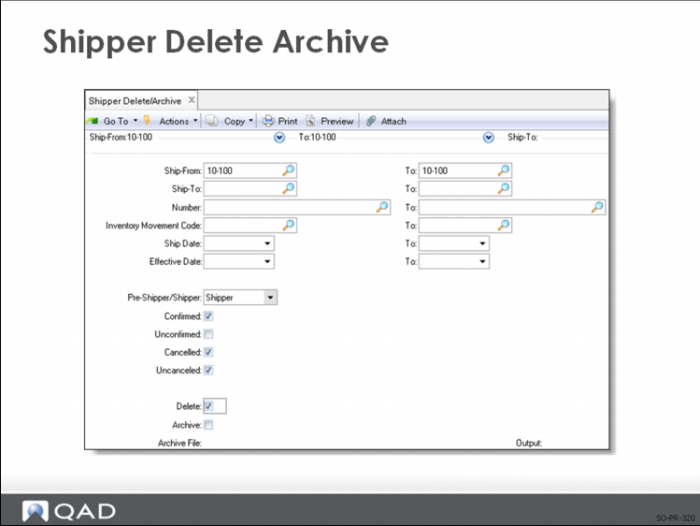
Shipper Delete/Archive
Used to permanently remove shipper records from the system to preserve database space.
Note: This topic is also covered in Training Guide: Allocations and Shipping.