Set Up ATP Processing
Set Up Sales Order Control
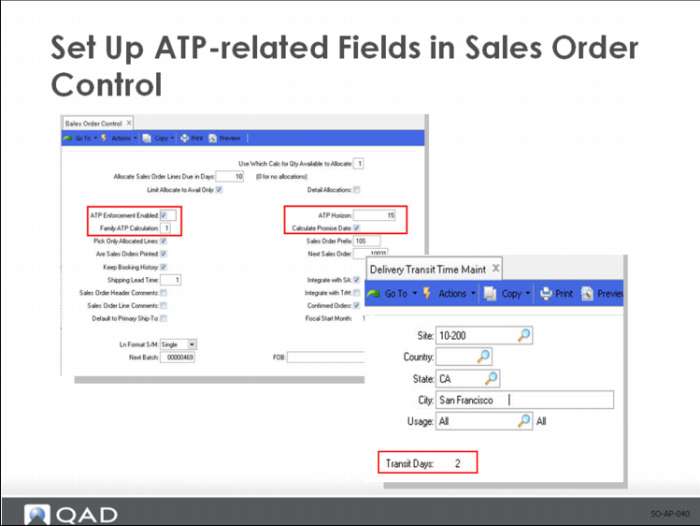
Four fields in Sales Order Control affect ATP processing:
ATP Enforcement Enabled
Enter Yes to activate ATP calculation functions for order line-item processing.
ATP Horizon
Enter the number of days from the current system date that the system should consider when determining ATP.
You can specify an item-specific horizon in Item Master Maintenance (1.4.1) or Item-Site Planning Maintenance (1.4.17). If you do, that value overrides the control program setting.
Family ATP Calculation
Enter 0, 1, 2, 3, or 4 to select the method the system should use to calculate the allowable ATP amount for family items. The method specifies which family items and component items should be considered when determining family item ATP. The default is 1.
0. Include all component item orders and exclude all family item orders.
1. Include all component item orders and include all family item orders. Use this method when you have a high degree of common components and a limited number of unique or difficult-to-manufacture or assemble items
2. Include all component item orders and only family item orders outside the item’s time fence. Use this method when you have a high degree of common components but only want family item orders outside the item’s time fence. This lets you view longer term item and component availability.
3. Include only all component item orders inside the item’s time fence and all family item orders. Use this method when you want all family item orders but only components inside the time fence. This lets you view near-term availability of components but allows you the option of longer term item orders.
4. Include only component item orders inside the item’s time fence and only family item orders outside the item’s time fence. Use this method when you want the system to ignore component items outside the item’s time fence and family item orders inside the time fence. This lets you view near-term availability of components on selected family item orders.
The settings provide a way to determine availability inside a time frame, while aggregating availability outside that same time frame. You can enforce some schedule stability in the near term while entering orders in the longer term where you can more easily adjust the schedule.
Calculate Promise Date
Enter Yes to calculate the promise date automatically for order-line items.
When this field is Yes and you have set up delivery times in Delivery Transit Time Maintenance (2.16.1), the system calculates promise dates.
Configure ATP Settings for Items and Sites
Two programs let you specify ATP settings for individual items:
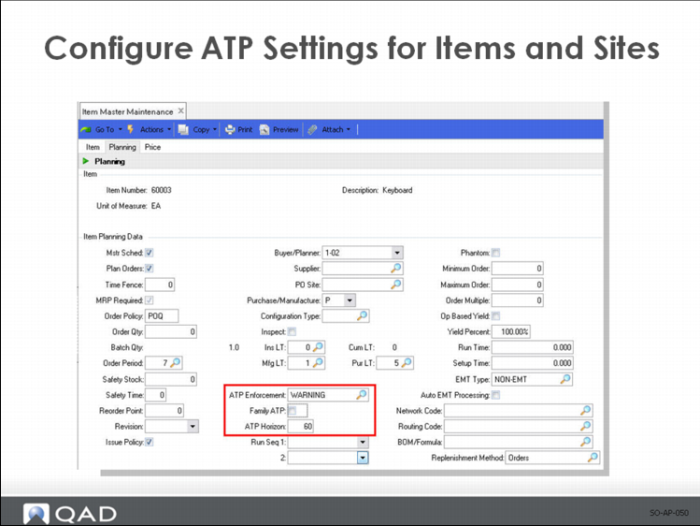
• Use Item Master Maintenance (1.4.1) to define ATP information for specified individual items and family items regardless of site.
• Use Item-Site Planning Maintenance (1.4.17) to determine ATP settings for specified individual items and family items by site. Item-site records take precedence over those defined in Item Master Maintenance.
These programs use the same fields for defining ATP parameters:
ATP Enforce
Enter the ATP enforcement level you want the system to apply to this item. You can specify one of three different levels:
• None: The system does not intervene in the transaction regardless of availability of this item.
• Warning: A warning pop-up window displays if availability is insufficient. You can bypass the ATP warning manually and process the sales order regardless of ATP.
• Error: The system displays an error pop-up window if availability is insufficient. If you do not change the quantity or due date as needed to meet ATP requirements, an error message displays. Unlike with the Warning level, the system will not process the order line unless the quantity is available on the due date.
ATP Family
Enter Yes to have the system check the ATP for other items of the same family before issuing a warning or error. If No, family items are ignored.
Use the Family ATP Calculation field in Sales Order Control to indicate whether the system adjusts the family item ATP values.
ATP Horizon
Enter the number of days from the current date that you want the system to consider when determining if ATP quantities are sufficient to fill orders for this item.
The field defaults to 0 (zero) in Item Master Maintenance. Unless you update it, the system uses the horizon specified in Sales Order Control.
The Item Master Maintenance value defaults to new records in Item-Site Planning Maintenance. You can change it for individual sites. Set it to 0 to use Sales Order Control ATP horizon.
(Optional) Update ATP Settings
Two utility programs let you update ATP settings in multiple item and item-site records:
• ATP Enforcement Level Utility
• Item-Site ATP Horizon Update
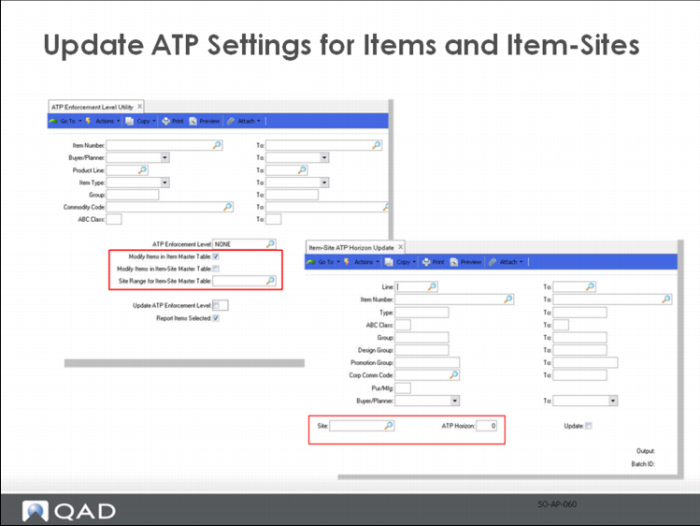
Use ATP Enforcement Level Utility (7.1.19.1) to set enforcement levels for ranges of items and sites. You can select according to various criteria to manage ATP enforcement levels, eliminating the need to process each item individually.
Note: If you are in a multi-domain or database environment, run ATP Enforcement Level Utility once in each domain or database to keep item-site ATP settings synchronized.
Modify Items in Item Master Table
Enter Yes to modify the ATP enforcement level for a range of items in the item master table. Otherwise, enter No.
Modify Items in Item-Site Master Table
Enter Yes to modify the ATP enforcement level for a range of items in the item-site master table. Otherwise, enter No.
Site Range for Item-Site Master Table
Enter the range of site codes for which you want to specify an the ATP enforcement level in the item-site master table. Leave blank to begin with the first site record.
Note: Specifying a range of sites when Modify Items in Item-Site Maintenance is No has no effect.
Use Item-Site ATP Horizon Update (1.4.24) to reset the ATP horizon for ranges of selected items.
Site
Enter a valid site code to update only records created for that site in Item-Site Planning Maintenance. Leave the field blank to update only Item Master Maintenance records.
ATP Horizon
Specify the number of days to be used in ATP calculations for selected item or item-site records. Enter 0 to reset existing records to use Sales Order Control value.