Use ATP Processing Features
Since the system calculates ATP only on confirmed order lines, the way the system enforces ATP depends on how the order is entered:
• Entered as confirmed in an order maintenance program, such as Sales Order Maintenance (7.1.1), or confirmed by changing Confirm to Yes for the line
• Confirmed using a batch confirmation program, such as Sales Order Confirmation (7.1.5)
Determine ATP During Order Entry
The system determines ATP during order-processing functions when you enter confirmed order lines in one of the following programs:
• Sales Order Maintenance (7.1.1)
• Material Order Maintenance (10.7.1 or 11.11.1)
• RMA Maintenance (11.7.1.1)
During order-line entry, an ATP pop-up window displays under the following conditions:
• ATP Enforcement is Yes in Sales Order Control.
• The ATP enforcement level is set to Warning or Error for the item.
• The quantity ordered is unavailable for the specified due date for a confirmed non-EMT inventory order.
The pop-up window lets you select alternate due dates and review ATP quantities when the full order quantity cannot be filled by the specified due date.
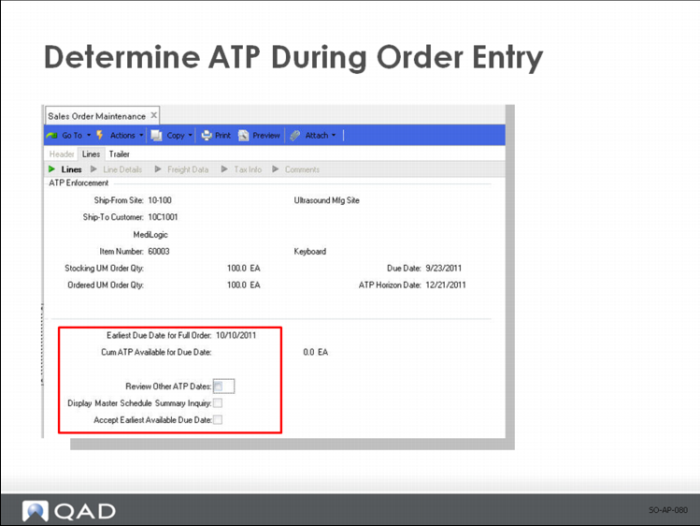
The top frame displays information related to the original order line. The bottom frame displays ATP information and user options:
Earliest Due Date for Full Order
This value indicates the earliest date that planned inventory is available to ship in the quantities ordered.
Cum ATP Available for Due Date
This value indicates the cumulative planned inventory available on the original due date.
Review Other ATP Dates
Enter Yes to display alternative dates to fulfill this order line item. If you enter Yes and click Next, the review frame displays immediately. If you enter No and click Next, the cursor moves to the next field.
Display Master Schedule Summary Inquiry
Enter Yes to open Master Schedule Summary Inquiry (22.18) to display inventory planning, quantity, and ATP data for the ordered item. If you enter Yes and click Next, the inquiry frame displays immediately. If you enter No and click Next, the cursor moves to the next field.
Accept Earliest Available Due Date
Enter Yes to accept the earliest available due date calculated for the item.
Determine ATP During Order Confirmation
When ATP Enforcement is Yes in Sales Order Control and the ATP Enforcement setting for the item is Warning or Error, the system checks for adequate ATP in the following programs:
• Sales Order Confirmation (7.1.5)
• Material Order Confirmation (10.7.2 or 11.11.2)
• RMA Confirmation (11.7.1.6)
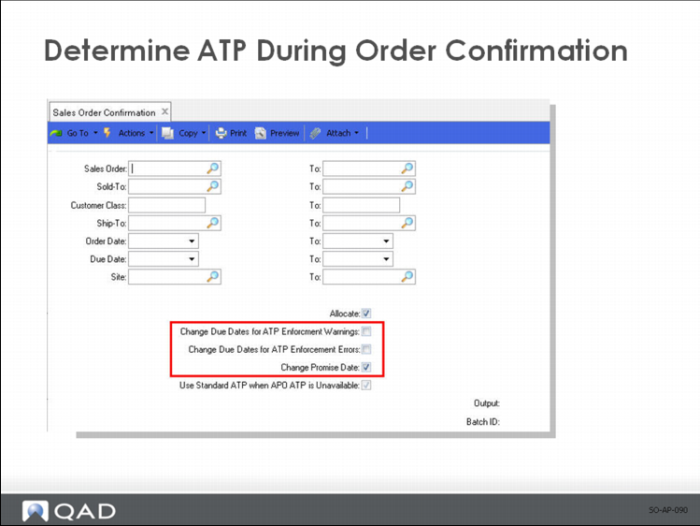
Use the following fields to control ATP processing during order confirmation:
Change Due Dates for ATP Enforcement Warnings
Enter Yes to change the due dates on order lines if ATP is insufficient for items with ATP Enforce set to Warning. The system adjusts the order-line due date to the best possible later due date and confirms the order. If No and ATP is insufficient, the order is confirmed, and a warning message displays on the report.
Change Due Dates for ATP Enforcement Errors
Enter Yes to change the due dates on order lines if ATP is insufficient for items with ATP Enforce set to Error. The system adjusts the order-line due date to the best possible later due date and confirms the order. If No and ATP is insufficient, the order is not confirmed, and an error message displays on the report.
Change Promise Date
Enter Yes to change the promise date for the range of sales orders or RMAs you have selected to confirm based on the new due date. Otherwise, enter No. This applies only if the system assigns a new due date based on the value of one of the Change Due Date fields. The promise date is the due date plus the delivery time entered in Delivery Transit Time Maintenance (2.16.1).
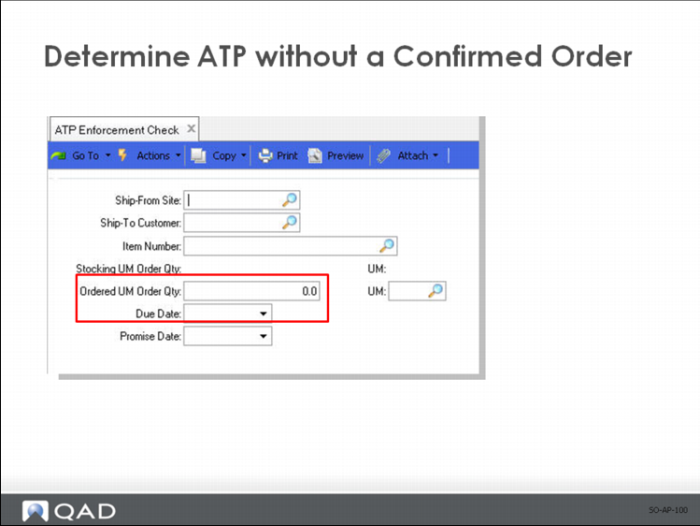
Determine ATP without a Confirmed Order
Use ATP Enforcement Check (7.1.19.2) to display ATP information, including alternate due dates and ATP quantities, without entering an order. You can select according to customer, item, site, quantity, due date, and promise date.