Receiving and Backflushing
When you backflush components at work order receipt, the system explodes the item product structure by the quantity of the parent item received to calculate the standard component quantities used. Users can control the location and default quantity for backflushing.
In Work Order Receipt Backflush (16.12), specify a location in Backflush Loc. The alternative is to backflush from the default location on the work order picklist.
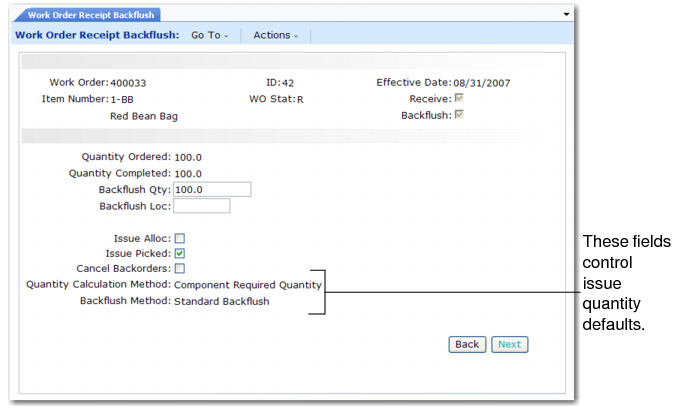
Two fields in Work Order Receipt Backflush (16.12) enable you to control the default values for quantity to issue, depending on the history of the work order.
Work Order Receipt Backflush (16.12)
Quantity Calculation Method
Sets the calculation method used to determine the quantity to issue for all components. The default is Component Required Quantity. Other valid choices are Work Order Bill Qty Per and Phantoms First. You can still adjust each issue quantity on a line-by-line basis in the detail screen.
Backflush Method
Defines whether to use the backflush quantity you entered (the default standard backflush) or to include prior issues and receipts against this order.
The two fields work in conjunction with each other. In most cases, you should accept the default. However, in three instances, you obtain more accurate issue quantities by resetting these values:
• The first instance occurs when you issued components to the order or made a partial receipt without issuing all components. In this instance, set the backflush method to Net of Prior Issues and Receipts. This setting factors in prior receipts and issues to derive the Quantity to Issue value.
Example: If you issue all of a component or more than you need, the quantity to issue is 0. If, however, you receive and backflush 50 out of 100 parents and then receive the remaining 50, the quantity to issue for a component with a Qty Per of 1 is 50. When this is the only special condition, leave Quantity Calculation Method set to Component Required Quantity.
• A variation on the previous example occurs when you complete a partial receipt and then modify the Qty Required and/or the Qty Per values for a component in Work Order Bill Maintenance (16.13.1). For the quantity to issue calculation to take into account full requirements for prior completions, use Net of Prior Issues and Receipts in the Backflush Method field. Otherwise, the quantity to issue reflects component requirements for the open order quantity only.
• The last instance occurs when you change the work order bill Qty Per for a component without recalculating the quantity required. To recalculate the quantity to issue including the revised component Qty Per, use the Work Order Bill Qty Per in the Quantity Calculation Method field.
Example: The work order bill quantity is reset from 1.0 to 1.5 on an order for 100. With a calculation method of Work Order Bill Qty Per, the quantity to issue is 150. Otherwise, it remains 100. If this is the only special condition on an order, leave Backflush Method set to Standard Backflush.
If you have a combination of the two circumstances, use Net of Prior Issues and Receipts and Work Order Bill Qty Per.
Use the Component Required Quantity option for the Quantity Calculation Method field when rounding or truncation errors may occur during backflush as a result of a component having a small or non-evenly divisible quantity relative to the bill.
If you are completing a partial receipt and want to use up global phantoms before issuing components for the phantom, enter Phantoms First in the Quantity Calculation Method field.
Example: Ten phantoms are in stock. If you complete a partial receipt backflush for 10 items and the phantom and its components have a quantity per of 1, the phantom quantity to issue is 10. Otherwise, the phantom and its components are calculated proportionally, each with a quantity to issue of 5.
Since phantoms are not defined as phantoms in the work order bill, the Phantoms First option uses the current product structure to identify phantom items.
When you use Work Order Backflush Receipt to receive or close work orders, the system records the system date as the receipt or close date and your user ID. These items appear on two work order reports.