Setting Up Shifts
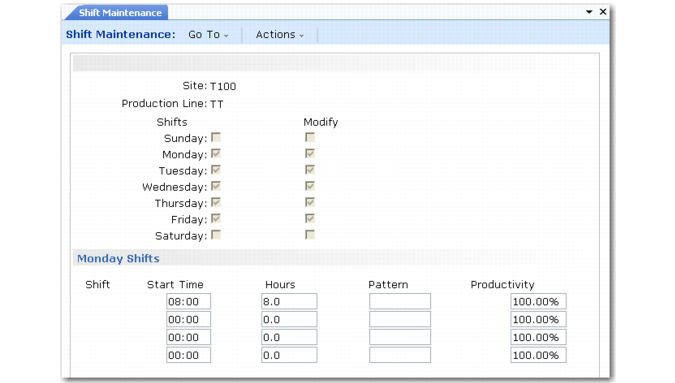
Use Shift Maintenance (18.22.1.22) to define the normal hours and production rate factor for each shift during a day. You can also define any exceptions to that normal pattern.
Set up shifts for a site or for a production line at a site. You can define up to four shifts for a day of the week. A working day should have at least one shift with some number of hours greater than zero and a rate adjustment factor also greater than zero.
Shift Maintenance (18.22.1.22)
The system rates shift capacity as:
Shift Capacity = Production Rate * Hours * Productivity
The hours per shift is the number of hours the shift is capable of producing, rather than the total number of working hours for the shift. Shifts can overlap—so the total number of hours for all shifts can exceed 24 hours.
When a shift is more or less productive than a normal shift, enter an adjustment factor in Productivity.
Note: This Productivity field has no connection to productivity measures elsewhere in the system.
Example: A production line has three shifts, and the third shift has only 20% of the employees of the first two shifts. Enter a shift adjustment factor of 20% for that shift.
If the production rate is 100 units per hour, a shift is capable of production for seven hours, and the productivity factor is 100.00%, then its capacity is 700 units per shift. If a second shift has a productivity factor of 50%, then its capacity is 350 units.
The hours worked by a particular shift can change because of holidays, planned shutdowns, or periods with planned overtime. Manage exceptions by adding reference hours to shifts by effective date, in the same way you modify the shop calendar.
Example: A shutdown is planned for shifts 2 and 3, which normally work seven hours a day. Add –7 hours to those shifts for the affected date range. If overtime is planned for shift 4, then specify additional hours for that shift.
Unlike with the shop calendar, you can add shifts that do not fall on normal working days.
Use Shift Report (18.22.1.23) to see active shift status, exception dates, and shift hour.
Note: An enhanced version of Shift Report is available at menu 18.22.1.47 for .NET UI users only.