Using Repetitive Picklists
In most repetitive operations, issues are managed solely by backflushing. However, in many operations, you also need to manage the movement of inventory to the point where it is used. In environments where inventory is stored on the production line, the repetitive picklist lets you easily replenish the line’s work centers.
Use repetitive picklists to move inventory from stocking locations to a work center. To use this method, you must define work centers as inventory locations.
Each repetitive schedule creates inventory requirements at the work centers in its routing. When you run Repetitive Picklist Calculation (18.22.3.1), the system:
• Determines the available inventory and requirements at each work center for the specified range of parent items
• Determines where shortages exist
• Allocates inventory to meet shortages
• Creates a picklist for each work center shortage
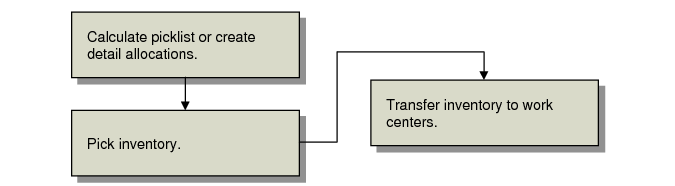
Picklist Processing Flow
The system creates a picklist if there is a shortage and inventory is available to be picked. When you print the picklist, the inventory is picked. Use Repetitive Picklist Transfer (18.22.3.6) to transfer the inventory from its current inventory location to the work center. This move is a location transfer, not an issue to WIP, so there are no GL transactions until the inventory is backflushed.
Example: Item A is installed in four different end items at work center OPS. The work center has 900 of Item A on location. For the next week, the repetitive schedules for these items have a total requirement of 1,000. The repetitive picklist calculation will show a shortage of 100 of Item A at OPS and detail allocates 100 at the inventory location. When the picklist is printed, the 100 will be shown as picked, and 100 will be moved to location OPS when the transfer is run. The inventory will not be issued until labor is reported for each operation.
Note: To use picklists, you must set up a location with the same ID as the work center.
Calculate the Picklist
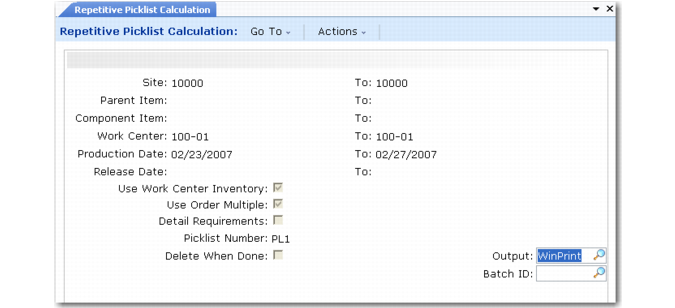
Calculate the picklist and create detail allocations using Repetitive Picklist Calculation (18.22.3.1). The calculation considers component requirements from the exploded repetitive schedules that match the sites, items, work centers, and production dates specified.
Repetitive Picklist Calculation (18.22.3.1)
For a new schedule creating requirements at a work center with no shortages, Repetitive Picklist Calculation uses the following equation.
Shortage at Work Center = New Requirements – Net Available
Where net available equals:
Actual OH – Qty Alloc – Qty Req by Other Scheds + Untransferred Picked
The Net Available is the material available for these requirements at the work center, consisting of the material already there (Actual OH) and the material to be transferred (Untransferred Picked) minus the existing requirements. The existing requirements consist of the Qty Req by Other Scheds and the quantity allocated at that work center to work orders or sales orders (Qty Alloc).
Note: When Use Work Center Inventory is No, on-hand inventory and quantities from untransferred picklists are not considered in the calculation.
As the equation shows, the picklist supplies material for the work center, not individual schedules. You can ensure that picklists supply individual schedules by running the picklist calculation immediately after exploding each new schedule. The picklist calculation already considers all existing picklists, so the new picklist will only meet the new requirements.
Choosing Options
Repetitive Picklist Calculation offers several options to control the picklist calculation.
Use Work Center Inventory
When Yes, the system counts inventory in a work center, as well as quantities from untransferred picklists, as inventory.
Use Order Multiple
When Yes, the system determines the number of items to be transferred (quantity required) and then rounds that number up based on the order multiple defined in Item Master Maintenance (1.4.1), Item Planning Maintenance (1.4.7), or Item-Site Planning Maintenance (1.4.17).
When No, the exact quantity required prints on the picklist and no rounding is applied by the system. Set this field to No when you are using lean manufacturing techniques and do not want any extra items on the shop floor.
Detail Requirements
When Yes, the system prints all repetitive schedules generating requirements for a component, including the quantity required, parent item, due and start dates, machine, and operation.
Delete When Done
When Yes, the picklist is automatically deleted after the calculation. Use this option to review shortages without actually allocating inventory. The Next Picklist field in Repetitive Control (18.22.24) is not incremented.
Troubleshooting Problems
If problems occur with the picklist calculation, remember the following:
• A location must be created with the same name as the work center.
• The calculation does not create a picklist if there is no inventory to detail allocate. You cannot allocate negative quantities. The system does not warn you if inventory is insufficient to meet the requirements—it just does not create a picklist.
• The system does not create a picklist if there is sufficient inventory at the work center.
• Detail allocations are not associated with specific orders, so no order IDs are shown in the allocated inventory inquiry.
• Depending on the setting of Use Work Center Inventory in Repetitive Picklist Calculation, the system may use untransferred picklists as sources of supply. To recalculate total requirements at a work center, delete all untransferred picklists. A picklist remains open until deleted or inventory is transferred, even if the schedule changes.
• The picklist calculation blows through phantoms. There is no phantom use-up logic.
• The picklist does not calculate requirements by shift.
• Since the calculation is based on requirements from an exploded repetitive schedule, it is not affected by changes in structures or routings.
• You can further control the quantities on a picklist using the item-site planning parameters Minimum Order and Maximum Order.
Print the Picklist
Print the picklist in Repetitive Picklist Print (18.22.3.5). Printing changes the status of the detail-allocated inventory to picked. The picking logic is the same logic used elsewhere in the system, set in Inventory Control (3.24). You can reprint the picklist without affecting inventory status.
Use Repetitive Picklist Undo (18.22.3.8) to cancel a picklist and reprint it later. It changes the inventory status back to detail allocated.
When a picklist exists, it is considered supply by later picklist calculations. If you want to start over, you must delete the outstanding picklists with Repetitive Picklist Delete (18.22.3.9). Deleting reverses all effects of running any picklist function. If the inventory is picked or allocated, it is returned to unallocated status.
See User Guide: QAD Master Data for information on picking logic.
Transfer the Inventory
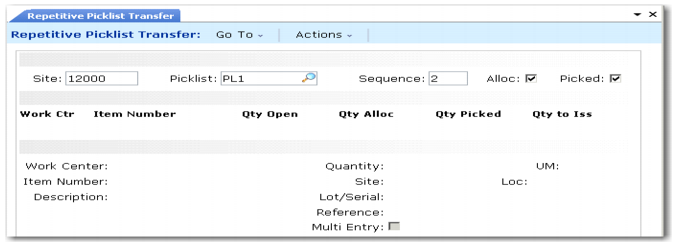
Use Repetitive Picklist Transfer (18.22.3.6) to transfer inventory from the stocking location to the work center. Inventory is transferred, not issued.The new location must exist and must have the same name as the work center. After transferring the inventory, the system deletes the picklist.
Specify the date of the transfer in a pop-up frame after clicking Next on the header. The default is the system date.
Repetitive Picklist Transfer (18.22.3.6)
Use the Sequence code to transfer only part of the total if space at the work center is limited.
Example: If a work center holds 1,000 of an item, but the total requirements are 5,000, one picklist is created allocating 5,000, while the material is picked and transferred in sequences of 1,000 (sequence 1 for 1,000, sequence 2 for 1,000, and so on).
Set the maximum order quantity for an item in the Order Multiple field (Ord Mult) in Item Planning Maintenance (1.4.7) or Item-Site Planning Maintenance (1.4.17).
To transfer specified quantities other than the order maximum, set the amount in Order Mult.
Example: If the stocking unit of an item is liters but the item is delivered to the work center in 500-liter barrels, set an order multiple of 500 to ensure the item is transferred 500 liters at a time.
You can transfer inventory even if a picklist has not been created or printed. Use the Alloc and Picked fields to set the default for your transfers. You can also directly specify inventory to issue.
After issuing inventory, the system records an ISS-TR transaction and a RCT-TR transaction in transaction history.