Setting Up Preliminary Subcontract Data
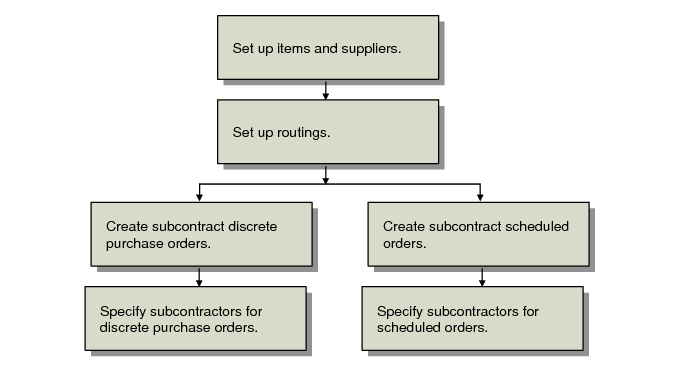
This section describes tasks you complete before you can begin shipping items to and receiving items from subcontractors. Setting up this data saves you time and extra steps once you begin Advanced Repetitive operations.
Preliminary Subcontract Setup
Data setup varies depending on whether you are using discrete purchase orders or scheduled orders.
Setting Up Subcontract Items and Suppliers
Using WIP items helps ensure consistent pricing for subcontract services. Use WIP items to represent services being purchased from subcontractors. For example, you can use HEAT-TREAT-SERVICE as a WIP item for a subcontractor.
Set up WIP items in Item Master Maintenance (1.4.1) before entering them on supplier schedules. Enter the routing code in the Routing Code field in the Item Planning Data frame. The routing code you enter here defaults to Advanced Repetitive operations.
Use Standard Operation Maintenance (14.9) to set up subcontractors as suppliers in your standard operations. Enter a code for the subcontractor in the Supplier field.
See User Guide: QAD Master Data.
Setting Up Subcontract Routings
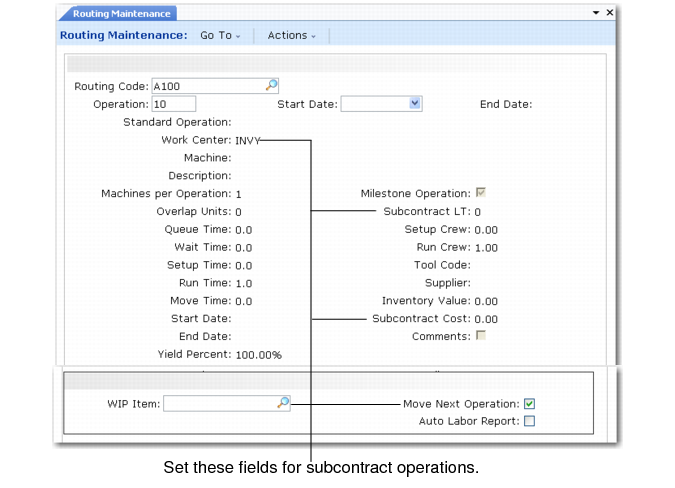
There are a few subcontract-related fields that you can set when defining the routing for an item in Routing Maintenance (14.13.1).
Routing Maintenance (14.13.1)
Work Center
Set up subcontractors as work centers. You can use codes such as PAINT, HEAT, or STAMP for subcontractor work. You can also enter a supplier code, if you set up your subcontractor as a supplier in your standard operations.
Subcontract LT
Enter the average number of calendar days it normally takes a subcontractor to perform the operation.You should enter either subcontract cost and lead time or setup, run, and move time. Specifying both can overstate lead time and result in incorrect schedules.
Subcontract Cost
Enter the average cost per unit normally charged by the subcontractor to perform the operation. Cost calculation functions determine item costs based on subcontract cost. Enter either subcontract cost and lead time or setup, run, and move time. Specifying both can overstate cost and lead time and result in incorrect schedules.
WIP Item.
Enter the item that represents WIP material for the subcontractor. Sub Shipper Print (18.22.5.9) uses this field to provide the description and unit weight on the subcontractor shipper.
Move Next Operation
This field sets the default for the same named field in Repetitive Backflush (18.22.13). Move Next Op at the milestone operation before the subcontracting operation must be No. Sub Shipper Issue (18.22.5.11) transfers items from the output queue of the previous milestone (reported) operation into the input queue of the subcontract operation.
Creating Subcontract Orders
You can use either supplier scheduled orders or purchase orders to handle the purchasing side of a subcontract operation.
You create supplier scheduled orders using Supplier Scheduled Order Maintenance (5.5.1.13). You create discrete subcontract purchase orders using Purchase Order Maintenance (5.7).
Fields in Supplier Scheduled Order Maintenance or Purchase Order Maintenance play an important role in subcontract operations.
See User Guide: QAD Scheduled Order Management.
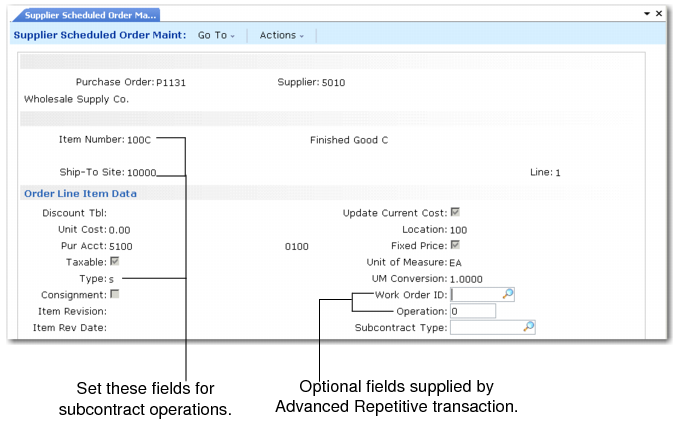
In the line-item frame, specify the item being sent to the subcontractor and the site that receives the item when the subcontractor finishes the service.
Supplier Scheduled Order Maintenance (5.5.1.13)
In the Order Line Item Data frame, set the following:
Type
Enter S to specify that the line item is for a subcontract operation. The Type field defaults from the Memo Order Type in Item Master Maintenance (1.4.1) and determines the effect of inventory, planning, and cost accounting when the item is received. When you set the field to S, a work order number, lot ID, and operation are specified on the order and on the receipt. When the receipt is processed, work order operation status is updated and a GL transaction debits the WIP account from the work order.
Work Order ID
Enter the work order ID or cumulative order ID associated with the subcontract item. When you use Advanced Repetitive features, you can leave this field blank. The system validates this field when the order type is S and automatically updates the ID when it creates a cumulative ID in Advanced Repetitive transactions.
Operation
Specify the operation code for the operation that the subcontractor performs. When you use Advanced Repetitive features, you can leave this field blank.The system validates this field when the order type is S and automatically updates the operation field when it creates a cumulative ID in Advanced Repetitive transactions.
When you execute Schedule Update from MRP (5.5.3.1), the system creates the subcontract lines on the scheduled purchase order to produce schedules for subcontracted services.
Specifying Subcontractors for a Routing Operation
If your company contracts various subcontractors for one routing operation, you can associate each subcontract with a single routing operation.
If you use scheduled orders for subcontracts, use Subcontract Order MRP % Maint (5.5.1.21) to associate subcontractors with a single routing operation. If you use discrete purchase orders, use Subcontract Routing Op/PO Maint (5.11).
When you specify subcontract orders for a specific routing operation, the system uses the information to:
• Create schedules for subcontractors, if using scheduled orders.
• Set defaults in Advanced Repetitive subcontract shipper programs.
• Find subcontract purchase orders and automatically update the cumulative ID and Operation fields when an Advanced Repetitive transaction creates a cumulative ID.
• Populate subcontract-related browses and reports.
Specifying Subcontractors for Scheduled Orders
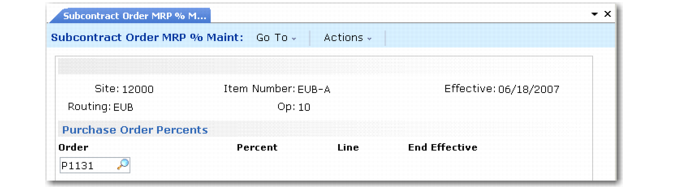
In Subcontract Order MRP % Maint, you allocate a percentage of the total subcontract services required for the routing operation to each subcontractor. Enter the site, item, effective date, routing, and subcontract operation in the header.
Then enter the percentage for each subcontract order in the Purchase Order Percents frame. Percentages must equal either 100% for each item or be 0%. If 0%, the system does not allocate planned orders for the scheduled order. To phase in new percentages, enter the same ship-to site, item number, routing, and operation with different effective dates.
You must set the subcontract order MRP % allocation record effective date within the scheduled order effective date range. Enter the MRP % effective date in the Effective field in the header, then select orders with:
• Start effective dates that are after the MRP % effective date.
• End effective dates that are before the MRP % effective date.
Note: Orders with a 0% allocation do not have to fall within this date range.
The system displays the line end effective date in the End Effective field in the Purchase Order Percents frame. This date indicates when the scheduled order line is no longer active.
You can modify the percentage or remove a record if the end effective date is earlier than the system date and the order is closed as long as remaining records equal 100% for each item or are 0%.
Subcontract Order MRP % Maint (5.5.1.21)
Specifying Subcontractors for Discrete Purchase Orders
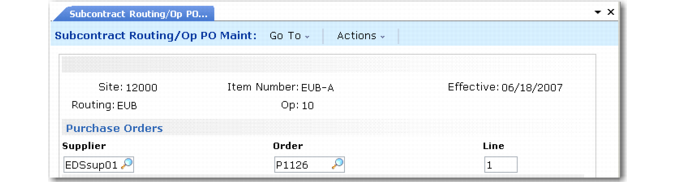
In Subcontract Routing/Op PO Maint, enter the site, item, effective date, routing, and subcontract operation in the header, then enter either the supplier or the PO number and line number. You cannot enter the line number without entering the PO number. The system then connects subcontract purchase orders to a routing and operation based on the supplier. You cannot allocate percentages for orders with this program.
Subcontract Routing/Op PO Maint (5.11)