Filters and Browses
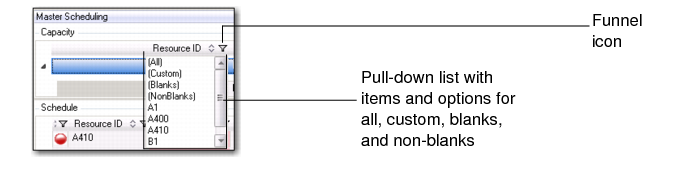
In the various grids and panels, you can apply filters to the columns that display by clicking the funnel icon. Click the funnel icon to display a pull-down list with items displayed for the column along with options for (All), (Custom), (Blanks), and (NonBlanks). This is a standard .NET UI filtering mechanism.
Filter
• To display all data, choose (All). This is the default.
• To include custom criteria, choose (Custom).
• To include only blank items, choose (Blanks).
• To display everything except blank items, choose (NonBlanks).
• For a particular item, select the item from the list.
To define a custom browse, click the funnel icon, then choose (Custom). The Enter filter criteria pop-up menu displays. By default, the menu includes an initial criteria. You can add additional criteria by selecting Add a Condition, then selecting an operation.