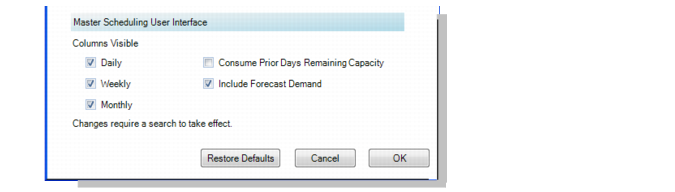
MSW Display Preferences
Use the Display tab of the Settings window to define the increment by which MSW calculates totals. Select Option, Preferences, then the Display Tab.
MSW, Display Preferences
Columns Visible
Specify Daily, Weekly, or Monthly as the increment by which scheduling totals are displayed in the Schedule Grid. When you enter a value, the totals in the Supply/Demand Panel, Capacity Panel, and Schedule Grid display by the increment you enter. You still view data by daily increments in the Schedule Grid. When you select weekly or monthly, you must expand those increments to access the daily display. MSW uses the calendar definition of a month and the GL calendar period for the week.
Include Forecast Demand
Specify Yes to include the forecast demand in the Demand row in the MSW Supply/Demand Data grid as part of the POH calculation. When you enable this option, you do not have to refresh your screen with a new search to see the forecast demand in the Suppy/Demand Panel. You can click on the Demand field in the Supply/Demand Panel to see the forecast demand and to have it automatically included in the Demand field.
For forecast demand, the system displays the net balance of current forecast demand from QAD EE for the selected item. Master production scheduling and MRP use the net forecast and sales order demand to calculate total demand. The net forecast is calculated as follows:
Net Forecast = Forecast – Sales Order Demand
Note: When the shipment forecast is oversold—that is, the quantity sold exceeds the forecast amount—the net forecast will not go below zero.
Past due is not calculated.
Consume Prior Remaining Capacity
For information on the Consume Prior Remaining Capacity field, refer to
MSW Consume Prior Remaining Capacity.