CAC User Preferences
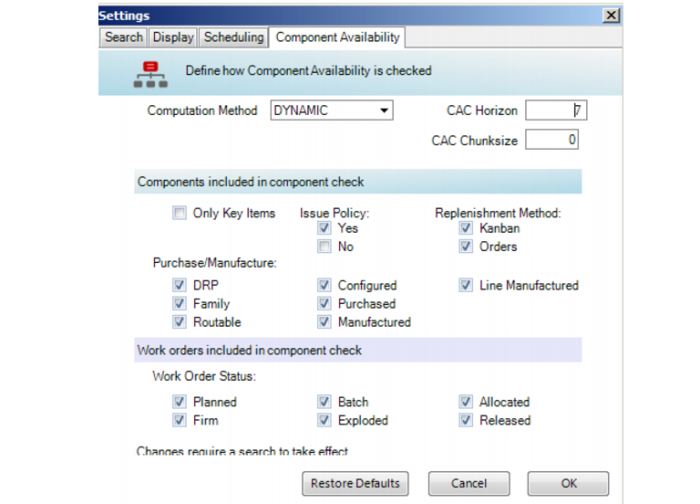
You select Option, then Preferences, then the Component Availability tab to set CAC preferences. Set the horizon, then select the components the system includes in the component check:
Important: Changes to preferences require that you run Search again.
Settings Window, Component Availability Tab
Computation Method
Indicates how and when CAC processes and calculates data:
None: CAC calculations do not occur during data search retrieval and save. Shortage Report and Production Order Maintenance Component Supply/Demand Summary and Detail windows are blank.
On Search Save: CAC is enabled and calculations occur during data retrieval and save. Component status information displays in the Production Order Maintenance tab, the order component list panel, the Component Supply/Demand Summary and Details Panels, and the Shortage Report. This is the default.
• Dynamic: CAC processes dynamically and on-demand for only the items you select on the workbenches. CAC does not process during search and save functions as background processing on all orders in the horizon.
Note: This feature only works when navigating on the MSW Schedule Grid. Navigation on the PSW does not invoke Dynamic CAC.
When you select Dynamic and modify a production order for a selected item and save changes, the system clears the CAC statuses for all prior work orders and items selected; then, it recalculates the CAC statuses for the items and orders that you are currently focused on.
You can see the CAC calculations for the item you are focused on in the Production Order Maintenance tab in the right-side order summary window in the Component Status column.
Note: When you create a new item, the Component Status column has no value for the item until you save the new item.
The Dynamic option is useful when you may only schedule a few dozen items and work orders; otherwise, when On Search Save is selected, the system can perform CAC calculations for a number of work orders and components, which can increase the data retrieval time. When you select a new row/item before CAC processing completes on a prior row/item, the system cancels the prior row/item CAC.
CAC Horizon
Enter the number of days into the future within which the CAC calculations consider MRP detail data. The system counts the number of days from the due date of the production order, not the release date.
Typically, CAC statuses are relevant only for production orders to be released in the near-term; therefore, you should set this to the horizon within which you expect to be releasing production orders.
If the manufacturing lead time is long, then you should set many days for checking; otherwise, the system does not select orders for checking. For example, this can occur for production orders with a due date that is after the end of the horizon.
CAC Chunksize
Specify a number that represents the number of work order component detail records that are sent in each call to the server.
Single, large CAC calculation server calls that take more than five minutes can result in timeout problems when running over a wide-area network (WAN) or using the OpenEdge AppServer Internet Adapter. You can divide a single large, long-running CAC calculation server call into a number of smaller and shorter server calls to shorten the processing time per call and avoid timeout problems.
When you set CAC Chunksize to a non-zero value, this indicates the maximum number of work order component detail records that the system sends in each call to the Appserver.
When you set CAC Chunksize to 0 (zero), chunking is disabled and the system sends all work order component detail records in one call to the Appserver.
Only Key Items
Indicate whether to include only key items when calculating CAC. Key items are identified using Item Master Maintenance (1.4.1), Item Inventory Data Maintenance (1.4.5) or Item-Site Inventory Data Maintenance(1.4.6).
No: Both key items and non-key items are included in the CAC calculation.
Yes: Only key items are included in the CAC calculation.
Issue Policy
Indicate whether to include items according to their Issue Policy. Issue Policy is set using Item Master Maintenance (1.4.1), Item Planning Data Maintenance (1.4.7) or Item-Site Planning Data Maintenance(1.4.17).
Issue Policy Yes:
Not checked: Items with Issue Policy set to Yes are not included in the CAC calculation.
Checked: Items with Issue Policy set to Yes are included in the CAC calculation.
Issue Policy No:
Not checked: Items with Issue Policy set to No are not included in the CAC calculation.
Checked: Items with Issue Policy set to No are included in the CAC calculation.
Replenishment Method
Indicate whether to include items according to their replenishment method. You set the replenishment method using Item Master Maintenance (1.4.1), Item Planning Maintenance (1.4.7) or Item-Site Planning Maintenance (1.4.17).
Replenishment Method Kanban:
Not checked: Items whose Replenishment Method is set to Kanban are not included in the CAC calculation.
Checked: Items whose Replenishment Method is set to Kanban are included in the CAC calculation.
Replenishment Method Orders:
Not checked: Items whose Replenishment Method is set to Orders are not included in the CAC calculation.
Checked: Items whose Replenishment Method is set to Orders are included in the CAC calculation
Purchase/Manufacture
Indicate whether to include items according to their Purchase/Manufacture code. Purchase/Manufacture code is set using Item Master Maintenance (1.4.1), Item Planning Maintenance (1.4.7), or Item-Site Planning Maintenance (1.4.17). Items for each possible Purchase/Manufacture code type can be selected or not selected by checking or unchecking its check box:
Not checked: Items with the indicated Purchase/Manufacture code are not included in the CAC calculation.
Checked: Items with the indicated Purchase/Manufacture code are included in the CAC calculation.
Work Order Status
Select a particular order status to be included in the CAC calculation. Selecting an order status reduces the number of work orders for which CAC is calculated, thereby reducing the overall calculation time. You can select from the following statuses:
P(lanned)
F(irm)
B(atch)
E(xploded)
A(llocated)
R(eleased)
The system calculates CAC status for the specified order types only. The system does not calculate orders with a status you did not select and sets the status of unselected orders to a CAC status of No Status.