Domain Conversion
All QAD Enterprise Edition databases require a minimum of two domains. One – the system domain – is created when you install the QAD Enterprise Edition target version. For converted databases, a production or primary domain is created during the conversion process.
In this process, the conversion routines make assumptions based on information in the source database. If there are no Database Connection (dc_mstr) record entries for other databases in the source database, a new connection master is created and the production domain is assigned to this database.
If database connection entries for other databases exist, you are first asked to choose the current database from the list. You then assign a primary domain for this database. After the primary domain is assigned, you assign a domain to each of the other databases with database connection records. These domains are then required to support future connections to these other databases.
Important: When you convert the other databases, all of the domain names must be identical. For example, assume that you assign domain names of sales, production, and distribution to databases named db1, db2, and db3 respectively. In the first database you convert, you use the same domains for the same databases when converting subsequent databases.
Multiple Databases – More than One dc_mstr
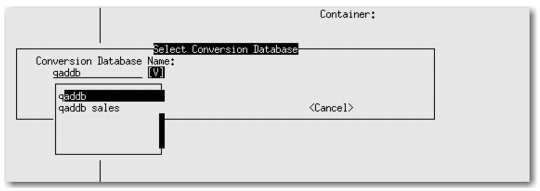
1 If the source database contains more than one Database Connection Master, the first screen to display is the Select Conversion Database screen. Select the database you are converting and press OK.
Select Conversion Database
2 You are prompted to create a domain for each database with a connection record in alphanumeric order.
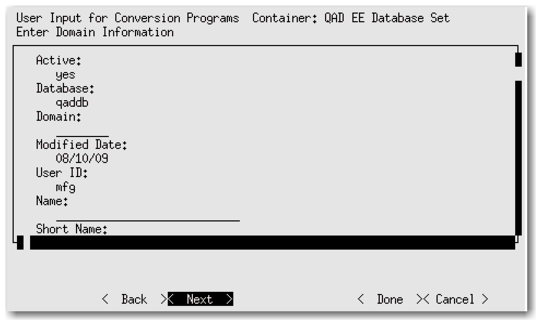
Creating a Database Domain - Multiple Databases
3 The master domain screen displays for each database identified with a database connection in the conversion database. Provide values based on the following field descriptions:
• Active: Indicate whether this domain is currently active.
Yes (the default): This domain can be associated with users in User Maintenance (36.3.1, mgurmt.p) and specified at login.
No: This domain is not active in the current database.
• Database: The logical name of the database displays, but it cannot be modified.
• Domain (Code): Enter a unique code for each database identifying a specific domain.
• (Domain) Name: Provide a descriptive name to associate with this domain (up to 28 characters). This name must be unique within a database and across connected databases. This name displays in the lookup associated with domain fields and on various reports and inquiries, as space permits.
• (Domain) Short Name: Provide a brief name (up to 14 characters) to associate with this domain. This name must be unique within a database and across connected databases. The domain short name displays in the program title bar in the character interface based on the setting of Header Display Mode in Security Control (36.3.24, mgurpmmt.p).
• Domain Type: This field displays the default value.
4 Click OK when you finish.
Single Database – No dc_mstr
1 If this database has no database connection records, the Select Conversion Database screen containing the logical database name displays. Use the domain entry screen to create the required database connection record for the conversion (target) database.
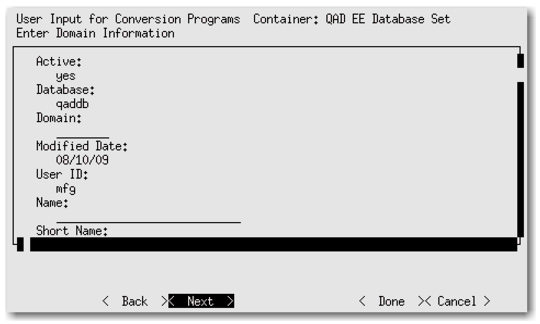
Creating a Database Domain - Single Database
2 Provide the required information. The previous section describes the required fields.
3 Choose Next when you finish.