Install and Configure Software
Install QDT
Install QDT using the instructions in Installation Guide: QAD Enterprise Edition - Progress Database.
For upgrades, install QDT over the existing QDT installation (in other words, you must install it to the same directory).
Note: If the QADHOME and QADUI default values were altered during the original Enterprise Edition installation, use System Default Settings on the Main QDT toolbar to verify that the values for QAD User Interface Home and Name are correct.
Migrating QDT to a New Progress and Tomcat Version
For information about installing the latest Progress version and configuring QDT and QAD Enterprise Edition to use the latest Progress version, see
Configuring QDT to Use a New Progress or Tomcat Version. You must complete this task before you install the latest Enterprise Edition code.
Install QAD Enterprise Edition
Use the latest version of QDT (which includes the upgrade and conversion software) to install QAD Enterprise Edition.
See Installation Guide: QAD Enterprise Edition - Progress Database for detailed QAD Enterprise Edition installation information.
Note:
• QDT and QDTAdmin must run on an X Window/VNC server.
• The QAD Enterprise Edition patch level could require updating. See Patch Deployment Guide: QAD Enterprise Edition for more information.
• Do not run the Configure QAD EE option during an upgrade. It is only used when doing a clean install with no upgrade planned.
• For upgrades, you must install QAD Enterprise Edition over the existing QAD EE environment. In other words, install QAD Enterprise Edition to the same directory as the version being upgraded.
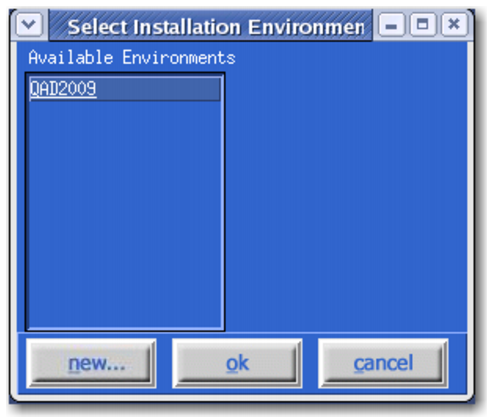
During installation, you select the environment you want to update from the list of available environments.
Available Environment Selection Panel
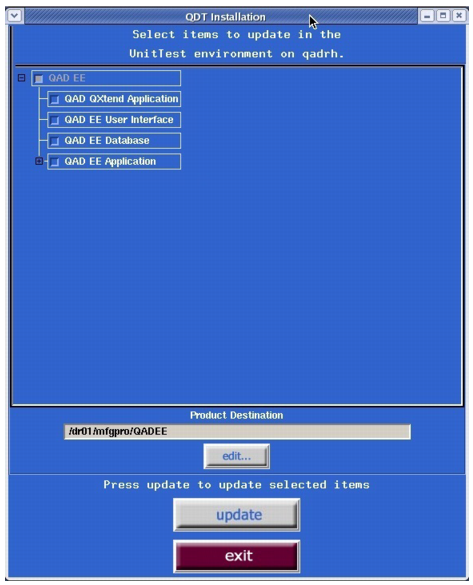
During upgrades, the following options are not selected by default:
• QAD QXtend
• QAD EE User Interface
• QAD EE Database
• QAD EE Application
Ensure that they are selected (see the following figure).
Installation Option Window
Also ensure that the Product Destination path is set to the directory location of the QAD Enterprise Edition version being upgraded.
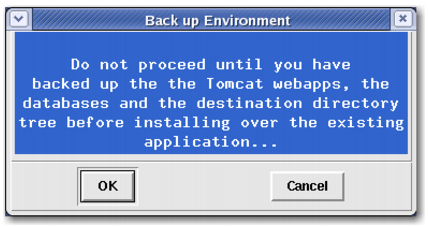
A warning to back up the current install appears. Select OK to continue.
Backup Warning Pop-up