Setup for Progress Editor Access
The User Option Telnet Maintenance function creates the hidden script that logs in to the system via telnet. You can emulate the script by mirroring the steps using a normal telnet session. For example, match login and type user ID.
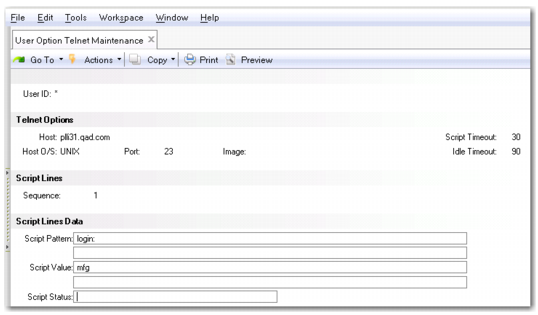
1 Launch User Option Telnet Maintenance (36.4.14) and configure the login script as follows:
• User ID: *
• Host: <host-name for QAD Enterprise Edition Installation>
• Port: 23
• Sequence: 1
• Script Pattern: login: <-- Validate the case of the login on the Telnet Screen (for example, is it L or l?)
• Script Value: <unix-login> <-- Enter the Linux/UNIX user id
Sequence 1 Entries
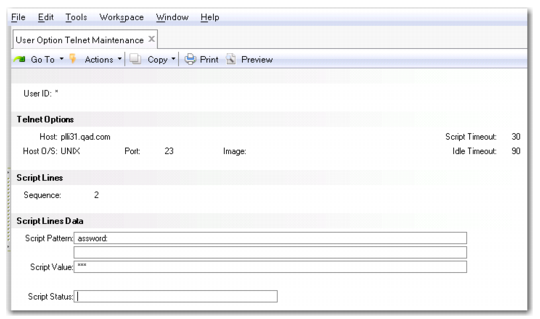
2 Make the following entries for sequence 2:
• Sequence: 2
• Script Pattern: assword:
Note: Do not use the P because some operating systems have this as lower case and some have uppercase.
• Script Value: <unix-password> <-- Enter the Linux/UNIX password
Note: This value is the operating system password. It is not necessarily the same as the QAD .NET UI password.
Sequence 3 Entries
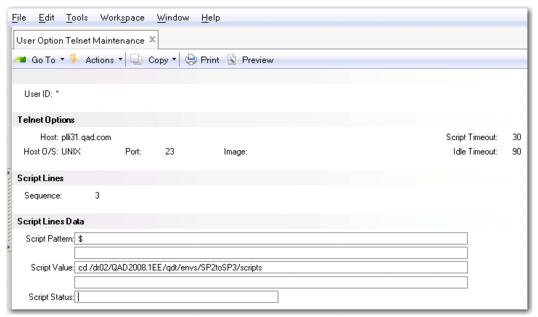
3 Make the following entries for sequence 3:
• Sequence: 3
• Script Pattern: $ <-- Ensure that the script pattern is correct after the user logs in. Is it $ or #, for example?
• Script Value: cd <QDT_install_directory>/scripts/<env>/scripts
Sequence 3 Entries
4 Change to the directory where the scripts are located for the environment under QDT.
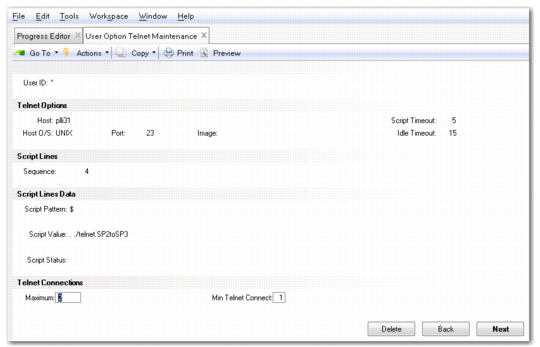
5 Make the following entries for sequence 4:
• Sequence: 4
• Script Pattern: $
• Script Value: . ./telnet.<env> <-- where <env> represents the environment being accessed.
Note: There is a space between the two periods.
Sequence 4 Entries
6 Click the Back button to advance to the Telnet Connections section of the frame.
7 Update the Maximum and Min Telnet Connect numbers.
8 Click Next when finished.