Setting System Defaults
If the environment variables on your host machine were previously set at the operating system level, QDT automatically discovers and displays relevant system information on its main screen.
If the QDT main screen fails to display system information, or if it displays incorrect information, set the system defaults through QDT’s Edit System Default Settings menu item.
Important: Port settings, such as Tomcat and Progress AdminServer ports, are automatically set to default values within QDT. If you are not using the default values for these ports, or are installing multiple environments (which requires multiple Tomcat environments), use QDT’s Edit|System Default Settings menu item to set the correct port values.
To set system defaults (including port settings):
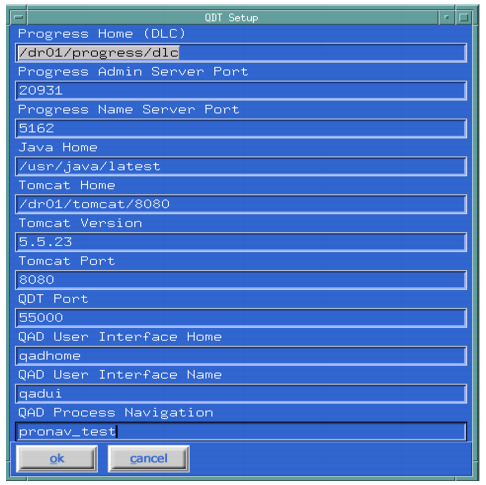
1 On the QDT main screen, select Edit|System Default Settings. The QDT Setup screen displays.
System Default Settings
2 Enter changes to the appropriate settings.
Note: Two fields were added beginning with QAD 2012 Enterprise Edition that allow you to change the <qadhome> and <qadui> WebApp names. These names are only used for the initial environment. If the environment is cloned, you can give the <qadui> WebApp a different name. The <qadhome> WebApp is shared between environments and cannot be given a different name for the cloned environment. Only change <qadhome> and <qadui> during initial QDT installation. Changing them during an upgrade can have unintended results.
Beginning with 2013 Enterprise Edition, the QAD UI Process Maps are deployed as a separate WebApp. A field was added to allow you to change the QAD UI Process Maps WebApp name. The default is pronav, but you can change the name during initial QDT installation using the QAD Process Navigation field.
3 Select OK to close the screen and save the changes.