Monitoring
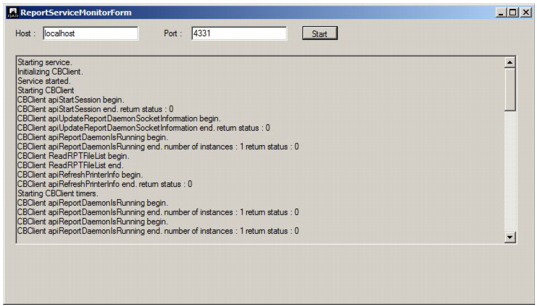
The QAD Reporting Service is distributed with a utility to monitor the service. To start the utility, do the following:
1 Click the Monitor Service shortcut.
2 Enter localhost in the Host text box.
3 Click the Start button to begin monitoring the local service.
Reporting Service Monitor
QAD Reporting Service Does Not Start
The QAD Reporting Service is designed to run as an unattended Windows Service. After the Reporting Service is installed, you must start it manually. It is not automatically started during installation. To determine if the service is running, check the QAD Reporting Service entry in the Windows Services application.
Note: Press function key F5 within the Windows Services application to ensure that you are presented with up-to-date information.
Windows Service Entry for Reporting Service
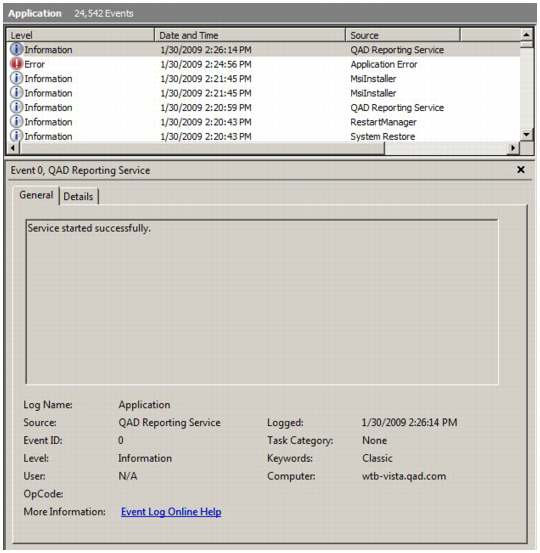
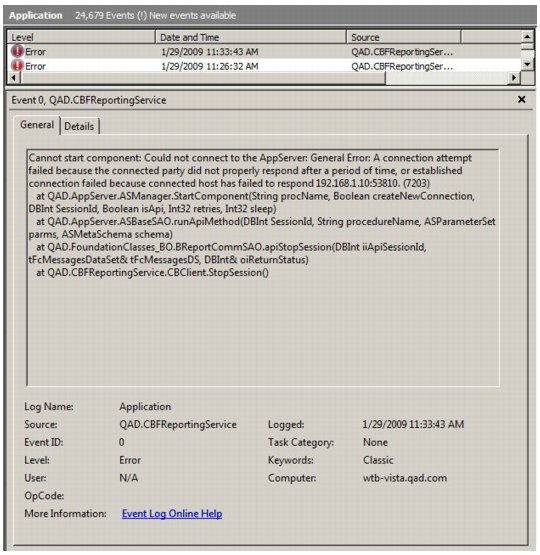
Errors that occur while running the service are written to the Windows Event Log, which you can view with the Windows Event Viewer.
Windows Event Log
You can run the service as a stand-alone console application to bypass the Windows service layer while testing. To run the QAD Reporting Service from the console, start a command prompt and do the following:
1 Enter:
cd <ReportingService>\service
2 Enter:
QAD.CBFReportingService.exe –configfile QAD.CBFReportingService.exe.config –noservice
3 To stop the service, press CTRL+c.
QAD Reporting Service is Not Communicating with the Application Server
One way to determine if the reporting service is communicating with the application server is to attempt to send a test report (see
Testing). If you receive warning message QADFC-610, it indicates that the reporting service and the application server cannot communicate. After a short time, you can review the Windows Event Log on the server where the QAD Reporting Service is installed for a more detailed explanation of the failure.
QAD Reporting Service to Application Server
The QAD Reporting Service obtains the address of the application server from the configuration associated with the Home Server environment with which it is associated. In a typical deployment, an XML document specifies this configuration:
<home_server>/configurations/<environment_name>/client-session.xml
In this document, the following fragment defines the application server address:
<qad.appserver url="appserverdc://qadrh.qad.com/pilot"/>
Note: If a host name is specified (for example, qadrh) instead of an IP address, the Windows server on which the QAD Reporting Service is installed must be able to resolve the host name.
In some network deployments, the Progress NameServer can return an IP address that cannot be routed.
Progress Server Error Listings
As a test, you can change the configuration to bypass the Progress NameServer using a direct connection to the application server.
Example:
<qad.appserver url="appserverdc://qadrh.qad.com/pilot"/>
Application Server to QAD Reporting Service
By default, the QAD Reporting Service is configured to send the name of the Windows server to the application server. The host where the application server is installed must be able to resolve this name, or the QAD Reporting Service must be configured to send its IP address. To send the IP address rather than the host name, edit the QAD Reporting Service configuration file (as described in
Configuration) by setting the value of the key
ExternalHostName to the Windows server IP address. Then stop and start the service to activate the change.
For example:
<add key="ExternalHostName" value="nnn.nnn.nnn.nnn"></add>
Reporting Service Cannot Connect to SMTP Server
If a host name identifies the SMTP server, the Windows server containing the QAD Reporting Service installation must be able to resolve the host name and the SMTP server must be listening on TCP/IP port 25.
Note: Many anti-virus programs block TCP/IP port 25 to protect against malicious programs that use e-mail as part of their attack strategy. For example, McAfee blocks Port 25 for all processes, except those processes specified in a configurable list of exclusions. You can configure programs like McAfee to allow outgoing mail by using the process name QAD.CBFReportingService.exe.
Invalid E-mail Addresses
If a report request contains an invalid sender (From) or recipient (To) address, the detailed error is logged in the Windows Event Log. The application server is informed that the request failed. You can review the failure from the QAD Applications Client using the Report Daemon Monitor.
Note: The sender e-mail address is the address associated with the user account that is executing or scheduling the report. The e-mail address for a user account is specified with the User Maintenance program.