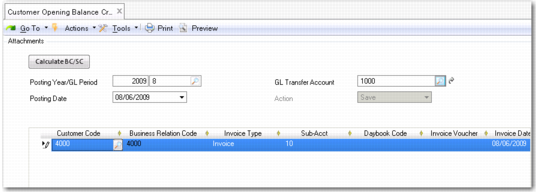
Customer Opening Balance
Use Customer Opening Balance Create (27.1.10) to manually create an open item in the sales sub-ledger, and generate postings for customer invoice and credit note control accounts.
The activity lets you transfer the outstanding open items (invoices, credit notes, adjustments, prepayments, deductions) for a specific customer in detail from an external system to your QAD application.
Create a standard GL account to act as a balancing transfer account for the control accounts.
The opening balance activity updates the following accounts:
• For invoices, debits Customer Control and credits the GL Transfer account.
• For credit notes, debits GL Transfer and credits Customer Control.
• For item adjustments, if the adjustment involves a debit on the item, the accounts referenced are the same as those for an invoice. If it involves a credit, the accounts referenced are the same as those for a credit note.
The transfer account is used in postings to the control account balances, because you cannot initially post to the control accounts. You cannot modify these postings, and the input of customer, supplier, and GL opening balances ensures that the transfer accounts are referenced in the postings balance.
Opening balances can be created manually or by using Excel integration. For more information on Excel Integration, see
Introduction to QAD Enterprise Applications User Guide.
Use the Export to Excel for Maintenance option to create a template for open items. You should ensure that all the values you enter in the Excel spreadsheet are valid for this customer.
Customer Opening Balance Create
Field Descriptions
Posting Year/Period
Specify an accounting year and period for the opening balance.
GL Transfer Account
Specify a GL account for the posting. This must be a manual account of type Standard.
Posting Date
Specify the date the posting is effective.
Enter the item details in the grid. These details are identical to those for customer invoices and credit notes, except for the tax and posting information.
You can use the Calculate BC/SC button to convert the transaction currency amounts to the base currency and statutory currency using the default exchange rate.
See
Supplier Opening Balance for a detailed description of the fields in the grid.