Using a Posting Template
Use the following procedure to create a journal entry using a posting template:
1 Click the Template Code lookup and select a template.
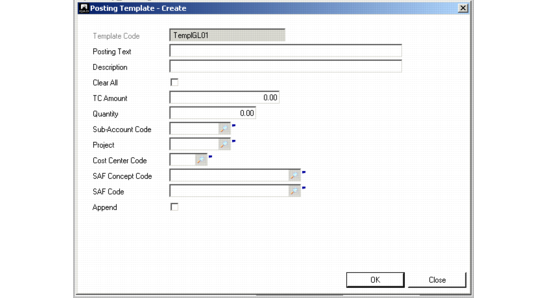
The Posting Template Apply screen is displayed.
2 Complete the fields as described below.
Posting Template Apply
Field Descriptions
Template Code
This read-only field displays the template code.
Posting Text
Enter the journal entry description. Leave this field blank to load the description saved in the template.
Description
Enter the posting line description. You can also edit this text in the posting grid. Leave this field blank to load the description saved in the template.
Clear All
Select to delete all existing currency amounts. You can enter new currency amounts in the posting grid.
Note: You can use the base currency and one other currency only when saving posting details in a template. When you save a posting that uses two non-base currencies, the Clear All field is automatically set, and the amount, quantity, and currency details are cleared from the template.
TC Amount
Specify the transaction currency amount. Leave this field blank to load the amounts saved in the template.
Quantity
Specify the quantity of units for this transaction, if the account is defined to accept units of measure. Quantities are not saved in posting templates, and this value defaults to zero.
Sub-Account Code
This field displays a sub-account code if one is used in the template.
Project
This field displays a project code if one is used in the template.
Cost Center Code
This field displays a cost center code if one is used in the template.
SAF Concept Code
This field displays an SAF concept code if one is used in the template.
SAF Code
This field displays an SAF code if one is used in the template.
Append
Select to retain the original posting lines and append the template posting lines. If you do not select Append, the original posting lines are removed.