Setting Up Invoice Certification
Installing OpenSSL
As a prerequisite to installing OpenSSL, you must install Microsoft Visual C++ 2008 redistributable on the machine on which you want to install OpenSSL. You can download Microsoft Visual C++ 2008 from the Microsoft Web site.
To install OpenSSL:
1 Download file Win32_OpenSsL_v1.0.0<latest> from http://www.slproweb.com/products/Win32OpenSSL.html
where <latest> is the version letter for the latest version.
2 Run the install file and choose to install the DLL files in the local bin directory instead of the Windows directory.
3 Ensure that you:
• Reboot your machine after the installation.
or
• Restart the Progress admin service.
As a result, the newly created environment variables on system level become known throughout the system.
Configuring System Maintain
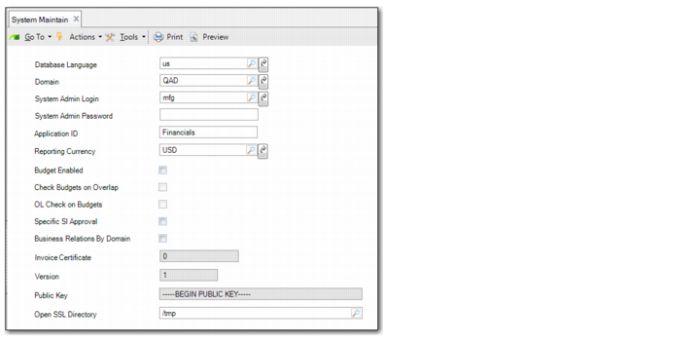
Configure invoice certification using four fields in System Maintain.
System Maintain
Invoice Certificate
This field displays QAD’s certification number, assigned by the local government. This field is updated using System Synchronize. QAD’s certification number for Portugal is 1352.
Version
This field displays the version number of the public and private keys. This field is updated using System Synchronize.
Public Key
This field displays the invoice certification public key created by QAD. This field is updated using System Synchronize.
Open SSL Directory
Specify the OpenSSL bin directory. OpenSSL is used to generate the private and public keys.
This field is mandatory. You cannot enable invoice certification if you have not specified the OpenSSL bin directory.
Enabling Invoice Certification
You enable invoice certification at domain level.
The following prerequisites must be met before you can enable invoice certification:
• The domain base currency or statutory currency must be Euros.
• The domain must use consecutive invoice numbering.
• The domain must use chronological invoice numbering with error generation.
• Daybook set by site must be enabled for the domain.
• You must specify the OpenSSL bin directory in System Maintain.
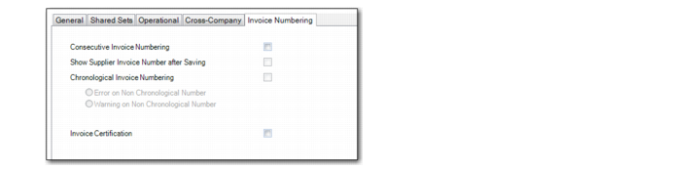
Domain Modify, Invoice Numbering Tab
Consecutive Invoice Numbering
Select this field to enable consecutive invoice numbering for the domain. Consecutive numbering ensures that AR and AP invoice and credit note numbers are consecutive, and without gaps.
You cannot clear the Consecutive Invoice Numbering field when Invoice Certification is enabled.
Chronological Invoice Numbering
Select the field to enable chronological invoice numbering for the domain. Chronological invoice numbering ensures that AR and AP invoices and credit notes are sequentially numbered in the correct date order.
Select Error on Non Chronological Number to prevent the generation of invalid invoice numbers.
You cannot clear the Chronological Invoice Numbering field when Invoice Certification is enabled.
Invoice Certification
Select this field to activate invoice certification for the domain.
Important: You cannot disable invoice certification if it has been enabled for a domain. The system displays a warning to draw attention to this when you enable invoice certification and subsequently save the domain record. The warning enables you to cancel the save.
Defining the Audit File Name
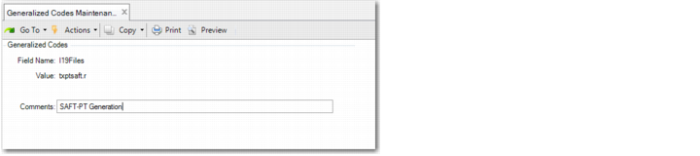
Use Generalized Codes Maintenance to define the name of the XML audit file to be exported.
Generalized Codes Maintenance
Specify the following values:
Field Name: | I19Files |
Value: | txptsaft.r |
Comments: | SAFT-PT Generation |