Creating Self‑Bills
Before you can begin to process customer-initiated payments, the corresponding shipping data must be collected for discrete sales orders and scheduled orders by Pre-Shipper/Shipper Confirm (7.9.5). You must allow a period of time for this shipping data to be captured before you begin to process any self-bills. During this time period, post all invoices to AR for shipments to customers that use self-bills.
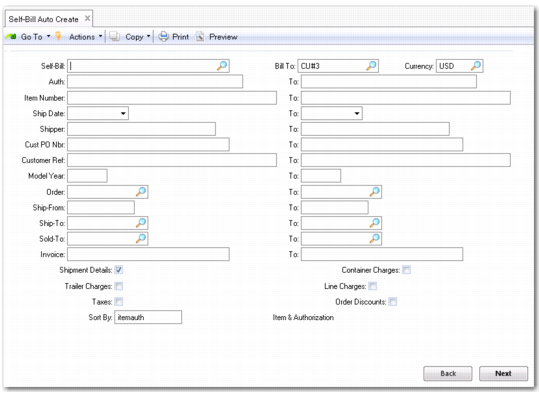
If your customers do not use EDI eCommerce to create self-bill records, you use Self-Bill Auto Create (27.6.12.4) to enter customer remittance advice records into your system. Specify a range of selection criteria as shown on the customer’s remittance advice, and then associate the payment information with the correct invoice. You can assign a self-bill number to the document you are creating, or let the system auto-generate the self-bill number. See
Matching Adjustment Self-Bill Lines.
In certain situations, you may not be able to associate some lines from a customer’s remittance advice with the self-bill you are creating. These lines are labeled adjustment self-bill lines. You must manually associate these lines with the corresponding invoice lines using Self-Bill Maintenance (27.6.12.1).
Once you create the self-bill using Self-Bill Auto Create, Self-Bill Maintenance is automatically invoked so you can associate any adjustment self-bill lines with the corresponding invoice shipment.
The auto-create process consists of four steps:
1 Create a self-bill by defining selection criteria.
2 Refine the selection by deselecting any lines that should not be referenced on this self-bill.
3 Print, review, and add selections to the self-bill.
4 Use Self-Bill Maintenance to further refine these selections so that they correctly reflect the information on the customer-remitted self‑bill.
Self-Bill Auto Create (27.6.12.4)
Field Descriptions
Self-Bill
Enter the self-bill to which the selections are to be added.
When left blank, a self-bill number is generated using control program default information.
Specifying an existing self-bill number adds selections to that self-bill. Specifying any other number in this field creates a self-bill for that number and selections are added to it.
Bill-To
Enter the bill-to for which the selection is to be made. This is the customer’s address.When entering information for an existing self-bill, you must also enter that bill-to.
All shipments referenced on the shipper must be paid by the same bill-to.
Currency
Enter the currency for this self-bill document.
All shipments referred to on the self-bill must be invoiced in the same bill-to currency. Only this currency can be used on this self-bill.
Currency is mandatory. When a self-bill is specified in the Self-Bill field, data defaults from that self-bill’s bill-to.
Authorization
Enter the authorization number sent by the customer to identify a shipment. Release Authorization Number (RAN), Dealer Order Number (DON), and kanban numbers are examples of authorization numbers.
When you add detail lines, you can enter an authorization number to select shipments from the shipment-invoice cross-reference table.
Sort By
Specify the display order for information on the Self-Bill Workbench. The four sort orders are:
• Item Number and Authorization Number
• Authorization Number and Item Number
• Shipper Number and Item Number
• Customer PO and Item Number
Additional logical fields let you specify whether the self-bill includes the following types of charges:
• Line charges
• Trailer charges
• Taxes
• Container charges
• Order discounts