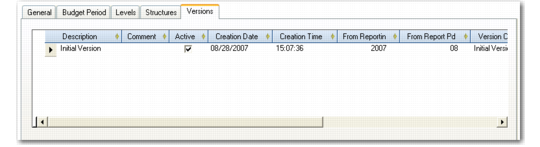
Versions Tab
Budgets can have multiple versions, and you must associate each version record with a valid reporting period.
You can create several versions of the same budget using the Budget Modify All Versions activity. Only one budget version is active at any time, and only this budget version is used for the online budget check (when enabled in the General tab).
To create a new budget version, insert a row in the Versions grid, specify a name for the new version, and select the Active field to make the new version the current one. Clear the Active field for the previous budget version. Only one budget version can be active at any time.
Budget Create, Versions Tab
Field Descriptions
In Budget Modify All Versions, right-click in the grid and select Insert a New Row.
Description
When creating subsequent budget versions, enter a description (maximum 20 characters) to distinguish and identify the new version. This field defaults to Initial Version for the first budget version, but you can modify this value.
Comment
Enter a comment (maximum 40 characters) regarding the budget version.
Active
Indicate if the budget version is active.
Version Code
Enter a code (maximum 20 characters) to identify the budget version. This field defaults to Initial Version for the first budget version, but you can modify this value.
The version code you define appears in the Versions drop-down list in the Structures tab.
From Reporting Year/Period
Specify the reporting period that budget reports for this structure use.
In reporting, it is important to use the correct version of the budget. The fields default to the period and GL calendar year in which the budget version was created.
For example, when you specify period 6 of GL calendar year 2007, you ensure that this version of the budget will be reported on from June 2007 onwards.
Last Modified Date/Time and User
These read-only fields display the ID of the user who last updated this record and the date and time of update.