Linking with Excel
The Excel Hotlink menu contains a number of options that let you integrate with the Budgeting module using Excel.
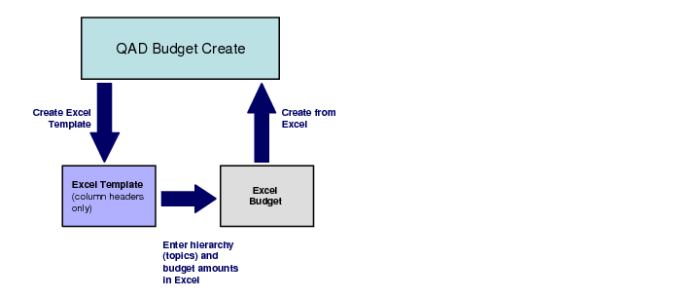
The Create Excel Template and Create From Excel options are similar to standard Excel integration. You use these options when first setting up budgets. The Create from Excel feature requires that you use a specific, custom Excel template, which you access using the Create Excel Template option. When you have completed the budget definition in Excel, you can upload the data using the Create from Excel option.
Important: You can only create new budget structures using Create from Excel; you cannot modify an existing Excel budget structure and re-import it.
Budget Excel Integration Flow
Later, if you want to maintain budget data in Excel, you can create an Excel Hotlink. The hotlink integration with Excel provided in budgeting is more advanced than that available in other Excel integration functions, described in Introduction to QAD Enterprise Applications User Guide.
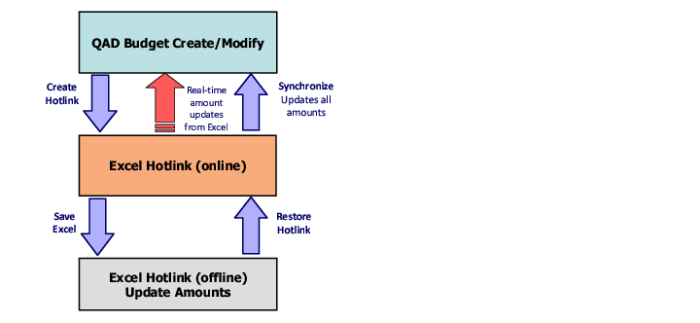
The Excel Hotlink option exports all the current data to Excel, where you can make modifications. The spreadsheet contains the topic structure of the budget as read-only columns, and includes an updatable Amount column for each budget period. You can synchronize your changes with the system using the Synchronize option.
When the budget structure and the Excel spreadsheet are hotlinked, any amount change you make in Excel is immediately reflected in the Budget function. You can also take the hotlink Excel spreadsheet off-line, work on the numbers, return to using the system, and synchronize the hotlink so that the application is updated with the new budget figures.
Excel Hotlink Flow
Note: The Excel Hotlink menu is only available when the Structure tab is active. The Excel Hotlink is only intended for updating budget amounts; it is not intended for use in creating or modifying the hierarchy structure of a budget.
Excel spreadsheets linked to the system using hotlinks can only contain the budget structure and budget data. You cannot create new COA links in Excel to import into and update a budget structure.
The Restore option lets you find a spreadsheet created as an Excel hotlink, and open it. You can then use the Synchronize function to update the system with the changes in the spreadsheet.
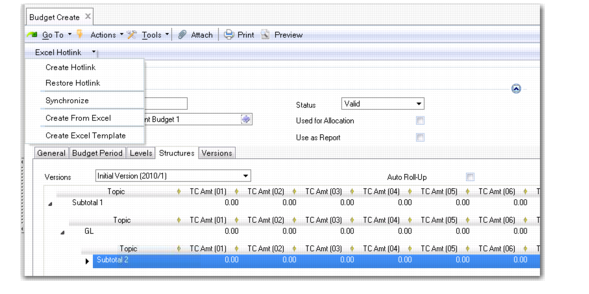
Budget Excel Hotlink Menu
The menu has the following options:
Create Hotlink
Choose Create Hotlink to create a spreadsheet containing the budget topic structure and any budget values already entered. The first spreadsheet columns correspond to the topic names and are read-only. When you update a value in the spreadsheet, the corresponding value in the relevant column in the Structures tab is updated also.
You must run both Excel and your QAD application simultaneously to maintain the hotlink. You can save data in either the spreadsheet or the budget grid at any stage. However, you can also take the hotlinked Excel spreadsheet off-line, update the amounts, and synchronize the hotlink when you return online.
The system stores the spreadsheet file location for each budget. If you plan to share budget maintenance with other users, make sure the file is saved on a shared network drive so it is accessible to them.
Restore Hotlink
Use the Restore Hotlink command to open the spreadsheet associated with a budget.
Synchronize
Use the Synchronize option to replace the budget data in the Structures tab with data in the Excel sheet.
Create from Excel
Use this option to import data defined in a template to initialize the budget structure.
The Create from Excel feature requires that you use a specific, custom Excel template. Use the Create Excel Template option to access the correct template to use.
You can only create new budget structures using Create from Excel; you cannot modify an existing Excel budget structure and re-import it.
Create Excel Template
Use this option to create a custom spreadsheet with column headings for all of the columns in the grid.