Changing Crystal Report Settings and Defaults
Managing Filter Fields
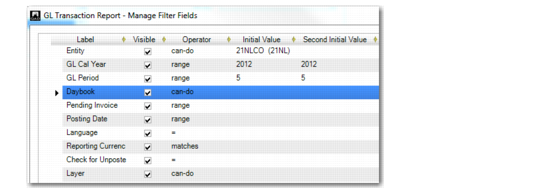
The Manage Filter Fields option in the Tools menu lets you indicate which filter fields to use for the current report variant, and how the fields appear in the Selection Criteria tab for the report.
You can use Manage Filter Fields to:
• Change the order in which the filter fields appear in the Selection Criteria tab.
• Specify whether to display a filter field on the Selection Criteria tab (Use column).
• Define an initial value or range of values for the filter field.
Manage Filter Fields
Field Descriptions
Use
Select the field to include the item in the report search criteria.
Operator
Indicates how a value entered as a search criterion should be interpreted. Possible values are:
begins, matches, =, >, <, =>, <=, can-do, range.
Initial Value
Select the default value for the search criterion from the drop-down list.
Second Initial Value
This field is editable only when the range operator is specified. Enter the ending value in a range for selecting records.
Report Options
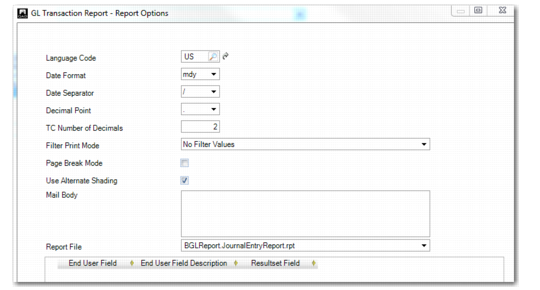
The Report Options option in the Tools menu lets you specify reporting runtime parameters. These settings are stored at the report variant level, and affect how the report is printed.
Report Options Tab
Field Descriptions
Language Code
Select the language to use in the report output. The default value is the language of the current session. You can also store a language preference in the report variant, and also in the last-used report variant.
For example, a user logs in to the application and the session language is set as English. The user opens the GL Transactions report, changes the reporting language to French, and runs the report. The next time the same user runs that report, French is retained as reporting language because this setting is stored in the last-used report variant for the user.
Date Format.
Select the format for displaying dates on the report. The options are:
DMY
MDY
YMD
Date Separator
Select the type of separator to use to format dates printed on the report. The options are forward slash, dash, and period.
Decimal Sign
Select the decimal sign to use in figures printed on the report.
TC Number of Decimals
Select the number of decimal places that you want to allow for decimal amounts printed on the report.
Use the field to limit the transaction currency fields to a fixed number of decimals. Possible values are: <blank>, 0, 1, 2, 3, 4, 5, or 6. If you select <blank>, the number of decimals stored in the report data row itself are used.
Filter Print Mode
Select an option to indicate where to place filter information on the report. The options are:
No Filter Values Section on Report
Filter Values Section only on First Page
Filter Values Section only on Last Page
Page Break Mode
Select the field if the system must insert a page break in the report.
Use Alternate Shading
Select this field to shade alternate lines on the report. This aids readability for reports that contain many lines of data.
Report Design File
Specify a Crystal Reports design file that contains custom changes to the current report. The changes are then loaded and applied to the report.
Mail Body
Optionally, enter body text for e-mails to system users to which the report must be attached.
Report File
This field indicates the default report template on which the report is based. Use the drop-down list to select a different template if necessary.
Report Variants
Report Variants are similar to stored searches, and let you store the settings for a report under a user-defined name. By storing settings in a variant, you avoid defining report settings each time the report is run.
Use the Variants menu to save report variants, and the Variants drop-down list to select saved variants.
You can use an existing report variant, modify the report settings, and save them to the existing report variant, or select another report variant to update.
Use Report Variant Delete (36.4.21.25.3) to delete unwanted variants from the system.
Use Report Variant View (36.4.21.25.2) to view existing report variants in read-only form.
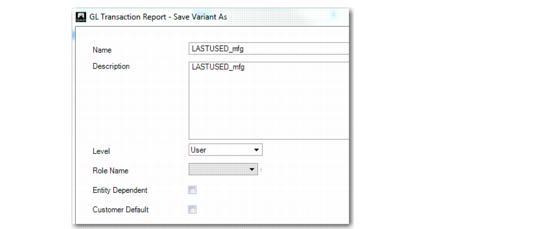
Variants Save As
Field Descriptions
Name
Enter a code (maximum of 80 characters) to identify this variant. The variant name must be unique to that report.
Description
Enter a brief description of the variant
Level
Choose an option to determine which users can access the report variant. The options available in the Level drop-down list depend on your role permissions.
User <Current User ID>: Only you can access the report variant. It is not available in the variant lists of other users. This setting is the default.
Role <Current Role>: Only users who have the same role as your default role can access the variant. It is not available in the variant lists of users who do not have this role.
System: The variant is available to all users in the system.
Customized Factory Default: The variant is named CUSTOMERDEFAULT, and becomes the customized factory default for this report.
Note: This option is only available to users who have a role assigned that lets them define a stored search on system level.
Role Name
If you select role as the access level, select a system role from the drop-down list.
Entity-Dependent
Select the field if you do not want the report variant to be available across entities.