Recurring Entry
Use the Recurring Entry activities (25.13.4) to create, view, modify, and delete recurring entries, and to process recurring entry postings. Recurring entries are transactions that are repeated regularly, such as monthly rent payments.
You can also using Recurring Entry Transient Create (25.13.4.6) to create recurring entries directly in the transient layer.
You can run recurring entry transactions in several GL periods, eliminating some of the manual effort required. An expected end-of-year expense might be accrued month-by-month to distribute the effect on the balance sheet. Rather than making a manual entry each month, you can set up a recurring entry.
A recurring entry consists of a posting template linked to a posting calendar. If you have created a recurring entry recorded in the transient layer, you then post the entry to the official layer using Recurring Entry Post. If the template was recorded in the official layer, the postings step is not required.
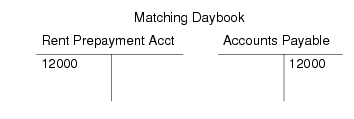
Example: An organization pays $12000 a year to rent an office, and the rental expense for the entire year is allocated to a rent prepayment account, and accounts payable is credited. The rent is recorded as a supplier invoice, and the initial $12000 to the rent prepayment account is entered on the Matching Posting tab of the Supplier Invoice screen. The daybook used must be of type Matching Daybook.
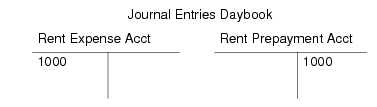
Every month, in the standard Journal Entries daybook used for recurring entries, the rent expense account is debited by $1000, and the rent prepayment account is credited for the month’s office rental.
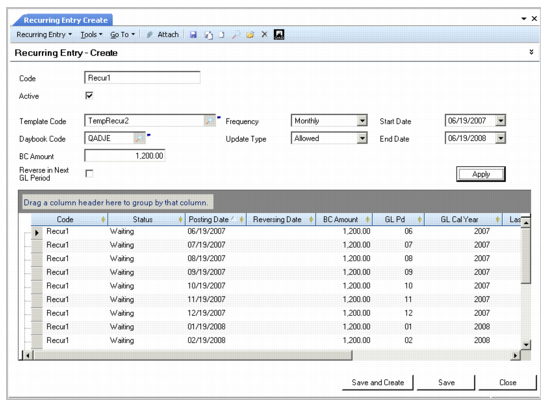
Recurring Entry Create
Field Descriptions
Code
Enter a code (maximum 20 characters) to identify the recurring entry.
Active
Indicate if this is an active record.
Template Code
Specify a posting template to use as the basis of the recurring entry.
Daybook Code
Specify the daybook code to which the recurring entry is posted.
BC Amount
Enter the base currency amount of the recurring entry.
Frequency
Select a posting frequency from the following options:
Manually. You must run the posting manually at intervals. Use this option when the intervals required are irregular.
Monthly
GL Period
Quarterly
Weekly
Note: The GL Period option is the same as Monthly if your GL periods correspond exactly to calendar months.
Update Type
Choose an option to indicate if details in the template can be updated when the postings are run.
Allowed: You can optionally update posting details marked as Allowed. Posting details with this status are displayed in green.
Forbidden: You cannot update posting details marked as Forbidden. Posting details with this status are displayed in black.
Mandatory: You must update posting details marked as Mandatory. Posting details with this status are displayed in blue.
Start Date
Specify a start date for the recurring entry.
End Date
Specify an optional end date for the recurring entry. If you do not specify an end date, the recurring entry is run at the predefined intervals for an indefinite timespan.
Reverse in Next GL Period
Select to reverse the recurring entry in the next period. Specify the reversing date for the entry in the Reversing Date column of the entry grid.
Click the Apply button to generate recurring entries based on the information you specified in the header.
If you do not specify an end date, the grid displays one instance of the entry only.