ERS
Objective
Overview
In this section, you will learn about the Evaluated Receipts Settlement (ERS) functionality, its benefits, and key features. Then, we will learn how to set up and process ERS.
ERS Benefits
The ERS function lets you generate supplier invoices and corresponding receiver matching records based on completed purchase order receipts.
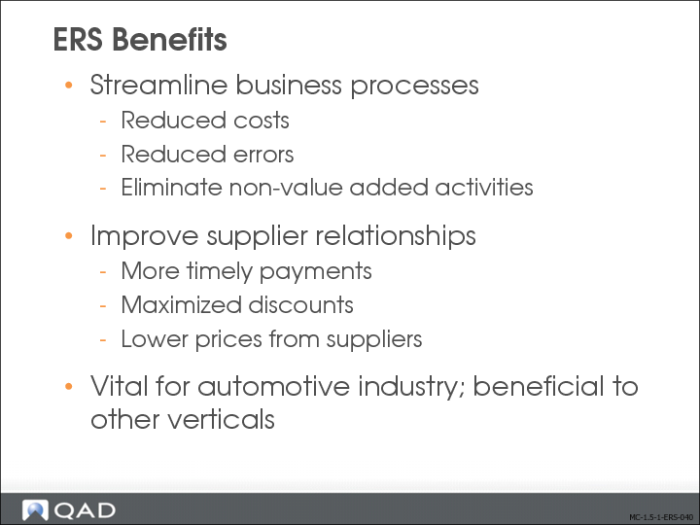
ERS offers several benefits to customers and suppliers, such as reduced clerical workload, lower costs, and reduced error rate. Several factors make an ERS system work efficiently:
• Trading partners must agree on price.
• Customers must issue purchase authorization.
• Suppliers must provide accurate shipping information.
• Customers must enter accurate receipts.
ERS improves your company’s relationship to suppliers by ensuring more timely payments, accurate and maximized discounts, and lower prices.
While the ERS function can be beneficial to many verticals, it is a must for the automotive industry.
ERS Key Features
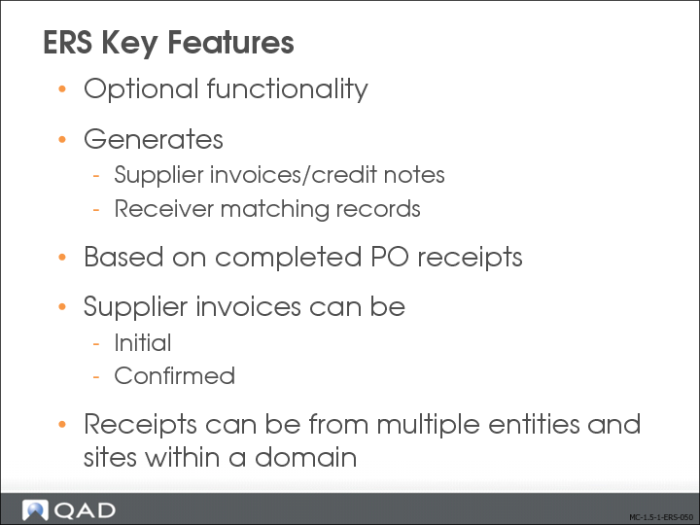
The (optional) ERS function lets you generate supplier invoices or credit notes and corresponding receiver matching records based on completed purchase order receipts. The system automatically records liabilities to the supplier based on quantities received at the unit price negotiated with the supplier in a purchase agreement.
You can use the ERS Processor program to generate supplier invoices and receiver matching for purchase orders, scheduled orders, blanket orders, pending invoices generated due to supplier consignment inventory consumption, or for receivers that become available for invoicing at time of use or when ownership changes (for example, inventory transfer, WO component issues, or shipments).
You can choose to create supplier invoices with status initial, requiring confirmation, or automatically confirmed.
ERS can process receipts across multiple entities and sites within a domain, where the entity that recorded the purchase order and incurred the AP liability is different than the receiving entity. In this case, ERS automatically creates cross-company postings.
ERS Process
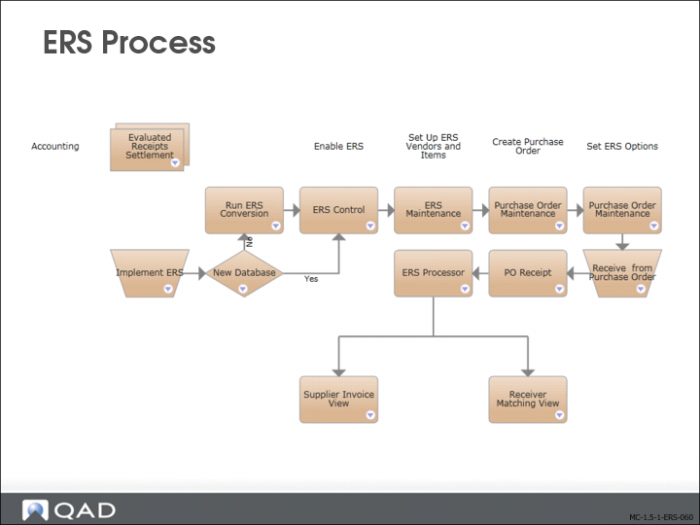
The slide shows the ERS process map from setup to supplier invoice and receiver matching.
ERS Process from Purchase Order to Supplier Invoice
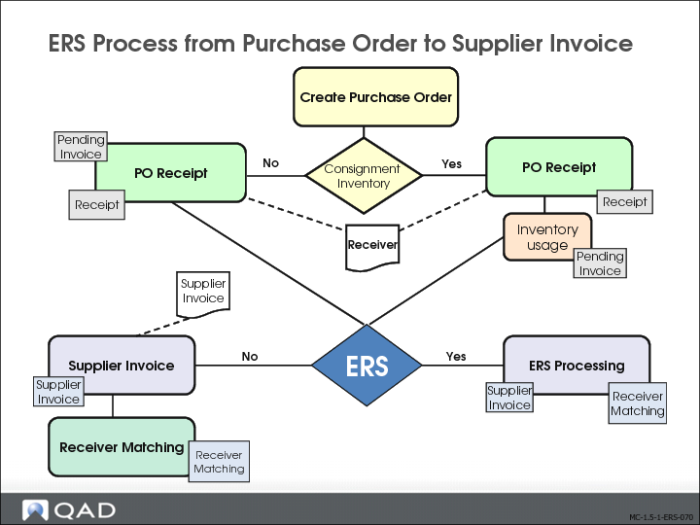
For comparison purposes, the slide shows the purchase order to supplier invoice and receiver matching flow with and without ERS.
ERS High Level Process Overview
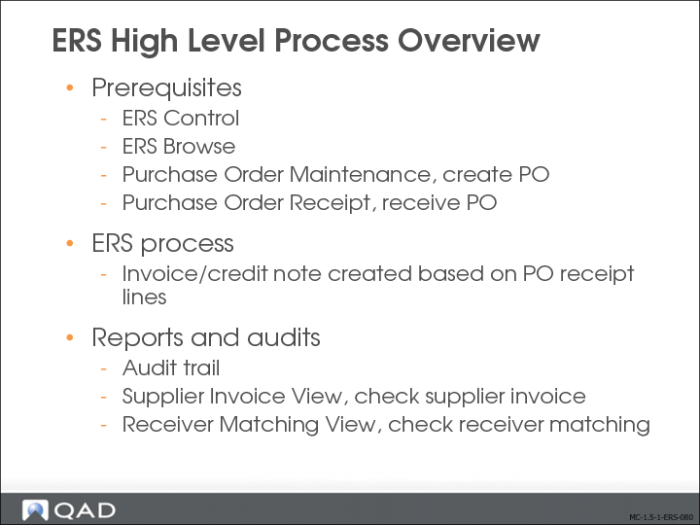
Set up ERS by setting control programs and adding required records. If you already have open purchase orders, you must also convert them to enable ERS processing (see below).
You must also set default ERS process options for purchase orders.
The ERS Processor creates an invoice or a credit note based on the purchase order receipt lines.
The system provides several ways to verify and report the ERS processing:
• Use an audit trail.
• Use Supplier Invoice View (28.1.1.3) to check the supplier invoice.
• Use Receiver Matching View (28.2.3) to verify the receiver matching.
ERS Setup
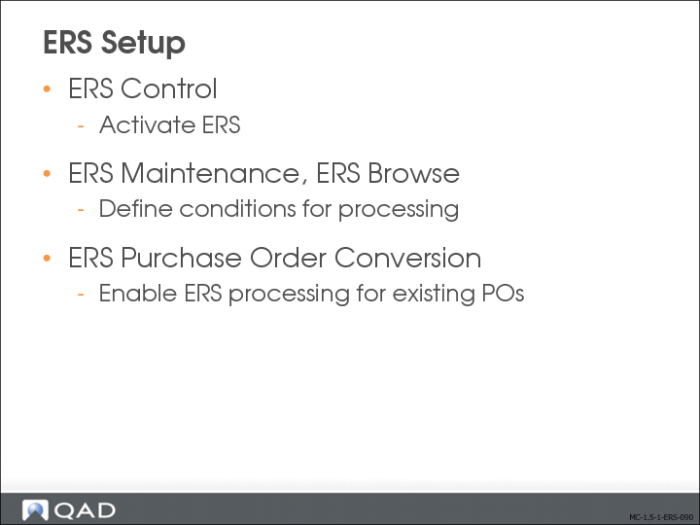
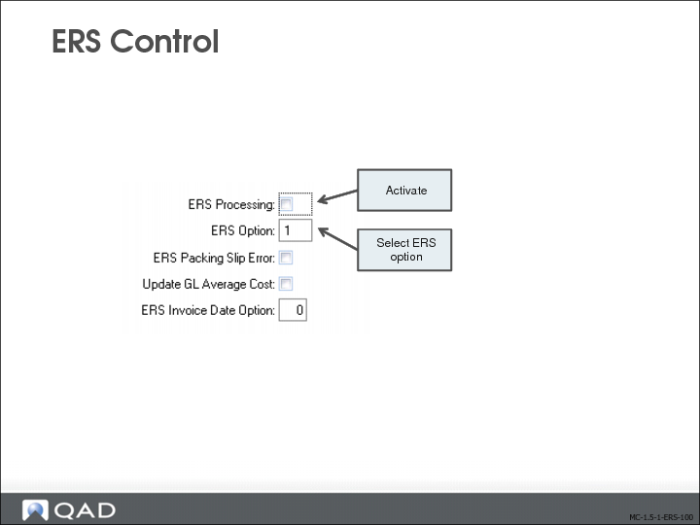
Use the fields in ERS Control (28.10.24) to activate and deactivate ERS processing, and to set options that affect ERS processing.
Use ERS Maintenance to set the default ERS processing options for a PO line, which determine:
• Whether to process the line using ERS
• When applicable, whether ERS should generate confirmed or initial invoices for the line
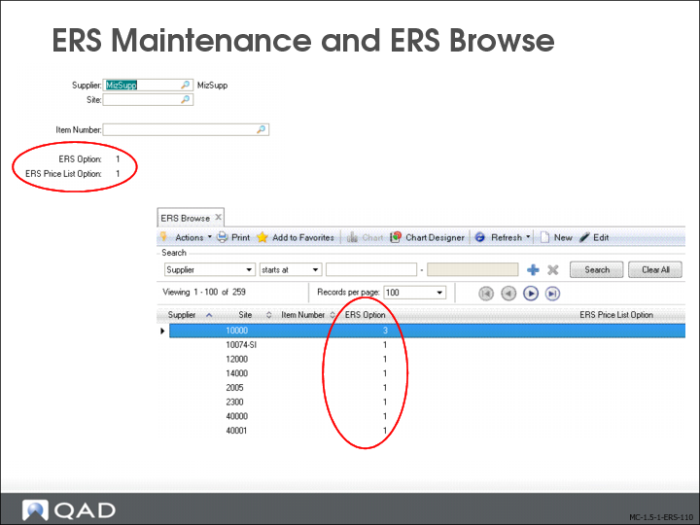
ERS Browse lets you review the ERS options set as default.
ERS Conversion
If you decide to implement ERS in a new database, this step is not required. If you have existing open purchase orders and you want ERS processing to apply to them, you must run a utility program to set the processing option.
Choose ERS Purchase Order Conversion (36.25.62) from the Miscellaneous Utilities menu. The system prompts you to enable or disable ERS.
• Enter E to set ERS option 0—ERS enabled for all purchase orders.
• Enter D to set ERS option 1—ERS disabled for all purchase orders.
ERS Control
In ERS Control (28.10.24), the following fields need to be set:
ERS Processing
Select the field to activate ERS. When activated, a pop-up window with ERS processing options opens when you create a purchase order.
ERS Option
Specify the default value for the ERS Option field that displays in the pop-up window mentioned above. Valid values for the header ERS Option are:
• Blank: The system determines the default ERS option for the line using settings in ERS Maintenance.
• 0: The system determines the ERS option when you run the ERS Processor, and uses the most current value from ERS Maintenance.
• 1: ERS processing is disabled.
The defaulting for the ERS Option works as follows:
Control | PO Header | PO Line | ERS Processor |
Blank | Defaults to blank | Defaults to value from ERS Maintenance (1, 2, or 3) | Uses PO Line value if that is not zero. |
0 | Defaults to 0 | Defaults to 0 | Uses value in ERS Maintenance |
1 | Defaults to 1 | Defaults to 1 | ERS is not used |
The ERS maintenance options are:
• 1: no ERS
• 2: Initial Supplier Invoice
• 3: Confirmed Supplier Invoice
The PO header uses the value from the control file as the default. On the PO header, you can modify this value. The values allowed on the PO header are blank, 0, 1, 2, or 3.
• If the value on PO header is not blank, that value is passed as the default to the PO lines. If the value on the PO header is blank, the default value for the PO lines is retrieved from ERS Maintenance.
• You can also modify the ERS Option value on the PO line. The possible values on the PO header are 0, 1, 2 or 3.
• In the ERS Processor, if the value of the ERS Option for the PO line is 2 or 3, that value is used.
• In the ERS Processor, if the value of the ERS Option for the PO line is 0, the value is retrieved from ERS Maintenance.
• In the ERS Processor, if the value of the ERS Option for the PO line is 1, the PO receipt line is not processed.
ERS Invoice Date Option
Specify how ERS calculates the supplier invoice date:
• 0 (zero): Use the receipt date of the receiver as the supplier invoice date.
• 1: Use the shipment date of the receiver as the supplier invoice date.
ERS Maintenance and ERS Browse
The ERS Processor searches ERS Maintenance (28.1.1) for default settings for the supplier, site, and item combination associated with a PO line to determine how it should process the line. You can define default settings in ERS Maintenance for a particular supplier, site, item number, or any combination of these, such as:
• Supplier, site, and item
• Supplier and site
• Supplier and item
• Supplier
• Site
When determining the ERS option for a PO line, the system looks for a corresponding ERS Maintenance record or combination of ERS Maintenance records, in the following order:
• Supplier/site/item record
• Supplier/site record
• Supplier/item record and a separate site record
• Supplier record and a separate site record
If no records or record combinations are found, the system sets the ERS option to 1, disallowing ERS processing for that line.
ERS Option
Specify whether the ERS Processor should create supplier invoices and receiver matching for purchase order lines with the supplier, site, and item combination, and if created, whether to create initial or confirmed invoices. The options are:
• 1: Disallow ERS processing for the combination specified.
• 2: Create an initial invoice and receiver matching record for pending invoices with the specified combination of supplier, site, and item. This option adds a degree of security because the invoice created must be approved using a separate process.
• 3: Create a confirmed supplier invoice and receiver matching record for receipts with the specified combination of supplier, site, and item.
ERS Price List Option
Specify the effective date the ERS Processor should use when retrieving the relevant price list. The options are:
• 1: Use the receipt date.
• 2: Use the ship date.
• 3: Use the order date.
The ERS Processor uses the ERS Price List Option field if a price list is specified for the order, and if the Fixed Price field on the order line is set to No.
ERS – Purchase Order Maintenance
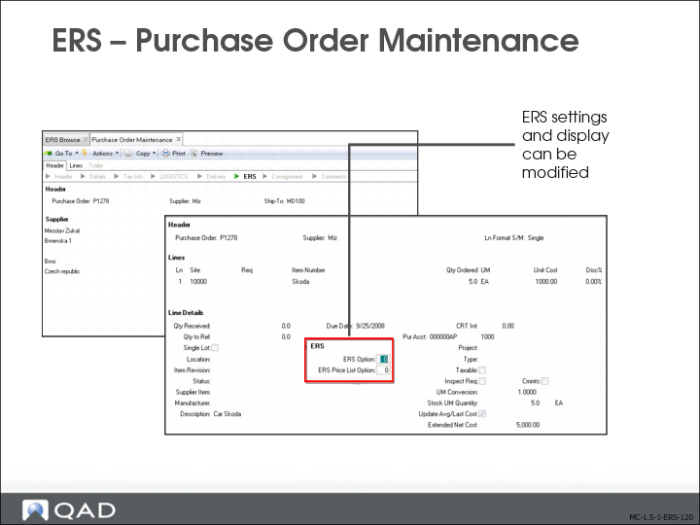
When ERS is set up and activated, it affects how you create a purchase order, issue a blanket or scheduled order, and how you receive purchased items.
Three fields in Purchase Order Maintenance (5.7) affect ERS processing:
Fixed Price
This field is part of the standard header in Purchase Order Maintenance (5.7), but it functions differently when you are using ERS. The header sets the default for line items. The value for this field defaults from Supplier Data Maintenance (2.3.1).
• If the item price is fixed, the ERS Processor takes the price from the purchase order.
• If the item price is not fixed, the ERS Processor refers to the relevant price list.
• If there is no price list, the ERS Processor looks for a supplier-item quoted price defined in Supplier Item Maintenance.
• If there is no supplier quoted price, the ERS Processor looks for the GL material cost in the item master.
The ERS Option field and the ERS Price List Option fields in the pop-up window default from the ERS Option field of ERS Control. The header value determines how the default ERS Option is set on each line item on the order, but can be updated.
ERS Processor
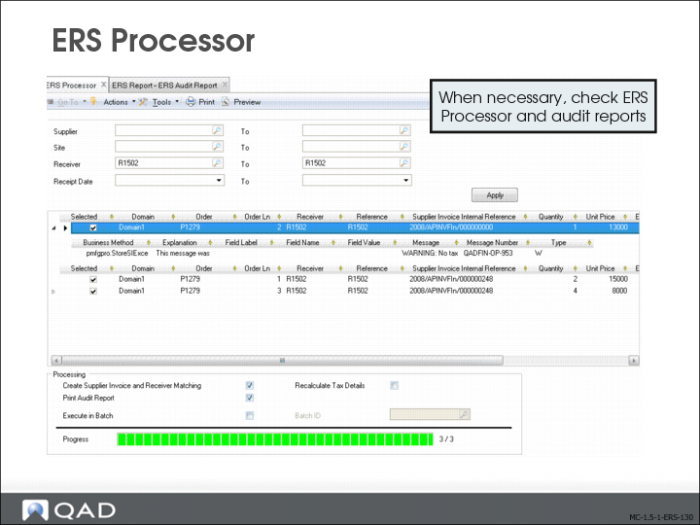
Run the ERS Processor (28.10.13) to generate supplier invoices and their corresponding receiver matching for PO receipts. You can only run one instance of the ERS Processor at a time.
The ERS Processor (28.10.13) lets you specify ranges of suppliers, sites, and receivers to retrieve receipts for which you want to create supplier invoices and receiver matching. The processor then retrieves a group of receipts that meet your selection criteria. You can then specify which receipts to process by selecting the check box for that record.
The ERS Processor opens the selected group of receipts, creates the relevant supplier invoice records and receiver matching, and makes the appropriate journal entries, just as if the invoices were entered manually.
ERS Audit Report
The ERS audit report, which is produced when you select the Print Audit Report option in the ERS Processor, provides an overview of processed receipts and lists validation errors, if the ERS Processor ran with errors. The ERS audit report generates errors in the following situations:
• No price is available for an item.
• Purchase orders have already been invoiced.
• Credit terms are invalid.
• No packing slip number is entered on the receipt screen, and the ERS Packing Slip Error field of ERS Control (28.10.24) is set to Yes.