Report Column Groups
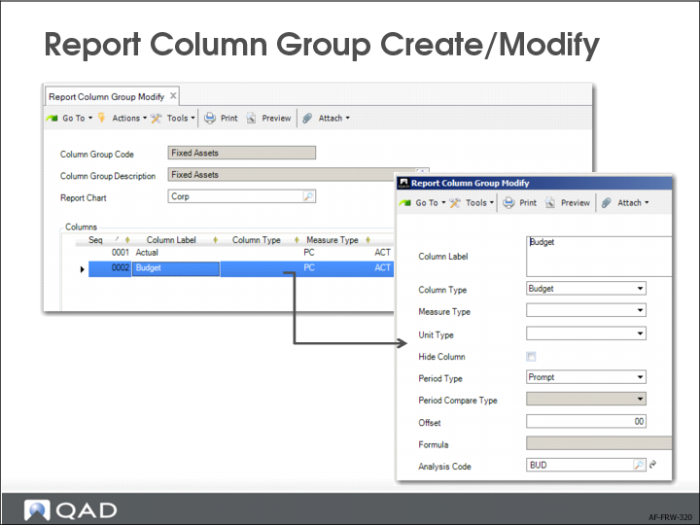
Use Report Column Group Create to define the columns that you want to display on a report. For each column, you can define the type of content, for example, opening balances, closing balances, activities, quantities, and so on.
You can use columns to compare results with those of previous periods. You can create calculations using columns, and have separate columns for entities, cost centers, and so on. This allows side-by-side comparisons on a single report.
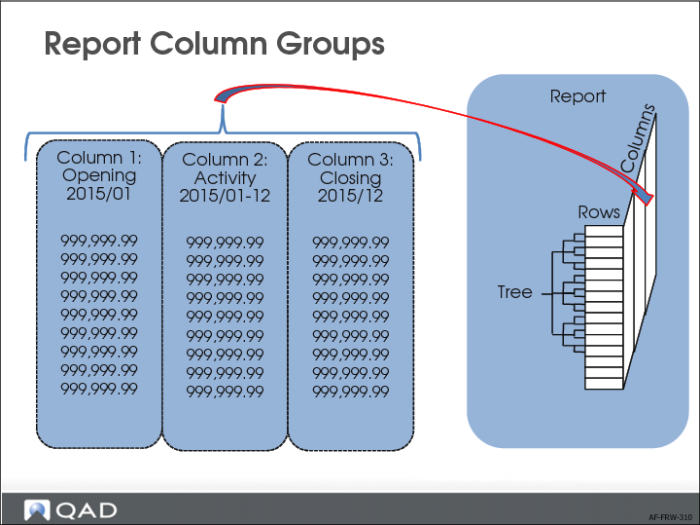
The Sales Report example uses three columns: the opening balance, the activity in the selected period, and a closing balance.
You can enter two types of calculations: summations or multiplication/division.
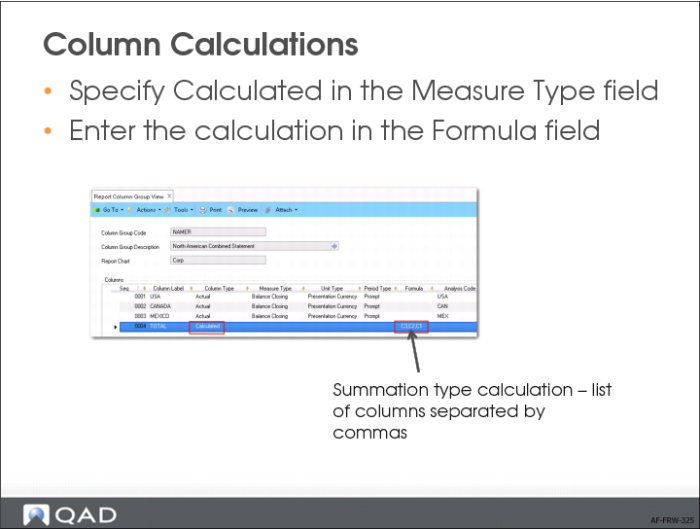
Summation calculations: If you enter a list of columns, each separated by a comma (“,”), you can sum the balances of the columns. For example, if you enter C1,C2,C5, the calculation results in the sum of columns 1, 2, and 5. In summation calculations, you can also subtract by placing the column between brackets. For example, if you enter C1,(C2),C5, the calculation results in the sum of columns 1 - 2 + 5.
Multiplication/division calculations: To create a multiplication/division calculation, you can enter a maximum of three factors separated by * or /. For example, if you enter C1/C2*C5, the calculation first divides Column 1 by Column 2, and then multiplies the result by Column 5.
You can also use constants in multiplication/division calculations. For example, if you enter C1/C2*100, the calculation first divides Column 1 by Column 2, and then multiplies the result by 100. This method is useful for percentage calculations. The component columns (Column 1 and Column 2) must be part of the same column group.
You cannot combine summations and multiplication/division type calculations in a single formula. However, you can use the column that contains the result of a calculation as a component for a calculation in another column.
Example:
Column 4 has a measure type of Calculated and uses the formula C1,(C2),C3. Column 6 also has a measure type of Calculated and uses the formula C4/C5*100. This results in the formula C6 = ((C1 - C2 + C3)/C5)*100).
Cascaded Calculations
You cannot use brackets in multiplication/division type calculations. You can address this restriction using cascaded calculations.
Example:
You want to calculate the result of the formula C5 = C1/(C2*C3), but you cannot use brackets in a multiplication/division type calculation. The formula C5 = C1/C2*C3 does not give the correct result because it first divides C1 by C2, and then multiplies the result by C3. To get the result you require, first create the formula C4 = C2*C3 and then create a second formula C5 = C1/C4.
Important: Be careful not to create circular references when using cascaded calculations. Circular references cause Financial Report Run to stop with an error message.
You cannot use the calculation sequences C4=C1*C2, C5=C3/C4, and C2=C5/C6 in a column group. The value of column C2 depends on the value of column C5, calculated by the second calculation in the sequence. Similarly, the value of column C5 depends indirectly on the value of column C2, calculated as a result of the first two calculations.