Allocations
Objectives
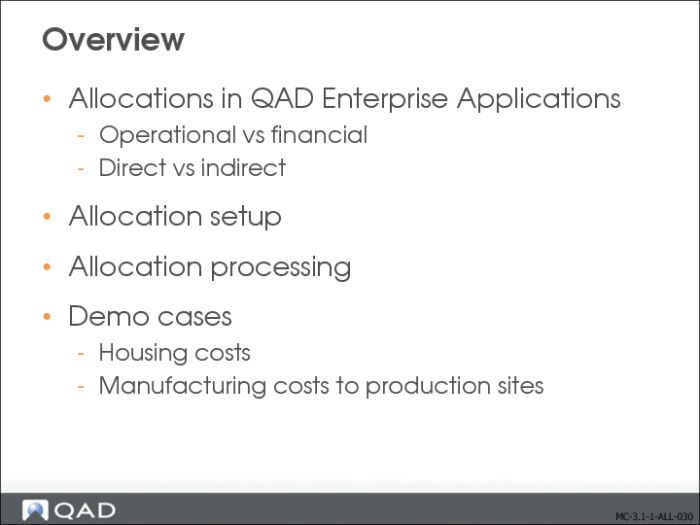
Overview
In this section, you will learn about the two different types of allocations. You will learn in detail how to set up financial allocations and how they are processed. Finally, you will review two demonstration cases to illustrate what you have learned.
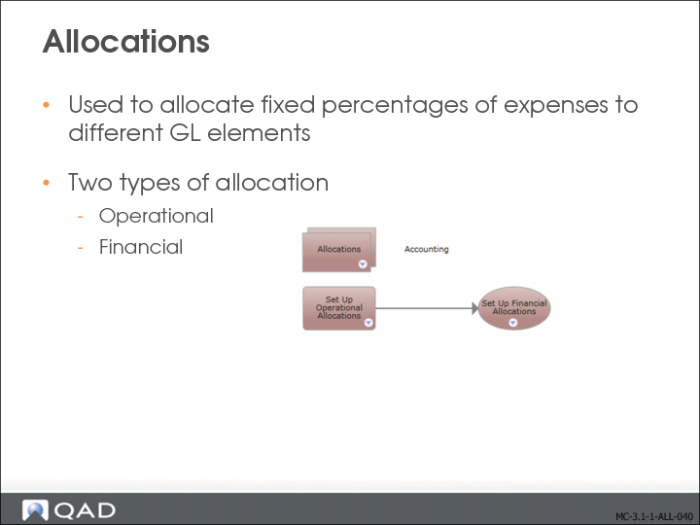
Allocations
The system supports two types of allocations:
• Operational allocation codes are used in operational transactions, such as sales and purchasing.
• More complex allocations can be set up for use in GL transactions within financial modules.
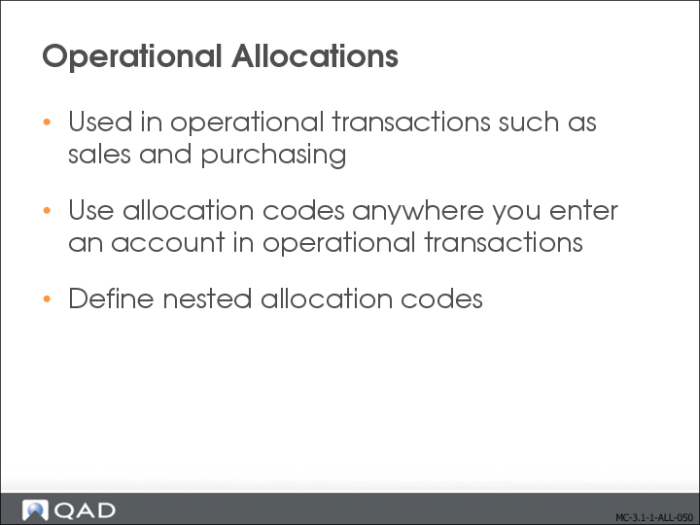
Operational Allocations
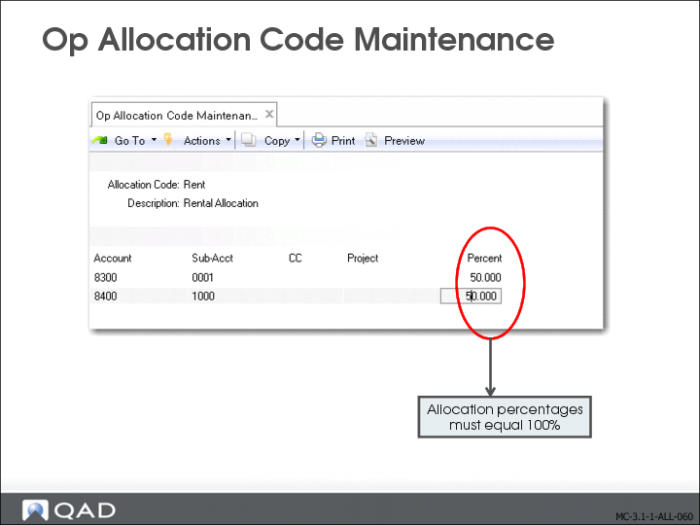
To simplify data entry in operational transactions, use Operational Allocation Code Maintenance (25.3.23) to define codes that allocate fixed percentages of expenses to different accounts, sub‑accounts, cost centers, and projects.
Op Allocation Code Maintenance
Create operational allocation codes using Op Allocation Code Maintenance (25.3.23). Define the specific accounts, sub-accounts, cost centers, and projects that a transaction must be split amongst, and the percentages to allocate to each. The percentages must total 100%.
You can define nested allocation codes so that one allocation code references another. When the system calculates amounts, it explodes each level of allocation codes, multiplying the amount to be apportioned by the percentages at each level.
Financial Allocations
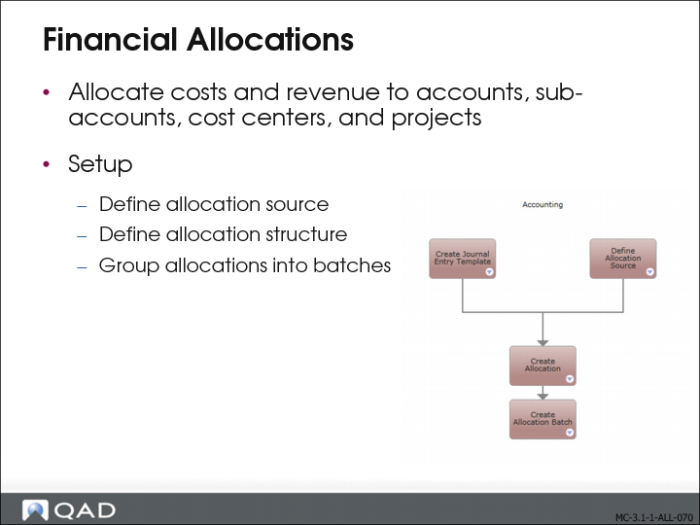
Use the GL Allocation activities (25.3.22) to identify types of cost and automatically distribute them to the correct cost targets. Configure allocations using the following sequence of steps:
1 Define the allocation structure. Allocation structures consist of a source, a target, and the transfer algorithm between them.
2 Group allocations into batches.
3 Configure recursive allocations to reuse a previous allocation run as input for the next.
4 Interrupt and restart the execution of a batch.
5 Validate the results of the allocation run before final posting.
Types of Financial Allocations
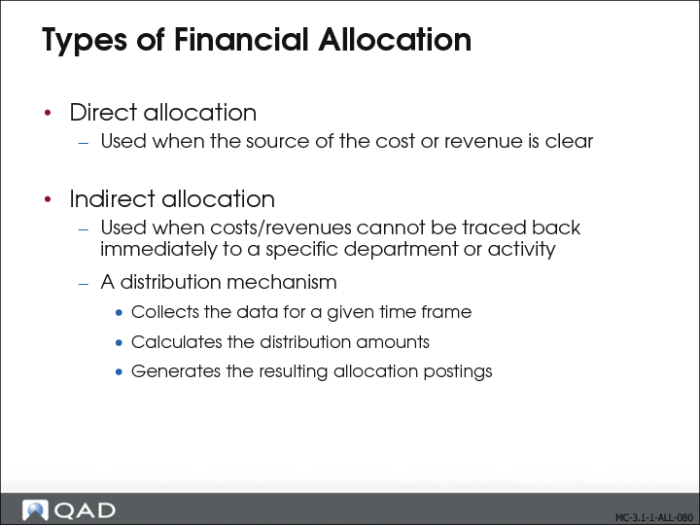
A direct cost can be traced directly to the source. For example, when a department purchases office furniture for its own use, the cost is a direct cost. Direct costs can be further subdivided into:
• Assignable costs are charged directly to the account or sub-account without allocation.
• Shared costs cannot be directly assigned to a cost objective, but are charged instead to an intermediate cost pool.
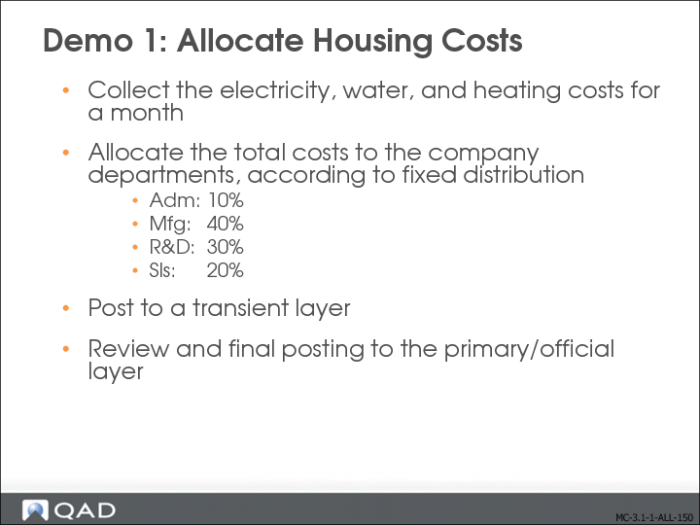
An indirect cost cannot be traced directly to one source. For example, a company electricity bill covers the electricity usage for all company departments. Initially, the bill is allocated to an overhead cost center, and later re-allocated over all the departments. You use allocation to distribute indirect costs to the various direct activities that benefited. For this, you must define a cost allocation plan.
Defining Allocation Structures
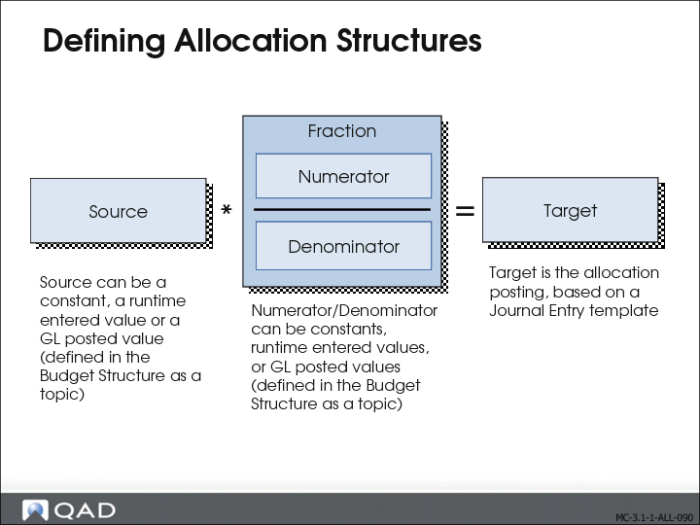
An allocation consists of the following elements:
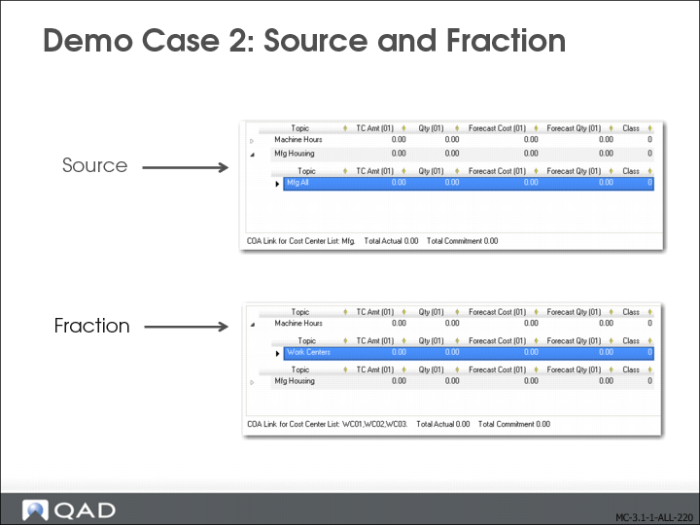
Source
This is the base amount for the allocation.
Fraction
This is a factor applied to the source amount to calculate the amount to be posted to the target.
Target
This consists of the COA elements, such as account, sub-account or cost center, to which the fraction is to be posted.
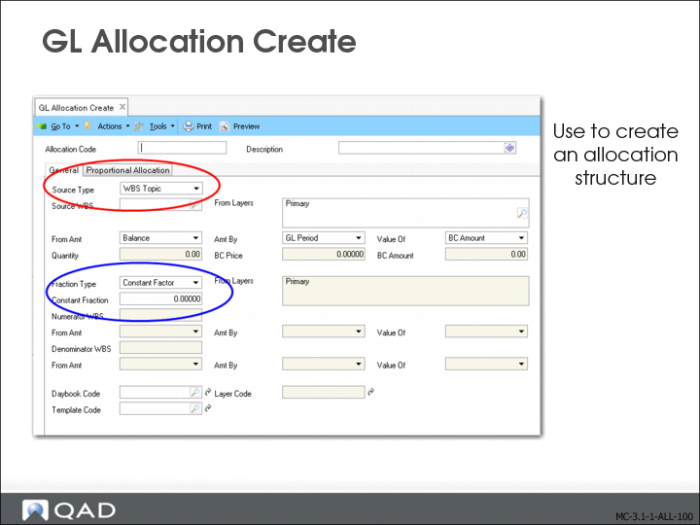
Allocation Sources
• Constant Value
The source is a value that is entered in the allocation definition. The value can be entered in the base currency or as a combination of base currency and quantity.
• Standard Charge
Standard charges are calculated by multiplying the quantity and unit price. Both values are entered in the allocation definition. The per-unit cost for electricity is an example of a standard cost.
• WBS Topic
Work Breakdown Structure (WBS) topics are used in budgets to provide analysis for budget costs, and are also used in allocations as a source type.
Fractions
• Constant Factor
The fraction can be a constant multiplier that is entered in the allocation definition and which can also be reviewed and changed during the execution of the allocation batch.
• Real Fraction
The fraction can be a real fraction defined by its numerator and denominator. Both the numerator and denominator are WBS topics from which the value or quantity is retrieved. When the allocation is run, the source value is multiplied by the constant value or the real fraction.
• Proportional Fraction
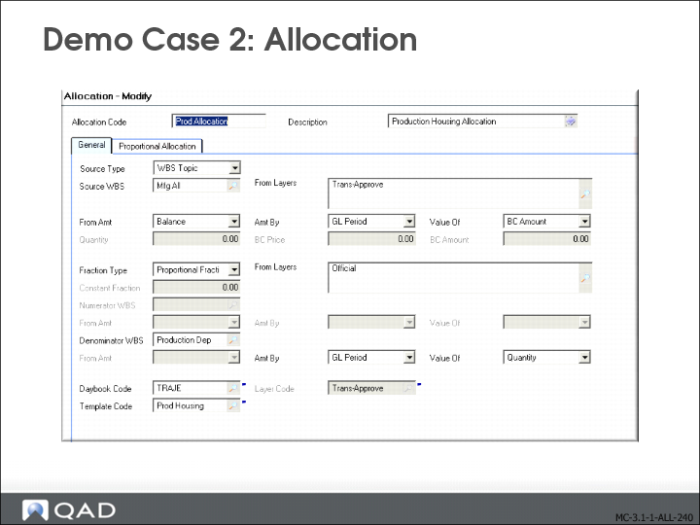
A proportional fraction uses multiple fractions. Only the denominator is specified to calculate the fractions. The denominator is a WBS topic. The numerators are defined based on the denominator. There are as many numerators (and, thus, fractions) as composing elements in the denominator.
Allocation Targets
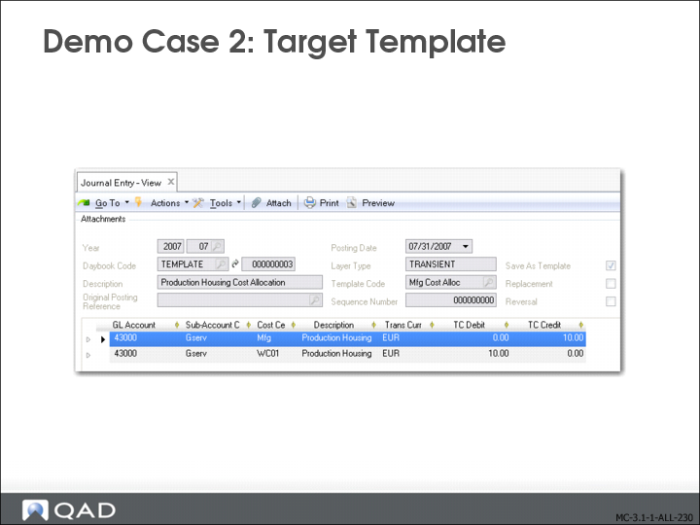
You must define a posting template to specify how the amounts calculated by applying the fractions to the source amounts are to be posted.
GL Allocation Create
Use GL Allocation Create (25.3.22.1) to set up your allocation structure.
Allocation Transactions
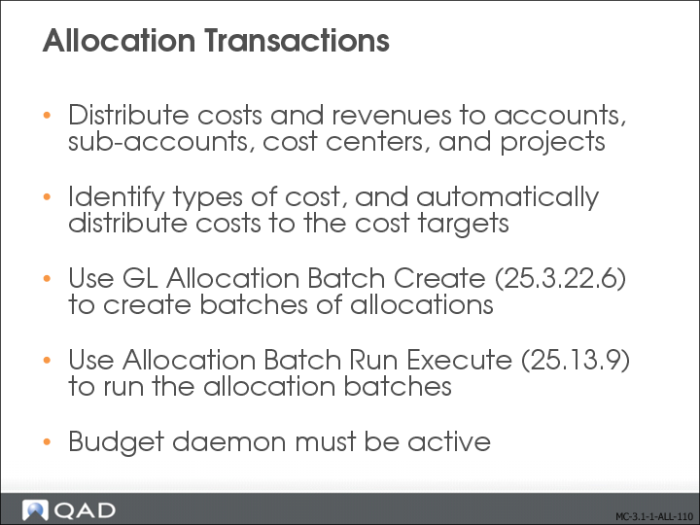
Allocation is the process of distributing costs and revenues to the appropriate accounts, sub-accounts, cost centers, and projects. Once your allocation structures are set up, you need to run them in batch.
The GL Allocation Batch Create (25.3.22.6) and Allocation Batch Run Execute (25.13.9) activities let you create and run batches of allocations that you have previously defined.
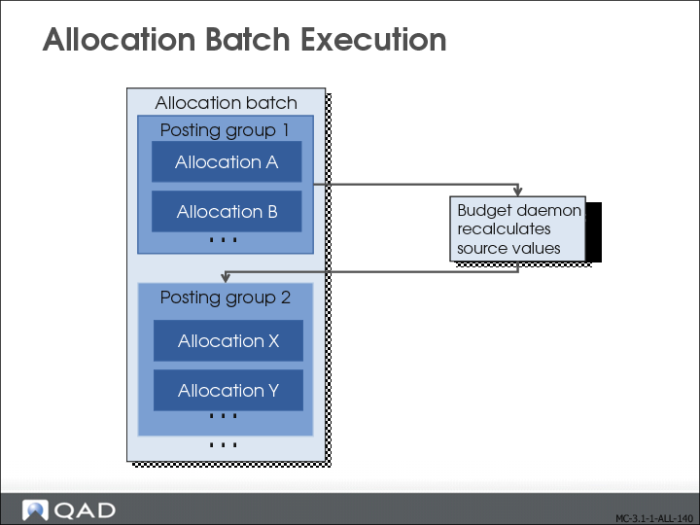
The Budget daemon should be active when allocations are run because the allocation functionality uses the same tables. The Budget daemon ensures that the most current values are available for an allocation run.
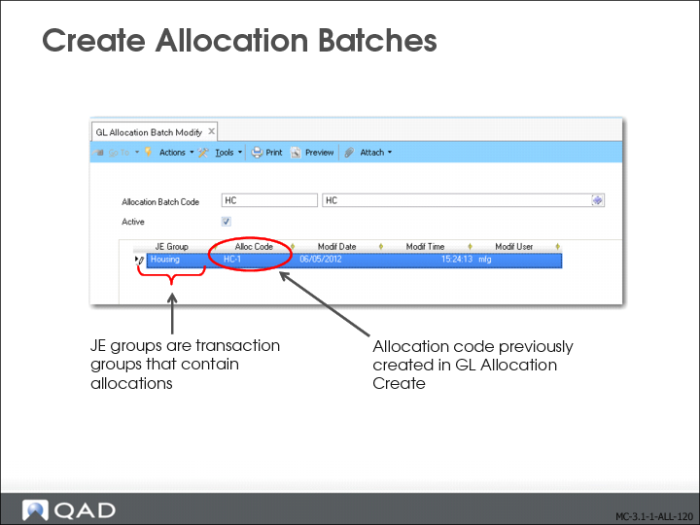
Create Allocation Batches
Use Allocation Batch Run Execute (25.13.9) to run multiple allocations simultaneously. This activity also runs allocations in sequence, using the result of one allocation as the source of the next. An allocation batch can contain one or multiple allocation codes.
JE Group
JE group identifiers are used in allocation batch processing. If the allocation batch run is canceled, only the current JE group is reversed or unprocessed. The JE groups that are already processed remain processed.
Alloc Code
Specify an allocation code to include in the JE group.
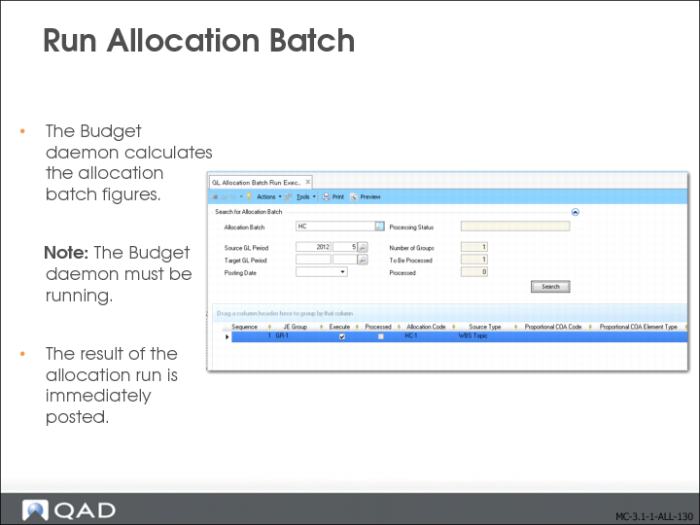
Run Allocation Batch
By default, the system runs all selected lines in the Allocation Batch Run Execute screen, except when a batch has already run for the same target period. The system also keeps a log file of previously run allocations.
An allocation batch is run correctly if the figures it uses from the Budget module are valid. These figures are calculated by the Budget daemon.
The result of an allocation is immediately posted. By using a transient layer daybook as target—the recommended approach—you can review the allocation postings, and correct or delete them as necessary. You then assign them to the primary or the secondary layer.
Field Descriptions
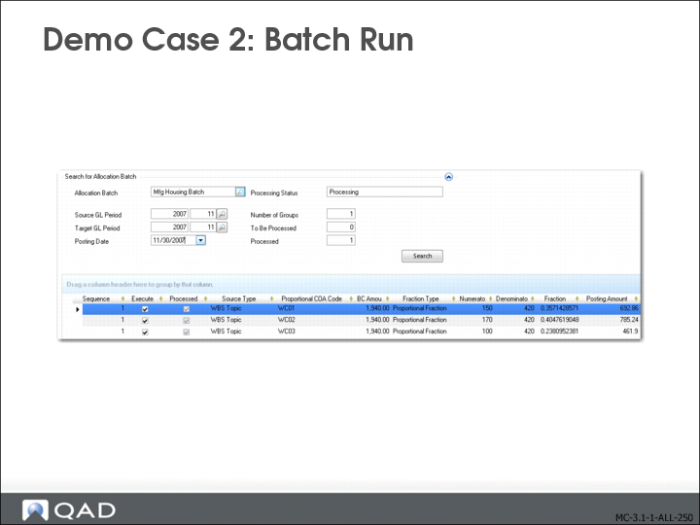
Allocation Batch
Specify the allocation batch to run.
Processing Status
This field displays the status of the current allocation batch.
Source GL Period
Select the source data from this period only or cumulative data from the start of the GL calendar year up to the end of this period.
Target GL Period, Posting Date
Specify the target period and posting date.
Number Of Groups
Specify the number of JE groups selected for execution.
To Be Processed
This field displays the number of JE groups still to process.
Processed
This field displays the number of JE groups already processed.
Click Apply to display the allocation batch details in the grid
The result of a JE group run is always a single journal entry
Allocation Batch Execution
The system runs all of the allocations in the JE group. This ensures that when an allocation batch run is interrupted, the system does not stop the batch run until all allocations in the current group have been run.
The system checks for unprocessed daemon records before running each allocation in the batch, and displays a warning when unprocessed records exist.
When an allocation batch is interrupted, you can restart the batch for the same GL period. All allocations already run are deselected to ensure that they are not re-run.
Demo Case 1
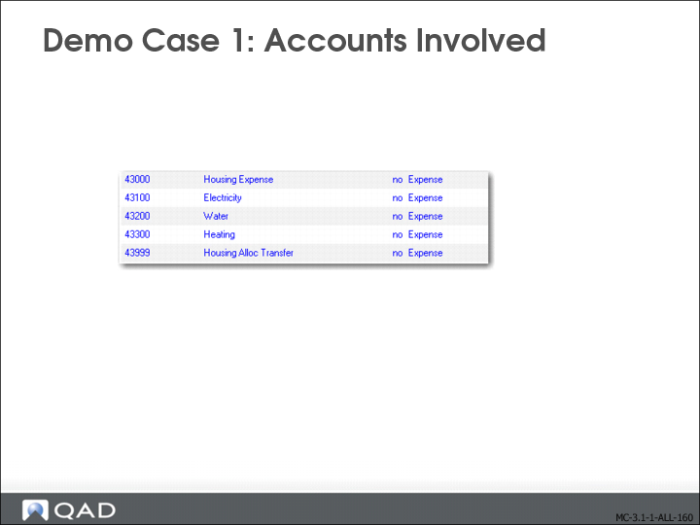
Demo Case 1: Accounts Involved
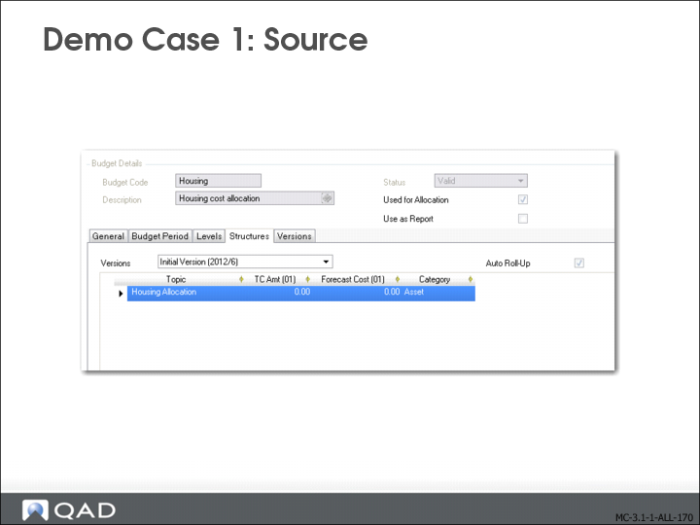
Demo Case 1: Source
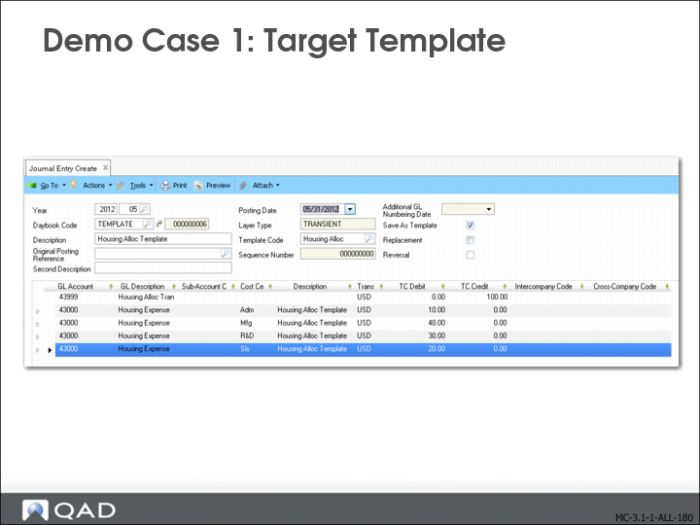
Demo Case 1: Target Template
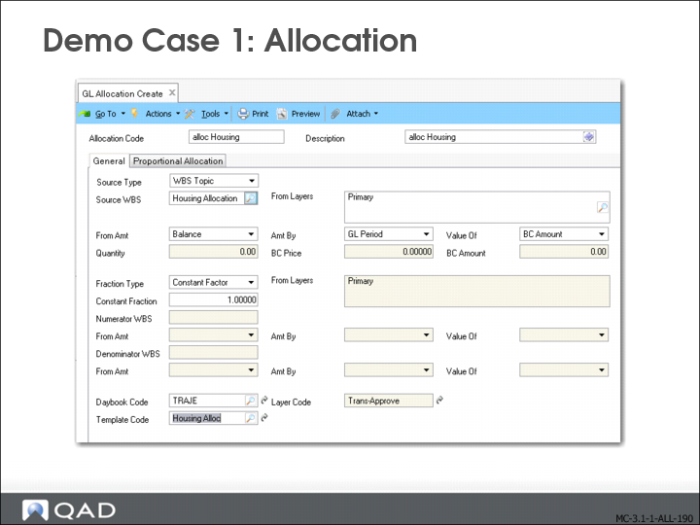
Demo Case 1: Allocation
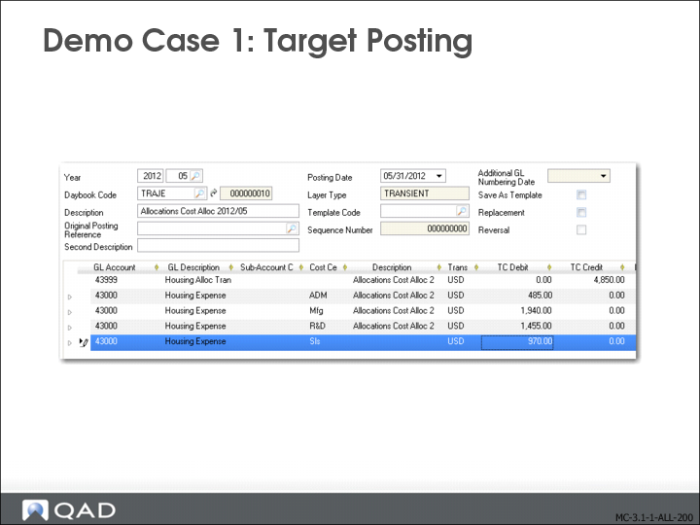
Demo Case 1: Target Posting
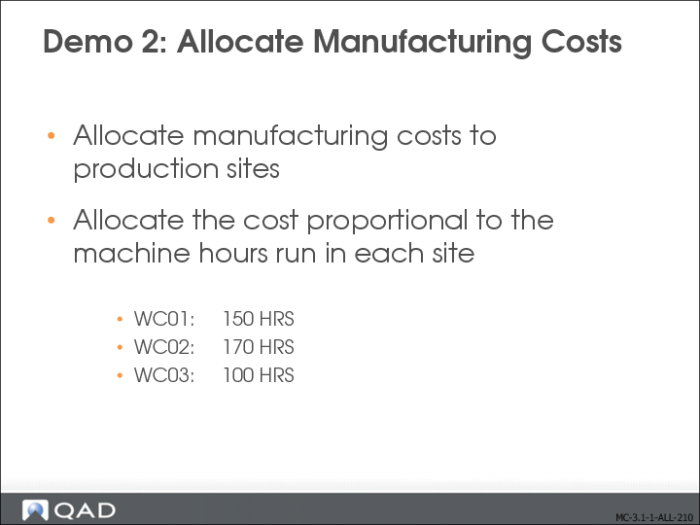
Demo Case 2: Allocate Manufacturing Costs
Demo Case 2: Source and Fraction
Demo Case 2: Target Template
Demo Case 2: Allocation
Demo Case 2: Batch Run
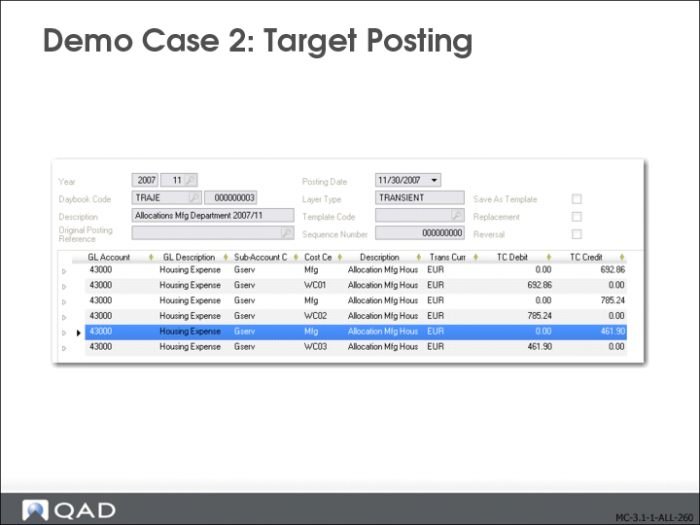
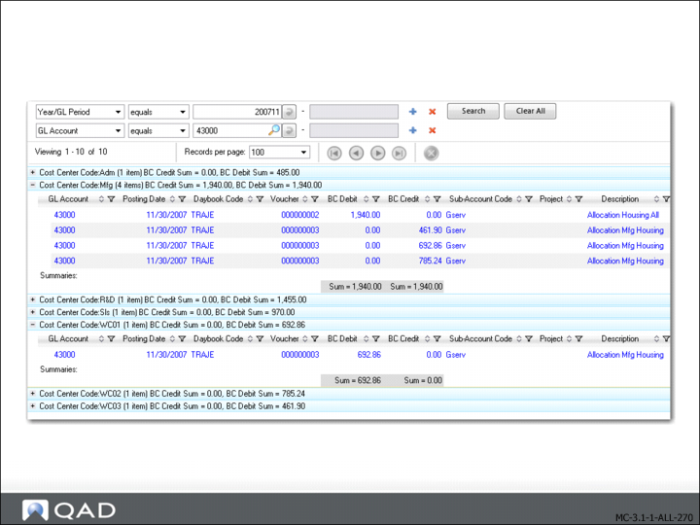
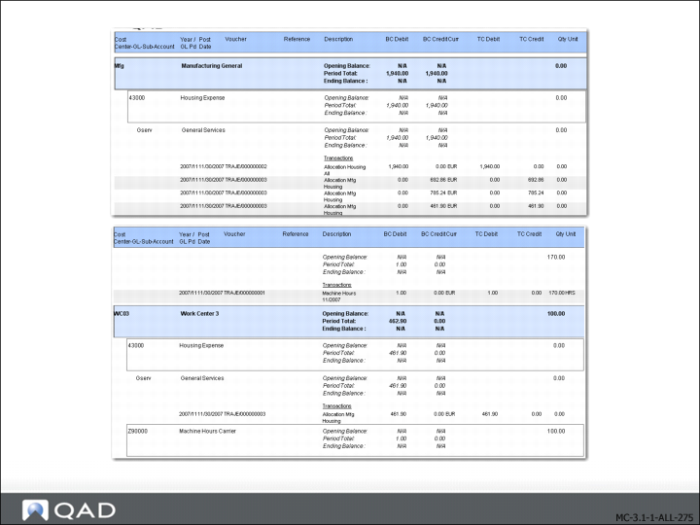
Demo Case 2: Target Posting