QAD 2016 Enterprise Edition Training Guides
>
Financials-Advanced
>
COA Mask
>
Process Map
Process Map
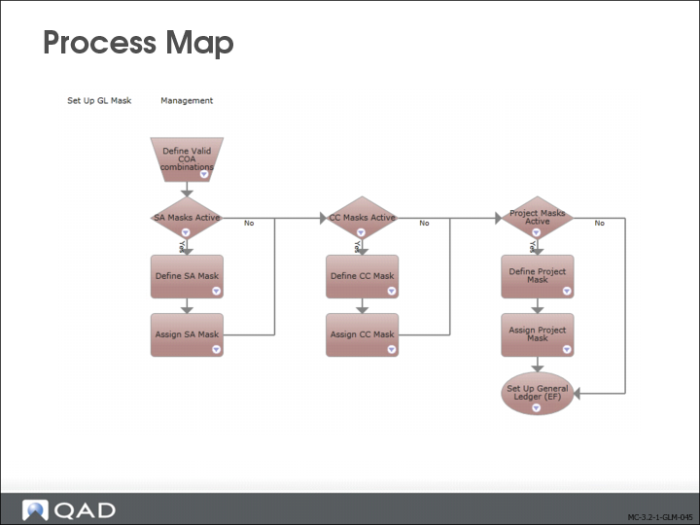
The slide shows the process map for activating, creating, and assigning COA masks.
Domain COA Mask Settings
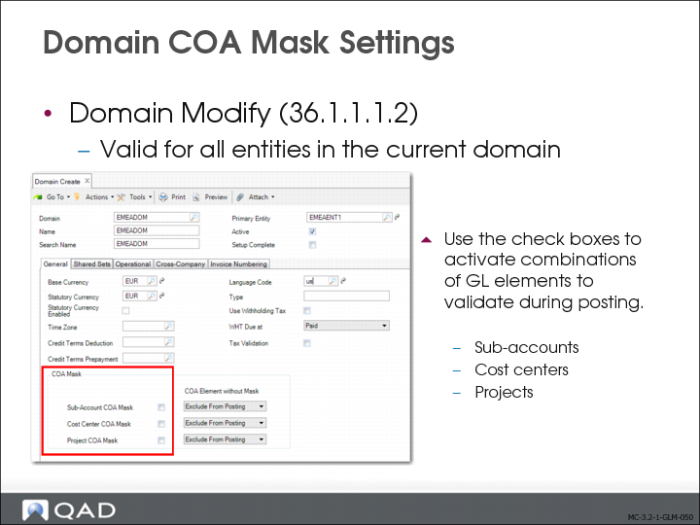
The mask you define applies to all transactions posted for the current domain. You define the mask on the domain level, and it is used by all entities in the domain.
When you select Sub-Account Mask, Cost Center Mask, or Project Mask, you define the combinations of COA elements the system validates when you post a transaction.
.
COA Element without Mask Setting
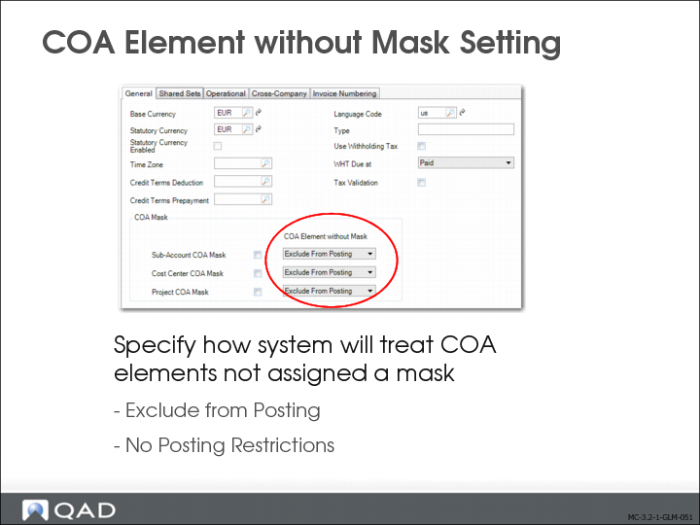
Three additional fields in Domain Create control how the system treats COA elements that are not assigned a COA mask. The COA Element without Mask fields contain two options: No Posting Restrictions and Exclude from Posting.
If, for example, you activate cost center masks and select No Posting Restrictions in the COA Element without Mask field, cost centers that are not assigned a COA mask can be used in any posting. Alternatively, if you select Exclude from Posting in the COA Element without Mask field, cost centers that are not assigned a COA mask cannot be used in postings.
COA Mask Shared Sets
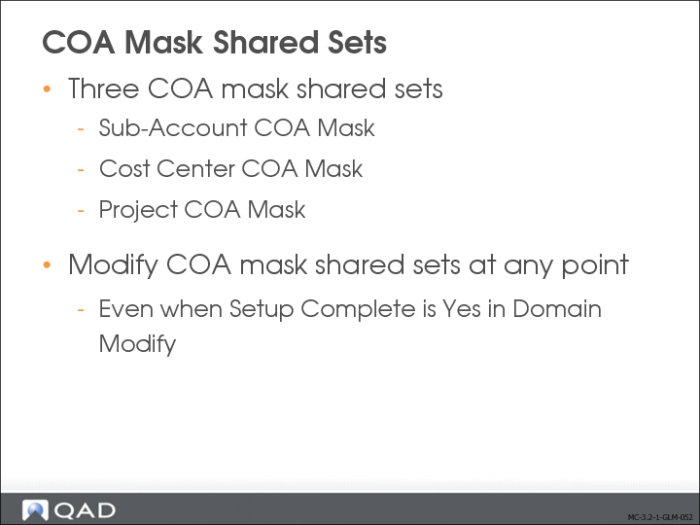
COA masks can be shared by multiple domains, and are, therefore, stored at shared set level. You can share a set of COA masks across domains using shared sets of the following types:
• Sub-Account Mask Shared Set
• Cost Center Mask Shared Set
• Project Mask Shared Set
The COA mask codes are stored in the shared sets, and you can share COA masks regardless of how the COA elements are shared. The COA mask ranges are stored according to the COA shared sets for the current domain.
Different domains that use the same chart of account can use different sets of COA masks. For example, the same sub-account COA mask can be shared by Domain1 and Domain2, a particular project COA mask can be used by Domain1 only, and a different project COA mask can be used by Domain2.
When domain setup is complete, you can no longer modify the shared sets assigned to the domain. However, this restriction does not apply to the three COA mask shared sets, which can be modified at any time.
COA Masks and Account Analysis
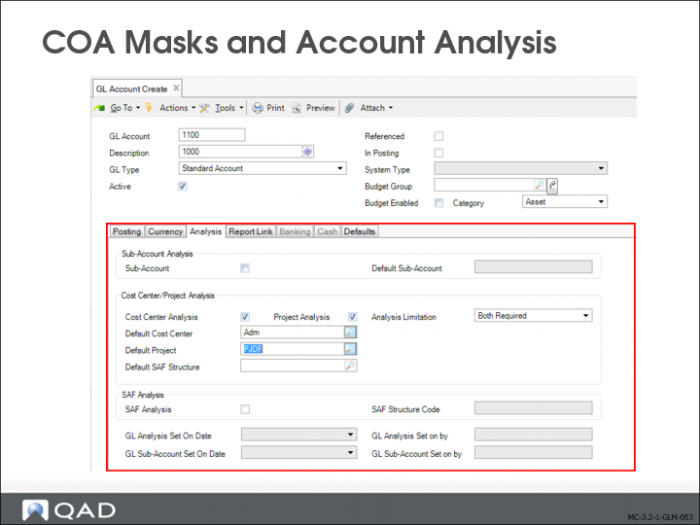
COA mask combinations are synchronized with the analysis you define for GL accounts. You define the default sub-account, cost center, and project for an account on the account Analysis tab, and these combinations must match those of the active COA masks.
When you have defined Both as the analysis type, and At Least One or None as the analysis limitation in GL Account Create, the cost center and project analysis for the account does not have to match the COA mask combination exactly. Instead, the system checks the COA mask for at least one of the elements in the combination. If this is found, the posting is validated. If the COA mask contains any cost center or project in combination with the account, you can choose to leave the cost center or project fields blank for the account when generating a posting.
Sub-Account COA Mask
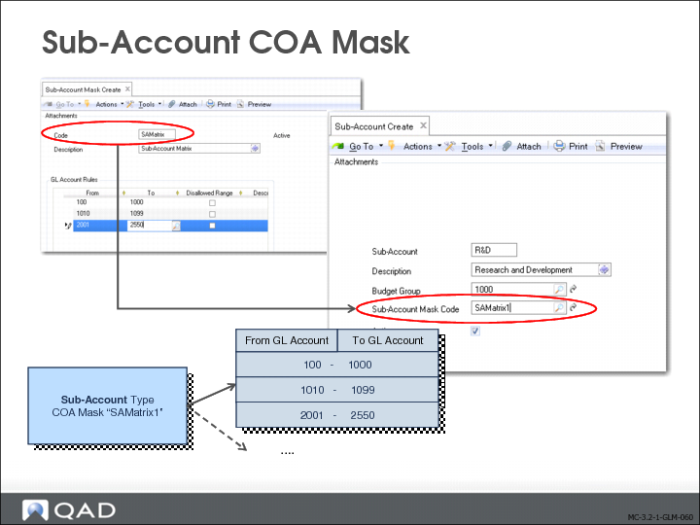
Use Sub-Account Mask Create (25.3.9.1.1) to define the ranges of GL accounts with which a sub-account can be combined in postings. The sub-account mask is then assigned to the sub-account using Sub-Account Create (25.3.17.1) or Sub-Account Modify (25.3.17.2). If you assign a COA mask to a sub-account, the system will prevent it from being used with any GL account not specified within the ranges defined in Sub-Account Mask Create.
Note: You can use Sub-Account Mask Excel Integration (25.3.9.1.6) to import a sub-account mask matrix. You can also create a sub-account mask based on an existing mask using Sub-Account Mask Copy (25.3.9.1.5).
Use the grid to define the ranges of GL accounts that can be used with this sub-account. Each range is defined for the COA shared sets that the current domain is using. A range can be shared at COA shared set level.
You can define multiple ranges of GL accounts for which you can use the sub-account. Normal ranges cannot overlap. However, disallowed ranges can overlap normal ranges.
Specifying Ranges in Grids
To define the range of values for which a COA mask applies, insert a new row into the rules grid. Then, complete the From and To fields to define a range.
You must define at least one range in a COA mask grid. The ranges are stored according to the COA shared sets of the current domain, and a COA mask code can include ranges for different COA shared sets.
Blanks
If you specify a non-blank value in the From field and a blank in the To field, this indicates that you want to map all values beginning with the non-blank value to the end of the range.
If you specify a blank in the From field and a non-blank value in the To field, this indicates that you want to map all values from the beginning of the range up to the non-blank value.
Assigning Masks
You assign a COA mask code to a sub-account by specifying the mask in the Sub-Account Mask Code field in Sub-Account Create or Sub-Account Modify. You can click the lookup to list all sub-account masks for the assigned sub-account COA mask shared set.
You can also create a new sub-account mask as required by clicking the GoTo button to the right of the Sub-Account Mask Code field. The GoTo opens Sub-Account Mask Create (25.3.9.1.1). If you have already assigned a COA mask to the sub-account, the GoTo button displays Sub-Account Mask View (25.3.9.1.3) and also lets you display a related view showing all sub-accounts linked to that COA mask.
The COA Element without Mask field in Domain Create controls how the system treats sub-accounts that are not assigned a sub-account COA mask. If sub-account COA masks are enabled for the current domain and the COA Element without Mask field is set to Exclude from Posting, the system prevents all sub-accounts without a sub-account COA mask from being used in postings. If the COA Element without Mask field is set to No Posting Restrictions, you can use the sub-account with any GL account.
If sub-account COA masks are not enabled for the current domain, the Sub-Account Mask Code field is read-only.
Cost Center COA Mask
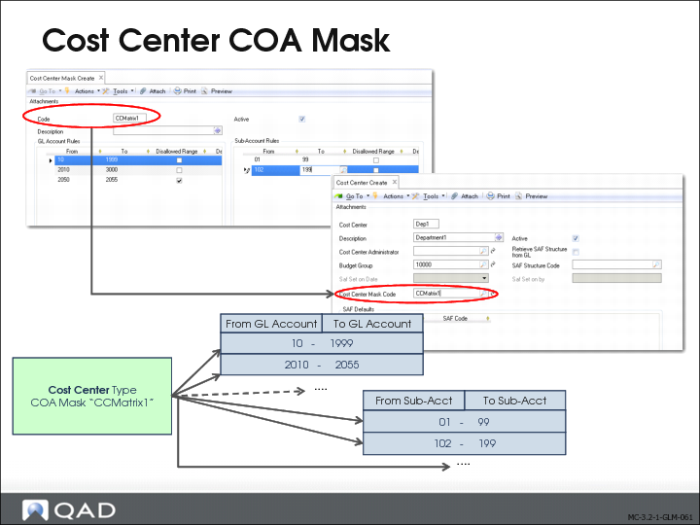
Use Cost Center Mask Create (25.3.9.2.1) to specify the ranges of GL accounts and sub-accounts that you can use in combination with a particular cost center.
Note: You can use Cost Center Mask Excel Integration (25.3.9.2.6) to import a cost center mask matrix. You can also create a cost center mask based on an existing mask using Cost Center Mask Copy (25.3.9.2.5).
You then associate the COA mask with a cost center by specifying the cost center COA mask code in the COA Mask field in the cost center record in Cost Center Create.
If you have activated cost center COA masks in Domain Create, you must specify ranges in at least one of the two grids in Cost Center Mask Create.
Assigning Masks
You assign a COA mask code to a cost center by specifying it in the Cost Center Mask Code field in Cost Center Create or Cost Center Modify. You can click the lookup to list all cost center masks for the assigned cost center COA mask shared set.
You can also create a new cost center mask as required by clicking the GoTo button to the right of the Cost Center Mask Code field. The GoTo opens Cost Center Mask Create (25.3.9.2.1). If you have already assigned a COA mask to the cost center, the GoTo button displays Cost Center Mask View (25.3.9.2.3) and also lets you display a related view showing all cost centers linked to that COA mask.
The COA Element without Mask field in Domain Create controls how the system treats cost centers that are not assigned a cost center COA mask. If cost center COA masks are enabled for the current domain and the COA Element without Mask field is set to Exclude from Posting, the system prevents all cost centers without a cost center COA mask from being used in postings. If the COA Element without Mask field is set to No Posting Restrictions, you can use the cost center in combination with any GL account or sub-account.
If cost center COA masks are not enabled for the current domain, the Cost Center Mask Code field is read-only.
Project COA Mask
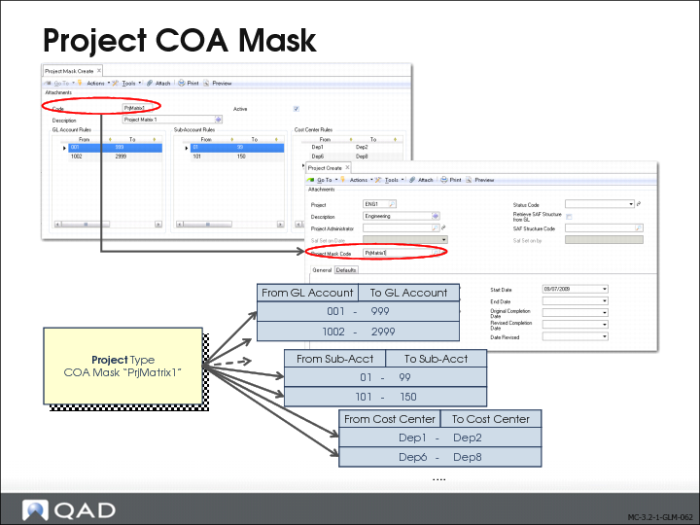
Use Project Mask Create (25.3.9.3.1) to specify the ranges of GL accounts, sub-accounts, and cost centers that you can use in combination with a particular project when posting.
Note: You can use Project Mask Excel Integration (25.3.9.3.6) to import a project mask matrix. You can also create a project mask based on an existing mask using Project Mask Copy (25.3.9.3.5).
You then associate the COA mask with a project by specifying the project COA mask code in the COA Mask field in Project Create.
If you have activated project COA masks in Domain Create, you must specify ranges in at least one of the three grids in Project Mask Code Create.
Assigning Masks
You assign a COA mask code to a project by specifying it in the Project Mask Code field in Project Create or Project. Click the lookup to list all project masks for the assigned project COA mask shared set.
You can also create a new project mask as required by clicking the GoTo button to the right of the Project Mask Code field. The GoTo opens Project Mask Create (25.3.9.3.1). If you have already assigned a COA mask to the project, the GoTo button displays Project Mask View (25.3.9.3.3) and also lets you access a related view showing all projects linked to that COA mask.
The COA Element without Mask field in Domain Create controls how the system treats projects that are not assigned a project COA mask. If project COA masks are enabled for the current domain and the COA Element without Mask field is set to Exclude from Posting, the system prevents all projects without a COA mask from being used in postings. If the COA Element without Mask field is set to No Posting Restrictions, you can use the project in combination with any GL account, sub-account, or cost center.
If project COA masks are not enabled for the current domain, the Project Mask Code field is read-only.
COA Mask Implementation Considerations
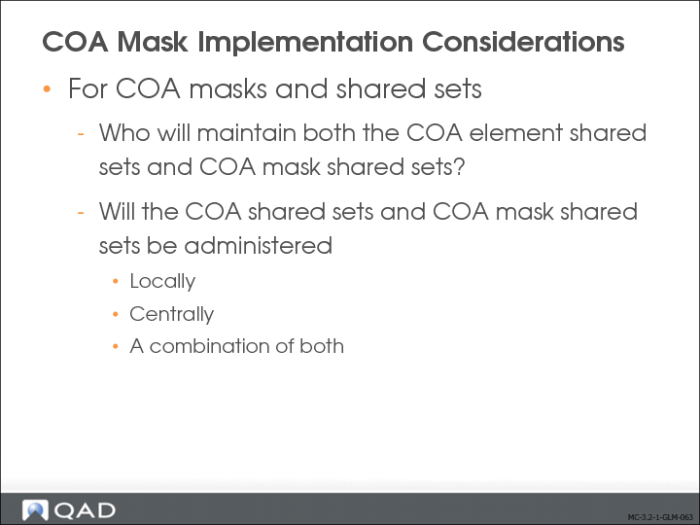
Before implementing COA masks and shared sets, you must first determine who will be responsible for maintaining both the COA element shared sets and COA mask shared sets. You must also consider whether the COA shared sets and COA mask shared sets will be administered locally or centrally, or a combination of both.
Both of these considerations greatly influence the setup of the COA masks and their shared sets, as described in the following scenarios.