QAD 2016 Enterprise Edition Training Guides
>
Financials-Advanced
>
COA Mask
>
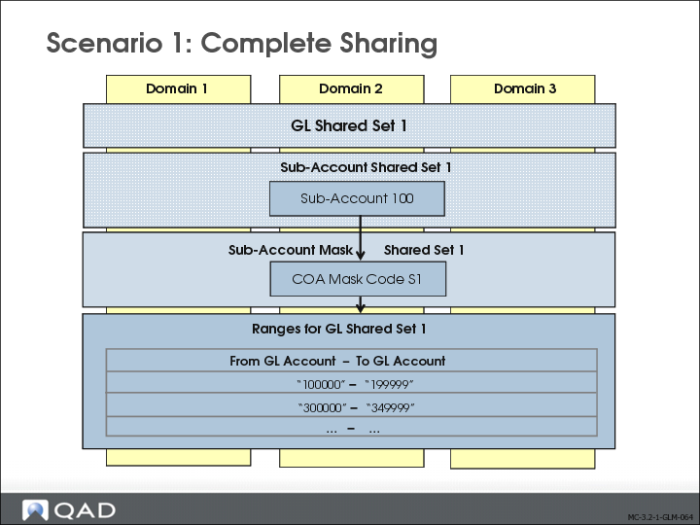
Scenario 1: Complete Sharing
Scenario 1: Complete Sharing
In this scenario, the GL shared set, sub-account shared set, and sub-account mask shared sets are administered centrally in the organization’s head office by corporate finance and accounting personnel. The data is then shared across all domains.
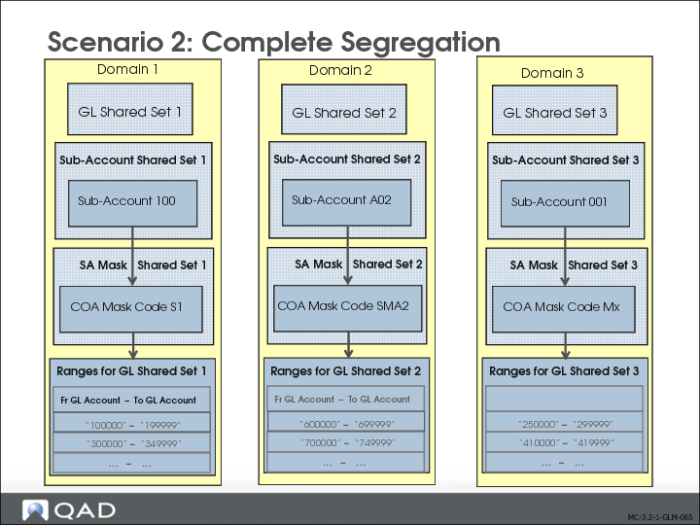
Scenario 2: Complete Segregation
In this scenario, the GL account, sub-account, and sub-account mask shared sets are maintained locally by each site’s finance and accounting personnel. An organization can separate shared sets due to varying levels of complexity within the COA and within the COA masks for each domain.
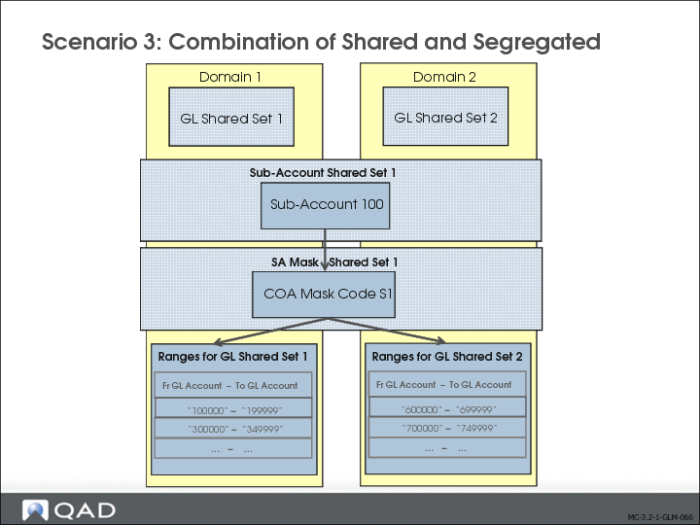
Scenario 3: Combination of Shared and Segregated
In scenario 3, the GL shared sets are not shared across domains and are maintained locally by each site’s finance and accounting personnel. The sub-account and sub-account mask shared sets are shared across domains, and are maintained by one person centrally in the corporate head office.
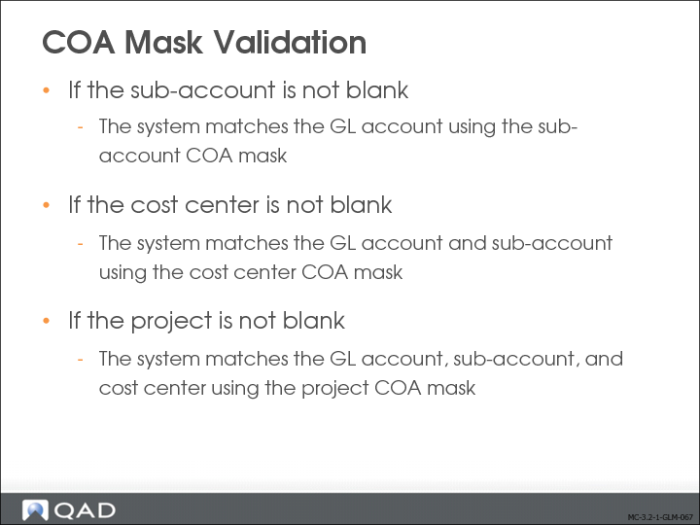
COA Mask Validation
The system validates the COA mask for a given GL combination using the following method:
• If the sub-account in the GL combination is not blank, the system matches the GL account using the sub-account COA mask.
• If the cost center in the GL combination is not blank, the system matches the GL account and sub-account using the cost center COA mask.
• If the project in the GL combination is not blank, the system matches the GL account, sub-account, and cost center using the project COA mask.
Validation Example
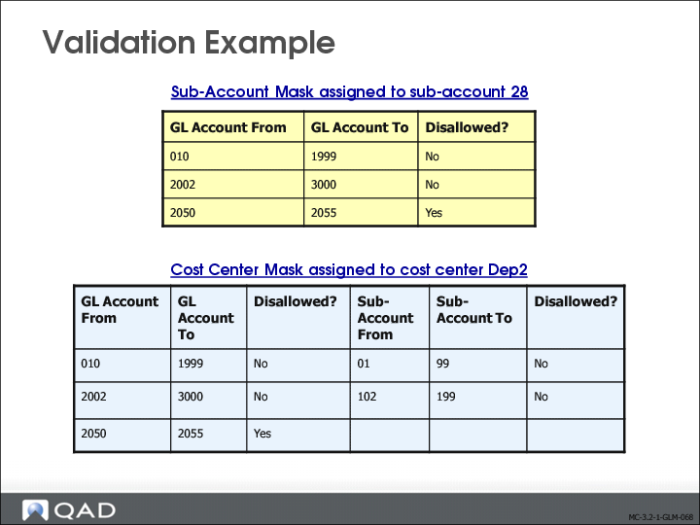
Sub-Account 28 and cost center Dep2 are assigned the COA masks shown in the slide.
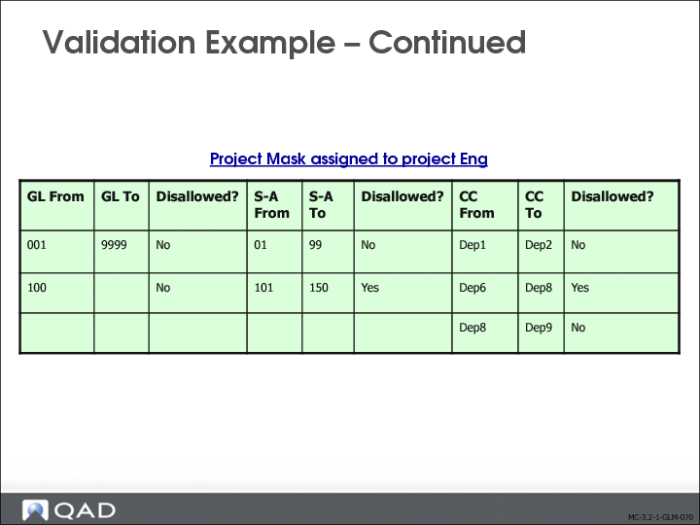
Project Eng is assigned the COA mask shown in the slide.
When postings are validated all three masks are used in conjunction to form a validation matrix.
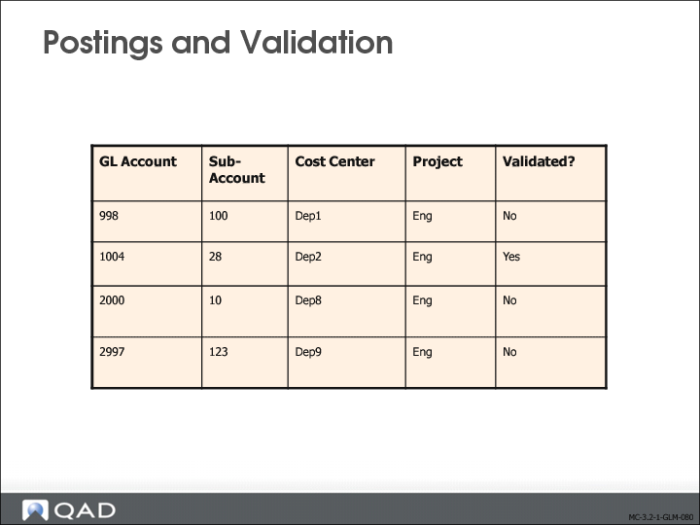
Postings and Validation
The postings in the above slide are validated using the COA masks shown in the previous two slides.
The posting with GL account 998, sub-account 100, and cost center Dep1 fails to validate because sub-account 100 is not defined in the sub-account range for the project mask.
The posting with GL account 1004, sub-account 28, and cost center Dep2 is validated because the project mask assigned to project Engineering includes GL account 1004, sub-account 28, and cost center Dep2 within its valid ranges.
The posting with GL account 200, sub-account 10, and cost center Dep8 fails to validate because Dep8 is part of a disallowed range.
The posting with GL account 2997, sub-account 123, and cost center Dep9 fails to validate because sub-account 123 is part of a disallowed range.
Hands-On Exercise
Log in to 10USACO or 22UKCO
Enable the COA masks for Sub-Account and Cost Center.
Create masks for sub-accounts and cost centers. Assign the masks to the relevant sub-accounts and cost centers.
Test the COA mask by creating journal entries with valid, and invalid COA mask combinations
After the exercise, disable the COA masks again in Domain Modify (36.1.1.1.2)
Steps
1 Open Domain Modify (36.1.1.1.2).
2 Enter the domain name that is relevant to your chosen entity (10USA or 22UK).
3 On the General tab, enable sub-account and cost center COA masks by selecting the relevant fields.
4 Set the COA Element without Mask fields to Exclude from Posting.
5 Save your changes.
6 Log off the application and log in again
7 In Sub-Account Mask Create (25.3.9.1.1), create the sub-account mask SAMK1.
In the GL Account Rules grid, enter the following for both 10USACO and 22UKCO:
Row | From | To | Disallowed Range |
1 | 2470 | 2470 | No |
2 | 7000 | 7999 | No |
3 | 7500 | 7500 | Yes |
8 Save the mask.
9 In Sub-Account Modify (25.3.17.2), assign the mask to sub-accounts GServ, Mech, and Elec.
10 In Cost Center Mask Create (25.3.9.2.1), create the cost center mask CCMK1.
For both 10USACO and 22UKCO, enter the following combinations:
GL Account Rules | Sub-Account Rules |
Row | From | To | Disallowed Range | Row | From | To | Disallowed Range |
1 | 2470 | 2470 | No | 1 | Elec | Mech | No |
2 | 7000 | 7999 | No | 2 | Ho | Ho | Yes |
3 | 7500 | 7500 | Yes | | | | |
11 Save the mask.
12 Using Cost Center Modify (25.3.20.2), assign the CCMK1 mask to cost centers Adm and Mar.
13 Save your changes.
14 Go to Journal Entry Create (25.13.1.1).
15 Create two journal entries using daybook TRAJE:
• 1 journal entry with a valid combination of accounts
• 1 journal entry where all combinations are invalid
In both 10USACO and 22UKCO, enter the following journal entries:
JE1 | |
Account | Sub-Account | Cost Center | Debit | Credit |
7000 | Gserv | ADM | 1000 | |
7010 | Gserv | ADM | 2000 | |
2470 | Gserv | | | 3000 |
JE2 | |
Account | Sub-Account | Cost Center | Debit | Credit |
7500 | Ho | Fin | 5000 | |
2470 | Ho | | | 5000 |
16 Verify that the system validates as intended.
17 Disable the masks again in Domain Modify (36.1.1.1.2).
18 Log off the application, and log in again.