User-Defined Fields
Objective
Overview
In this section, you will learn how to create and use user-defined fields.
We will first review some definitions, then learn the process.
Hands-on exercises are provided in the following chapter on screen customization.
Characteristics of User-Defined Fields
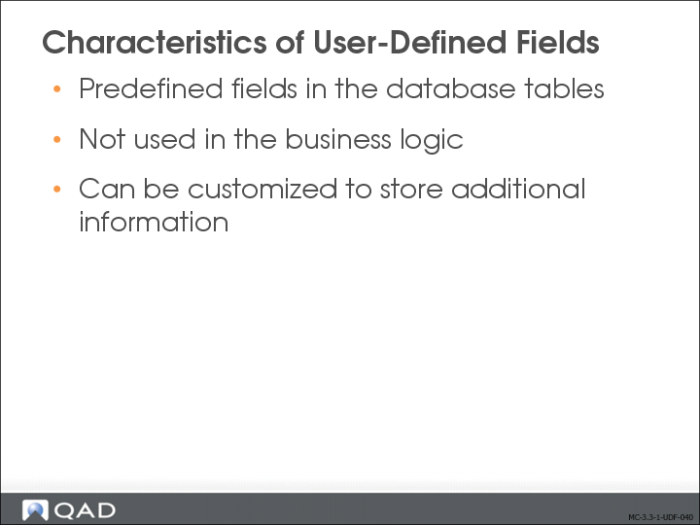
User-Defined Fields (UDFs) are predefined fields in the database tables that are not used in the business logic, and can be customized to store additional information specific to your business requirements.
UDFs are available for all Enterprise Financials business components in the Financials module, both on master data, such as business relations and suppliers, and for transactional components, such as supplier invoices.
Creating a User-Defined Field
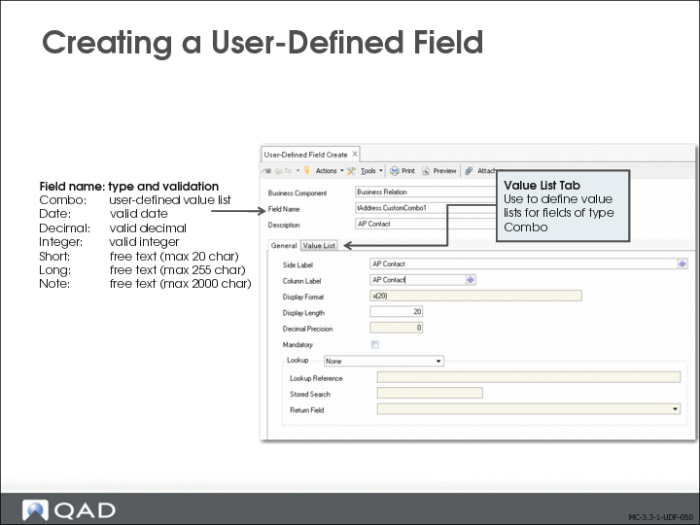
Use the User-Defined Field activities (36.4.12) to create, modify, view, and delete UDFs.
The following UDFs are available for each category of field:
Type | Number | Validation |
Combo | 10 | User-defined value list. |
Date | 5 | Valid date. |
Decimal | 5 | Valid decimal. |
Integer | 5 | Valid (signed) integer. |
Short | 10 | Free text (maximum 20 characters) or value retrieved through lookup. |
Long | 2 | Free text (maximum 255 characters) or value retrieved through lookup. |
Note | 1 | Free text (maximum 2000 characters). |
QAD Reserved | 4 | These fields are reserved for use by QAD only. There are four types of QAD reserved field: • QADCO1: Free text (maximum 20 characters) or value retrieved through lookup • QADCO2: Free text (maximum 255 characters) or value retrieved through lookup • QADT01: Valid date • QADD01: Valid decimal |
Lookup
Select the type of lookup to associate with the new field. The Lookup field is enabled if you select a CustomShort, CustomLong, or CustomCombo type field in the Field Name field in the header.
The possible values are:
• None: If you select the None option, the Lookup Reference, Stored Search, and Return Field are disabled.
• Stored Search: If you select the Stored Search option, you must use the Lookup Reference and Stored Search fields to identify the stored search.
• Browse: If you select the Browse option, the Stored Search field is updated to display the label Browse and the Lookup Reference field becomes read-only. You then use the Browse field to specify the relevant browse definition.
• Generalized Code: If you select Generalized Code, the Lookup Reference field lets you select values from the Generalized Codes (code_mstr) table. If you select the Generalized Code option for a CustomCombo type field, the Value List tab is disabled in the User-Defined Field screen.
• Other: If you select Other, you can define a custom query in the Lookup Reference field. The Stored Search and Return Field fields are disabled.
If you are creating a CustomCombo field, you can only select the values None or Generalized Code.
Lookup Reference
Click the lookup to select a query from the list of predefined queries. This field lets you specify a standard lookup to associate with the user-defined field. Users can then select a value from the lookup. For example, you can add a UDF to the Customer Invoice object and give it the name Supplier Code, and specify the Supplier lookup as the Lookup Reference. When users create customer invoices, the Supplier Code UDF appears in Customer Invoice Create, and there is a lookup button next to that field listing all supplier codes.
The Lookup Reference field is enabled when you select a field of type CustomShort or CustomLong in the Field Name field.
Value List Tab
Use the Value List tab to define the list of values for a drop-down list UDF. Right-click and choose Insert a New Row to specify a value.
Adding a User-Defined Field to the UI
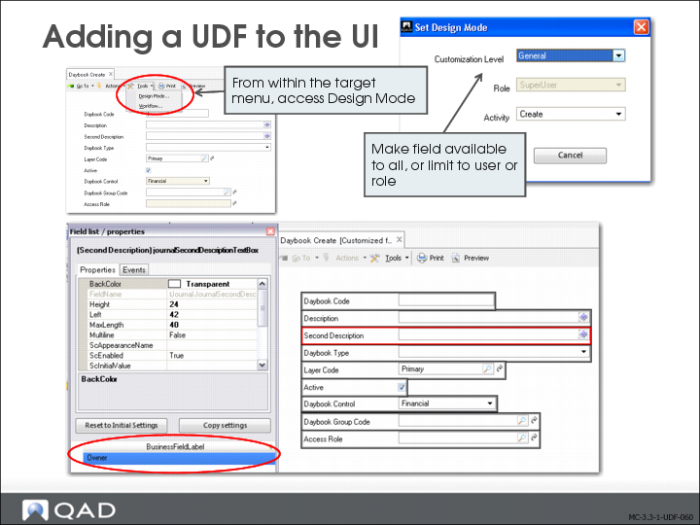
Use design mode to add UDFs to the appropriate screen. When you create a UDF for a component, it is stored in the BusinessFieldLabel pane of the design window.
To add a UDF to a screen, select it and drag it from the Business Field Label section to its new position on the screen.
When saving changes, you can choose to make the new field available to a user, a role, or all.
Adding a User-Defined Field to a Report or View
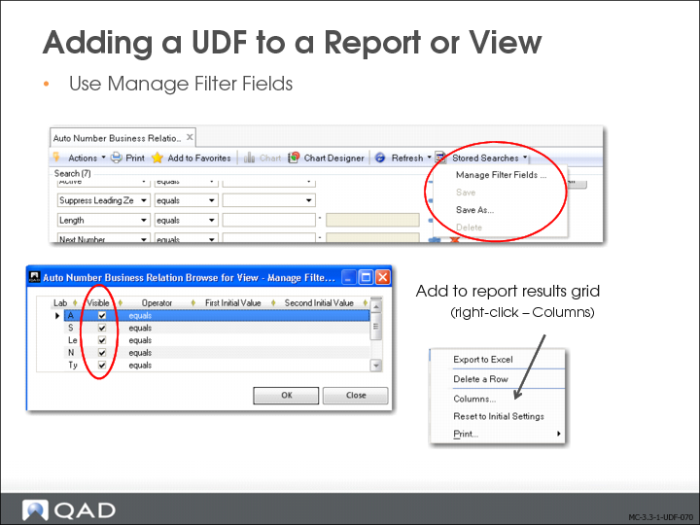
When activated, a UDF can be designated as a filter field in the Search Criteria and can be added to the Search Criteria Result Grid. UDFs are also available for Excel integration, if this functionality is available for the component you have customized.
To include a UDF in the selection criteria for a report or in the report itself, you must adapt the selection and the report logic.
Modifying User-Defined Fields
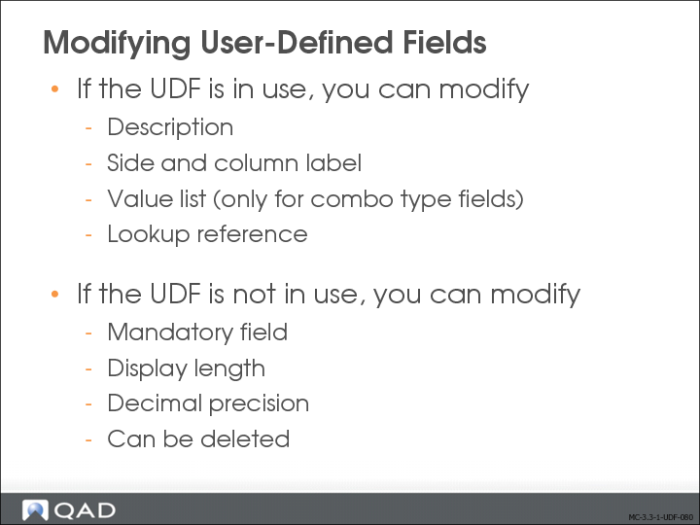
The range of UDF properties you can modify depends on whether the field has been used. A UDF is considered used if it appears on the UI and at least one value has been stored for it in the database.
If the UDF is used, you can modify the following properties:
• Description
• Side Label
• Column Label
• Value list (for Combo type UDFs only)
• Lookup Reference, Stored Search, Stored Search Return (for Short and Long type UDFs only)
If a UDF is not used, you can modify the following additional properties:
• Mandatory
• Display Length
• Decimal Precision (for decimal type UDFs only)
You can delete a UDF if it has not been used. Go to User-Defined Field Delete (36.4.12.4). Select the field you want to delete. Click Delete. If the UDF has been used, that is, if a value has been entered in the field and stored in a record, you cannot delete the UDF. Instead, you can go to Design Mode and make the field invisible. in this case, the field still exists, but it is not visible and not usable.