Daemons
Objectives
In this chapter, you will learn about the QAD EE daemons and how to manage them. However, this chapter is not designed to provide in-depth training about daemons. Instead, this chapter is designed to provide an overview of the daemons, and to raise awareness of these tools.
Overview
In this chapter, you will learn about the function of daemons in QAD Enterprise Applications, and how to manage them. You will also learn how to use daemons as tools in the Financials modules.
For more information about daemons, see
QAD System Administration User Guide.
Daemons in QAD Enterprise Applications
Daemons are server-based processes that let you run background tasks; the user has no direct input.
Important: Some daemon processes must be running to ensure the integrity of your application. You must ensure that these processes are configured to start when the database is started.
In general, tasks submitted to the daemon for processing are stored in a queue in a dedicated database table. The daemon regularly checks the queue for tasks, and then processes them. The behavior of each daemon and its request queue are controlled and monitored using specific maintenance programs.
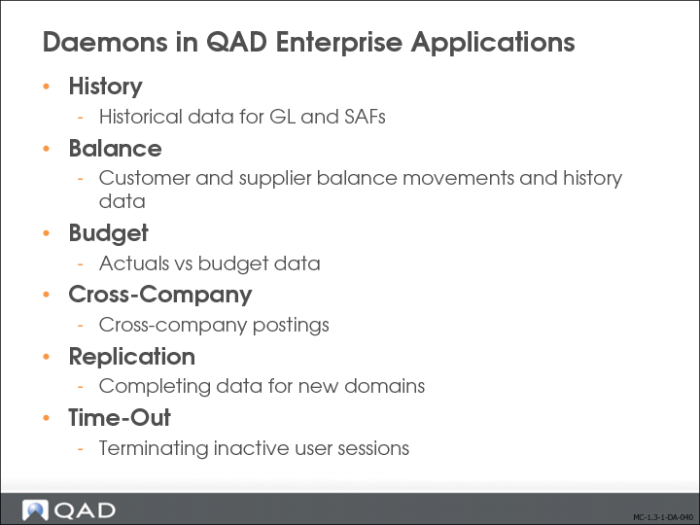
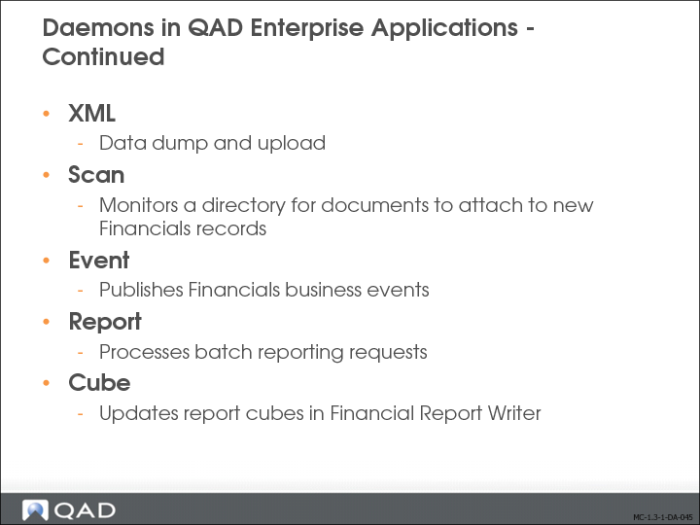
The system has the following daemons:
• Balance daemon
• Budget daemon
• Cross-Company daemon
• Event Daemon
• History daemon
• Replication daemon
• Report daemon
• Scan daemon
• Time Out daemon
• XML daemon
• Cube daemon
Balance Daemon
The Balance daemon operates in a similar manner to the History daemon. It builds the supplier and customer balance and movement data and history files. The Balance daemon updates the supplier and customer history tables each time a movement is created on an invoice.
Note: If queue records are waiting to be processed by the Balance daemon, the supplier and customer balances might be inaccurate.
Budget Daemon
The Budget daemon allocates postings to the appropriate budget topics. All postings are processed, including those in the transient and secondary layers. The daemon analyzes all budget definition tables, and updates the actuals for the relevant budget topics. The Budget daemon must always be running when using Allocations because of its essential role in this functionality.
Cross-Company Daemon
The Cross-Company daemon processes automatic cross-company postings that cannot be performed manually in the UI. The Cross-Company daemon handles transactions related to invoices and banking entries, in addition to intercompany transactions in purchase and sales orders. The Cross-Company daemon processes transactions in the primary layer only, and completes the linking fields in both the source and target posting line.
Event Daemon
The Event daemon publishes Financials business events, such as record creation events, as XML messages. Event publishing lets you export data updates to other Financials instances, without the need to extract the data from the database.
History Daemon
The History daemon populates the database with condensed GL transaction data, and updates GL and SAF balances for each period. Detailed transaction data is accumulated in tables to increase performance in, for example, drill downs and reporting. All GL postings, including those in the transient and secondary layers, are processed.
The History daemon generates historical data grouped by a number of criteria, such as the GL period, the account, sub-account, project, cost center, period mark, daybook, and the entity used in the transactions.
Replication Daemon
The Replication daemon makes domain shared set data available to the operational functions, and replicates the data to the appropriate operational domain.
During implementation of the system and setup of the domains, you can continue to modify the data associated with a domain for as long as you require, and then confirm the setup when you are satisfied that it meets your business requirements. Until the setup of a domain is confirmed, the domain data is not available to your operational functions.
The availability of domain data to the operational functions is controlled by the Setup Complete field in the Domain function. When you select the Setup Complete field, the Replication daemon creates request queue records for each shared set. After the data has been reproduced, you cannot change the shared sets and base currency of the domain. In addition, you cannot link any of the entities linked to the domain to a different domain; the relationship is now permanent.
The data made available to the operational functions includes daybooks, GL accounts, sub-accounts, and cost centers, suppliers, customers, and exchange rates.
Report Daemon
Financial reports can be printed to screen or to a printer directly, or can be batch printed from a report queue. You can schedule batch reports, output them to files, or e-mail them to addresses or roles. The Report daemon processes these batch reporting requests.
Scan Daemon
The Scan daemon lets you configure the system to monitor a directory for documents to be attached to new records in the QAD application database. Currently, the Scan daemon is only used for documents related to supplier invoice creation. You configure the daemon by specifying the tasks it should perform when it finds a document.
Note: In order to use the Scan daemon, you must enable workflow because the scanned documents are associated with draft objects and sent to user inboxes for completion. See
Introduction to QAD Enterprise Applications User Guide for details on how to configure workflows.
Supplier invoice is the most common type of document to scan, but you can also use this feature to scan documents related to any components that support the save-as-draft feature. For example, you could scan new customer profiles and send them to the inbox of those responsible for creating customer records.
The Configure activity for the Scan daemon includes an additional grid where you specify the scan directory associated with each entity. See
QAD System Administration User Guide for more information.
Time Out Daemon
You can configure a user time-out setting defined in Security Control (36.3.24). This feature lets system administrators automatically terminate inactive user sessions, thereby reducing system load and improving performance for active users. Time out is defined as a number of minutes a logged in user can be inactive.
XML Daemon
The XML daemon processes external data in XML format.
Cube Daemon
The Cube daemon builds data for report cubes used in Financial Report Writer, and is fed by the History daemon. Therefore, if the History daemon stops, the Cube daemon does not receive any queue requests.
You must stop the Cube daemon before you can rebuild report cubes in Financial Report Writer. You do not need to stop the History daemon; the Cube daemon catches up with missed updates when it restarts.
If the system finds errors during the update process (for example, missing exchange rates or missing COA cross references), these are logged in the Cube Build Log and you can view the errors using Cube Build Log Browse.
When the system finds an error in cube data, the cube is assigned the status Needs Rebuild and the daemon stops further updates for that cube. You must determine the root cause of the error and rebuild the cube using Cube Generation so that the cube status becomes Operational again.
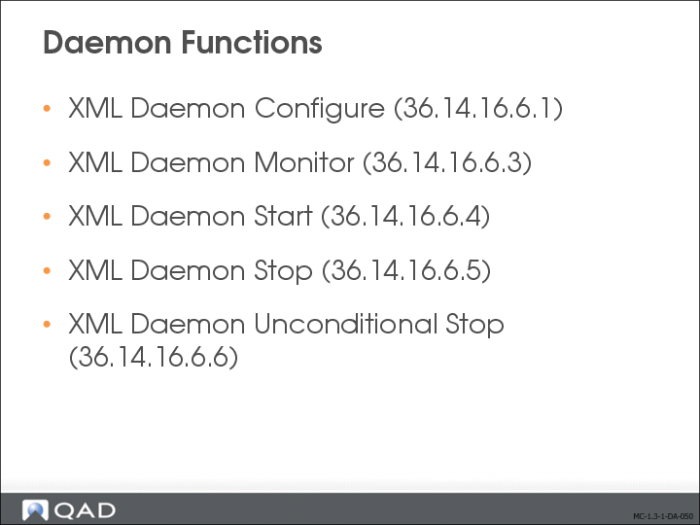
Daemon Functions
Use the following activities to maintain and control daemons:
• Configure
• Clear Queue
• Monitor
• Start
• Stop
• Unconditional Stop
These activities are the same for all of the daemons, except the XML daemon and the Report daemon. See
QAD System Administration User Guide for detailed information.
Both the Configure and Monitor activities check the status of the daemon, and update the daemon status before displaying. For example, if the daemon status is set to Running, but no daemon process is detected on the QAD Financials appServer, the status is reset to Inactive before the Configure or Monitor screens display.
Note: You configure, clear queues, and monitor the Report daemon in the same way as other daemons. However, the Report daemon is stopped and started from within the .NET Report Service.
Configure
The Configure activity lets you configure maintenance information for a daemon, such as the login ID and password, in addition to the log file and start directory. For security reasons, you should use a dedicated daemon user name. The user name must have access to all domains and entities have role permissions to all component activities in the database.
Note: The activities controlled by the daemon must be included in the list of activities for the role assigned to the daemon user name.
The Configure activity also lets you define the time interval before the daemon checks its queue for new requests, indicate whether to record processed items for audit purposes, and set the number of records that the daemon should process in each run.
Start
The Start activity starts the daemon. The system displays a message that indicates that the daemon has started successfully.
Stop
The Stop activity stops the daemon after it completes its current task. Depending on the type of daemon and the amount of time it takes to complete an operation, some time can pass before the daemon detects the stop request and shuts down. The system displays a message that indicates that the daemon has stopped successfully.
Unconditional Stop
If you cannot stop the daemon using the Stop activity, the Unconditional Stop activity stops the daemon. This task should only be performed by the system administrator.
Note: The Start, Stop and Unconditional Stop activities are not available for the Report daemon, which is managed by the .NET Report Service.
Monitor
The Monitor screen lets you view the start and stop dates for the daemons and the requests that are processed, waiting, in progress, or incorrectly processed. The screen is composed of a header area and two grids.
1 The header area contains fields that display the daemon name, the start and end times, and the daemon status. The header also contains four fields that let you choose the type of requests to include in the view.
2 The center grid of the Monitor displays:
• The start and end time of the request currently processing.
• A description of the request.
• The status of the request. The valid values are PROCESSED-OK, PROCESSED-ERR, WAITING, and IN-PROCESS.
• Additionally, if you set a specific start date and time for the request, the center grid also displays this data. It is only possible to set a specific request date and time for the XML daemon.
3 The lower grid displays the error information for each request line, if any.
The view does not store correctly processed records after the next refresh unless the Keep Processed Items field is selected in the Maintain screen.
XML Daemon Configuration
Configuring Daemons
The Scan Daemon Configure activity contains an additional grid for specifying the business component to be associated with a scanned document, the directory the daemon should monitor for documents, and the entity the scanned documents should be associated with.
The XML daemon processes external data in the form of XML files, for example, invoices are received in electronic form from a supplier. You store the files in a specific directory on the server, and the daemon reads and processes them.
The XML daemon differs from the other daemons in that it creates its own requests.
The XML daemon can process XML files only. You must convert other text formats to XML, according to the QAD-defined XSDs, before importing them.
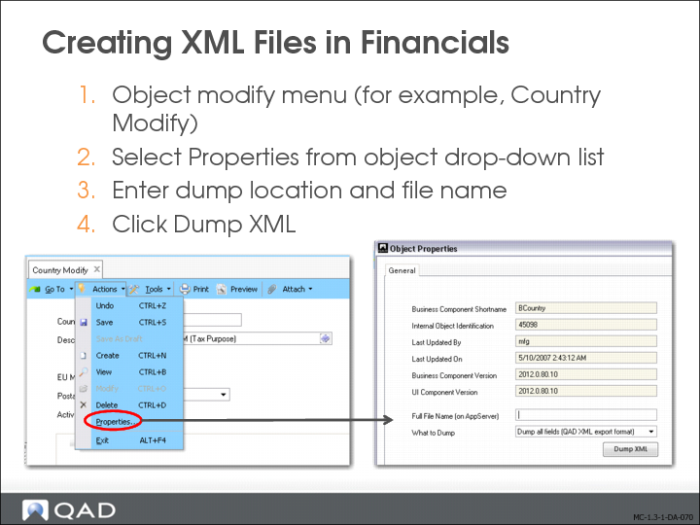
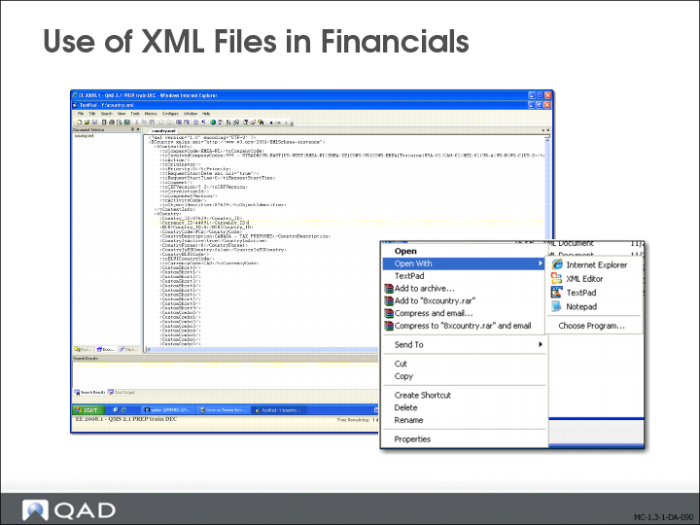
You can use the Dump XML option to generate well-formed schema as the starting point for entering your own data. Use the Dump XML option to create the XML schema for a component, and you access it by selecting Properties in the component menu. The Properties dialog includes a Dump XML button that lets you generate schemas to a designated directory. You must already have data in the system for the object for which you want the dump an XML sample file.
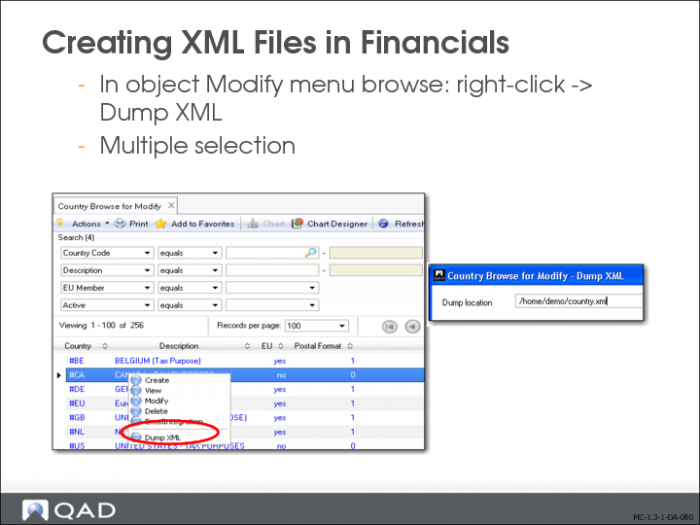
You can also create an XML file for one or multiple objects by right-clicking in the View or Modify browser, and selecting Dump XML.
XML Daemon Configuration
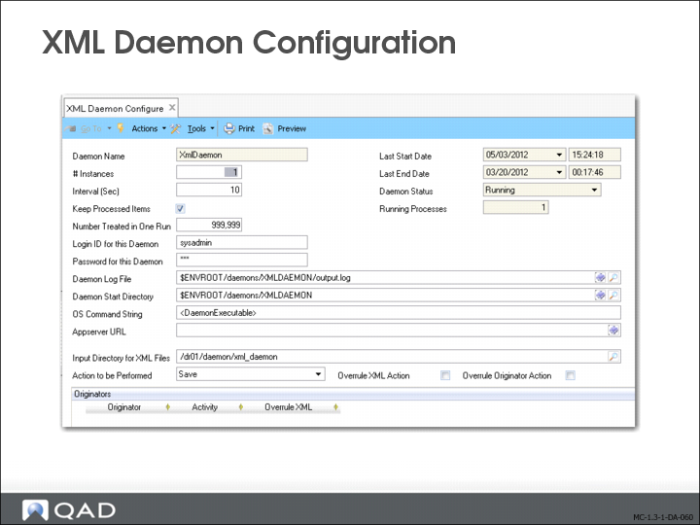
The XML Daemon Configure screen lets you configure the XML daemon, and differs from the Maintain screen of the other daemons.
The settings in XML Daemon Configure instruct the daemon to convert an XML file into a daemon request and how to process it. Only the settings that are unique to the XML daemon are described here; the others are the same as the general settings discussed above.
Field Descriptions
Input Directory for XML Files
Specify the directory that the daemon scans for XML files.
Action to be Performed
Optionally, choose the action that the XML daemon must perform on the data in the XML file. If not specified, the action is read from the XML file.
Overrule XML Action
Select this field to overrule the action specified in the XML file with the action defined in the Action to be Performed field.
Overrule Originator Action
Select the field to overrule the action based on the originator and according to the rules defined in the grid.
The Originator field is part of the header section of the XML file and indicates the origin of the file; for example, a source application or external party.
Originator
Specify the originator for which to perform the overrule action.
Activity
Choose the activity to perform. The options are:
• Save
• Save/Create Draft
• Create Draft
• Validate
Creating XML Files in Financials
In the following example, you want to update all countries in your system with additional data. Instead of doing this manually, you can update in batch using an XML file and the XML daemon.
1 In Country Modify (36.1.3.1.2), select Properties from the Country drop-down menu.
2 Enter a file name and a dump location, and click Dump XML.
To select specific records only, open the Country Browse for Modify window, select the required records and right-click to select Dump XML.
You must then enter a file name and dump location.
Once you have created the XML dump file, open it with the program of your choice to update the data and re-import the file into the system.