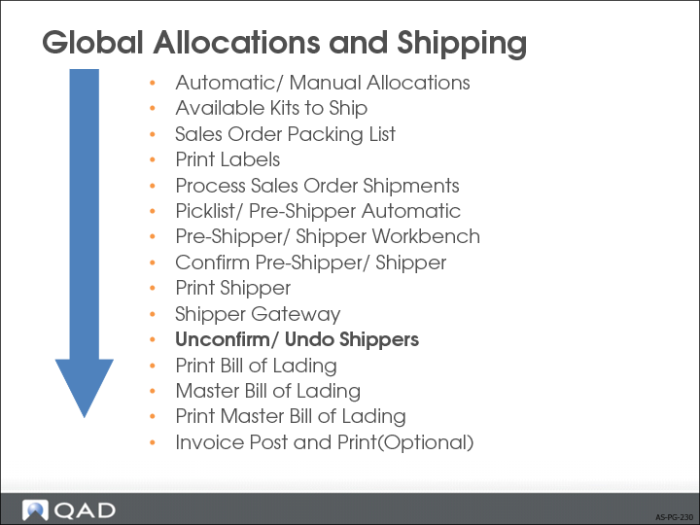
Unconfirm/Undo Shippers
• Unconfirm reverses most actions performed by the system at confirmation.
Returns shipment to its pre-confirmed state
Allows it to be modified, canceled, reprinted, and reconfirmed later
• Undo reverses the shipper number assignment done through Pre-Shipper/Shipper Print (7.9.4).
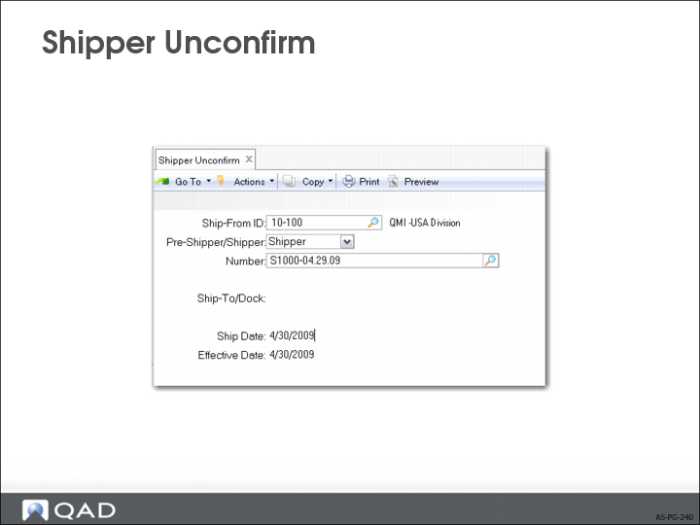
Shipper Unconfirm
• The shipment must have been confirmed:
Selection of the shipper must be permitted by both site and inventory movement security.
The effective date must be in a valid open fiscal period for all entities, with inventory affected by the confirmed shipper.
Sites and locations where the inventory was issued from must still exist.
• When you unconfirm a shipper, the system performs the following actions:
Reverses the movement of inventory
Reverses any automatic transfers
Creates IC and SO general ledger (GL) transactions, reversing the GL transactions
Reverses modifications to sales order fields updated at confirmation, including line item quantities, calculated freight charges included in the price, and schedule details
Updates the Materials Requirement Plan (MRP) to reflect items returned to inventory
Creates reversing entries to Global Tax Management History
Warning Some actions performed during or after unconfirm are not reversible.
• Unconfirm does not fully populate all fields of re-created location and lot/serial records.
If such information is required (for example, if the unconfirmed shipper is not intended to be reconfirmed), enter the information manually.
• Unconfirm does not fully reverse changes to GL average costs for line items.
After the original confirmation, average costs could have been changed and recorded in various other irreversible transactions (for example, if other receipts or issues were made in that time period).
• Unconfirm does not reverse trailer amounts entered or modified during or following the original confirmation.
• Unconfirm does not reverse the issue of any invoice numbers assigned during or following the original confirmation.
You can edit the invoice number manually using Pending Invoice Maintenance (7.13.1).
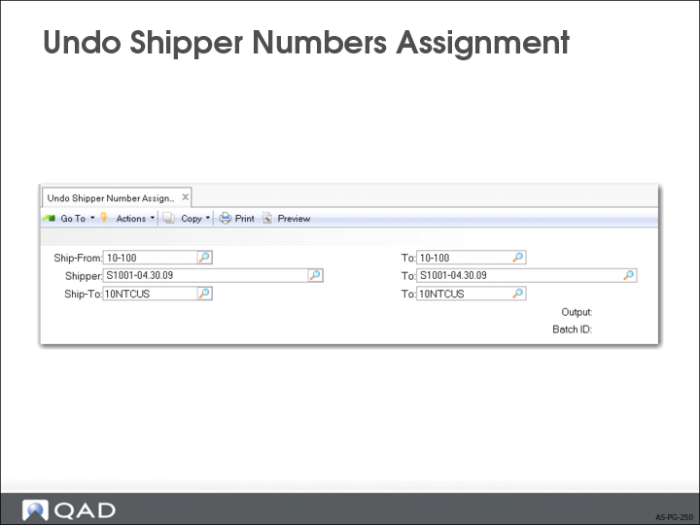
Undo Shipper Number Assignment
• Reverses the shipper number assignment done through Pre-Shipper/Shipper Print (7.9.4).
If you accidentally assign shipper numbers to picklists, you can use this function to undo the shipper number assignment.
Restore the original picklist number, and change the type of the document from shipper to picklist again.
You can reverse the shipper number assignment for unconfirmed shippers only.
Exercise: Global Shipping Process
Important: You must have completed all the setup exercises before you can work on the processing exercises.
Print the Sales Pre-Shippers and Assign the Shipper Numbers
When you use Pre-Shipper/Shipper Print (7.9.4) to print a pre-shipper, you can convert it to a shipper by specifying that the system assigns the shipper number.
1 Select the pre-shipper you created in the previous exercise by entering the following fields.
Field | Data | Field | Data |
Ship-From | 10-300 | To | 10-300 |
Ship-To/Dock | 10C1000 | To | 10C1000 |
Number | [Pre-shipper Number] | To | [Pre-Shipper Number] |
2 Enter the remaining key fields as follows, allowing the other fields to default.
Field | Data |
Print Pre-Shippers/Shippers | Pre-Shipper |
Assign Shipper Number | Yes |
Include Printed Pre-Shippers/Shippers | Yes |
3 Direct your output to PAGE.
4 After the shipper is printed, the system prompts you to indicate whether the documents have printed correctly. If they have, click Yes. If you enter No, the shippers are not flagged as printed and are returned to pre-shipper status.
(Record Shipper Number Assigned:) ______________________
Confirm Shippers
Once the pre-shippers have been printed and converted to shippers, you can confirm them.
5 Use Pre-Shipper/Shipper Confirm (7.9.5) to confirm the shipper you created.
Field | Data |
Ship-From | 10-300 |
Pre-Shipper/Shipper | Shipper |
Number | [The assigned shipper number] |
Ship-To/Dock | 10C1000 |
Post Invoice | Yes |
Consolidate Invoices | No |
When the system prompts you to indicate whether all the information is correct, enter Yes to confirm the shipper, if appropriate. Print the invoice.
6 Use Bill of Lading Print (7.9.12.1) to print a bill of lading for the shipper you have confirmed.