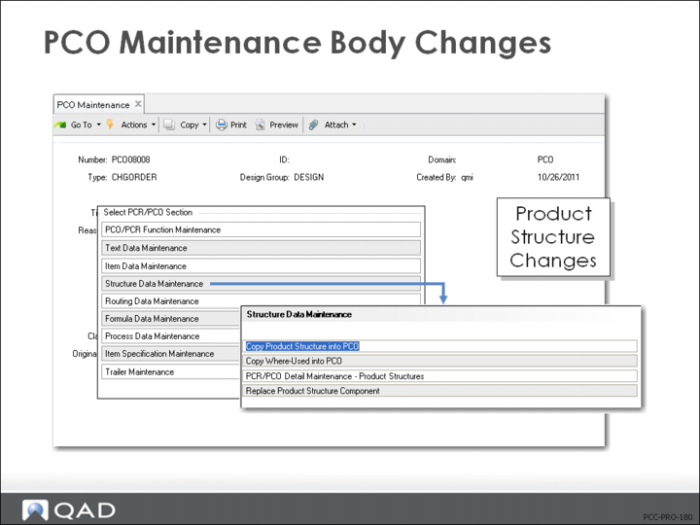
Structure Data Maintenance
• Copy product structures or where-used to the PCO to propose changes
• Maintain changes with Detail Maintenance
• Proposed component replacements throughout multiple bills
Note: You cannot delete a product structure from within PCO Maintenance since structures can contain “as of” information. Instead, deactivate the structure by entering an end-effective date. Because delete is not available, structure add and structure edit functions are separate. This distinguishes the structure maintenance functions in PCO Maintenance from all other maintenance programs.
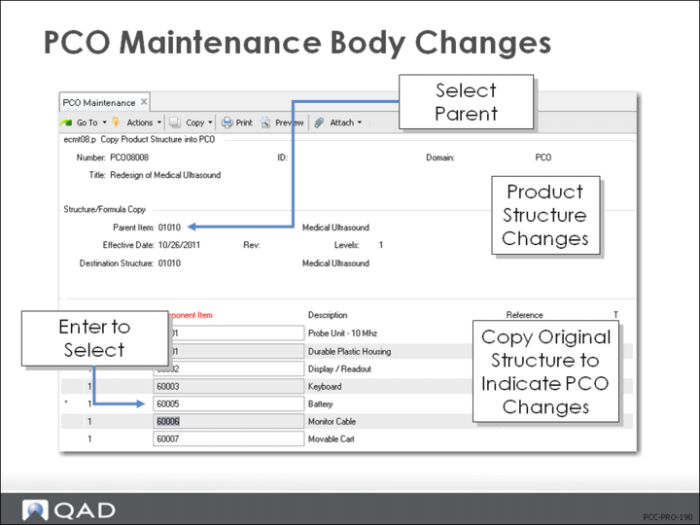
Copy Product Structure into PCO
• Specify Parent Item
• Current Bill of Materials displays
• Select or deselect items from the bill to copy into the PCO
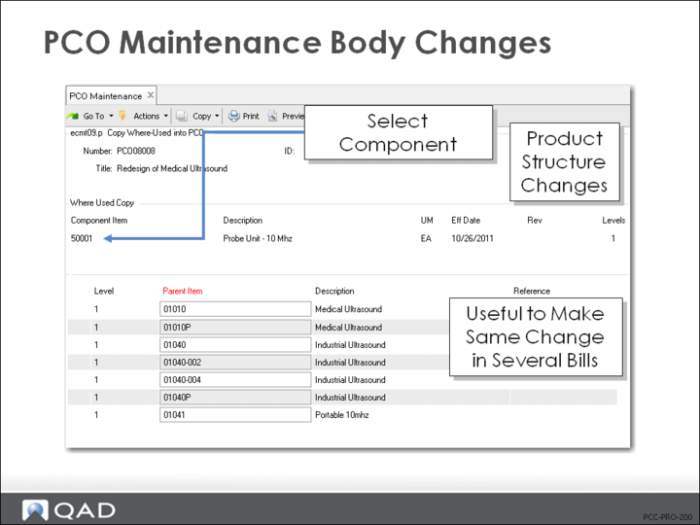
Copy Where Used into PCO
• Works the same as Copy Product Structure into PCO except:
• Displays bill of material as indented where-used bill of material
• Useful for making the same change to several product structures
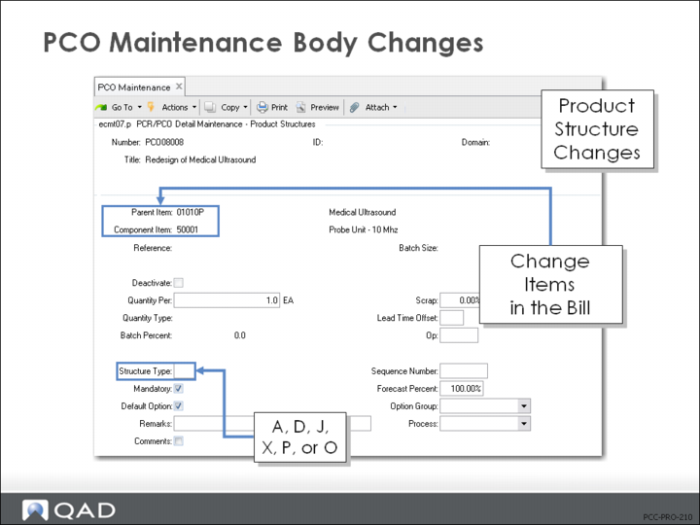
PCR/PCO Detail Maintenance – Product Structures
• Add items to product structures
• Delete product structure records
• Sets an end effective date when PCO is incorporated
• Edit product structure changes
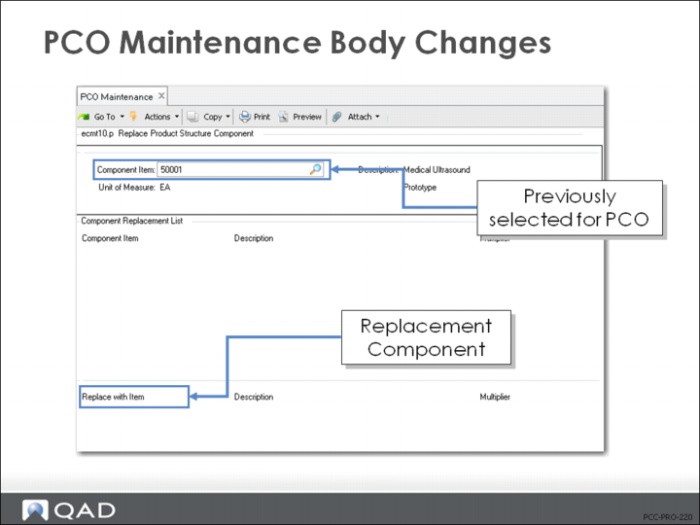
Replace Product Structure Component
• Replaces one component item with another across multiple bills of material
• Select the component in any previous Structure Data Maintenance step
• Searches product structure records already included in the PCO and sets end effective dates for replacements
• Adds additional product structures to the PCO with the substitution
• Other detailed product structure data is copied from the existing record
Exercise: Create a PCO with Product Structure Changes
The Probe Unit – 10Mhz (50001) uses Transducer – 10 Mhz (60004). The current product structure assumes that no scrap is involved in the Probe Unit. Your recent experience shows a 5% scrap involved.
1 In this exercise, use PCO Maintenance (1.9.2.13) to create a new PCO to make this change.
Let QAD EE assign the PCO number.
Field | Data |
Assign Type | PCO |
Design Group | DESIGN |
Write down the PCO number assigned for later reference: ____________________
Field | Data |
Title | Add Scrap |
Reason | 50001 to be modified: Component 60004 shows 5% Scrap |
2 Continue past the header. Choose Structure Data Maintenance. From this menu select Copy Product Structure into PCO.
a Parent Item = 50001. Click Next.
b Select 60004 by clicking on the item number.
An asterisk appears when the component is selected.
Click Next then Back to complete the transaction.
3 From the menu choose Structure Data Maintenance and then PCR/PCO Detail Maintenance – Product Structures.
a When you arrow down, you should see that one record was copied into the PCO.
(Parent Item = 50001 and Component Item = 60004). If you do not see this record, repeat step three above until the component is copied successfully.
b Deactivate should remain = No (Do not delete the component).
c Specify a 5% scrap. Accept all the remaining default fields. Click Next.
d Click Back, choose Trailer Maintenance.
a Using the Mandatory field, assign an implementation date no later than one month from today.
b Disposition: UAI, click Next, click Back.
4 Use PCR/PCO Detail Inquiry (1.9.2.8) to review your PCO to be certain your changes were all included.