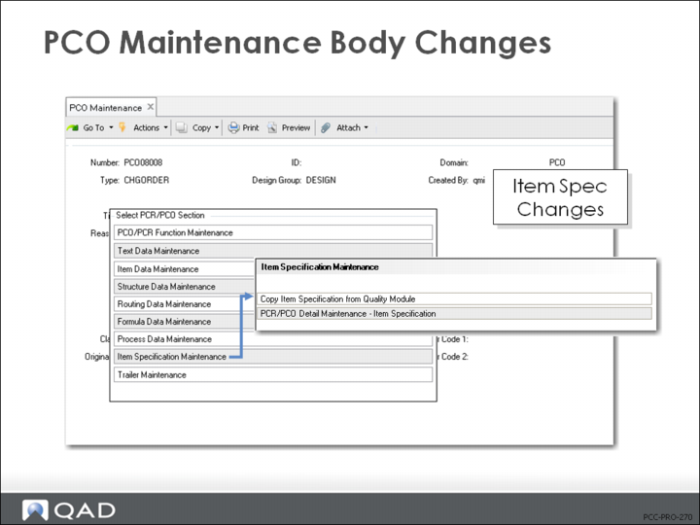
Item Specification Maintenance
• Copy quality records to PCO
• Manage changes to the quality tests associated with an item
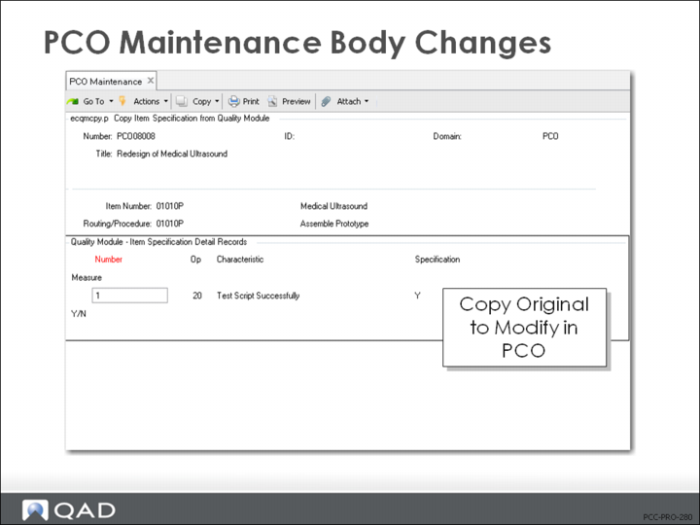
Copy Item Specification from Quality Module
• Bring item specification records into PCO for modification
• Select from current sequence of steps for a given parent item and routing
• Once records are copied, use PCR/PCO Detail Maintenance – Item Specification to modify
• Start with a copy of existing routing to simplify editing
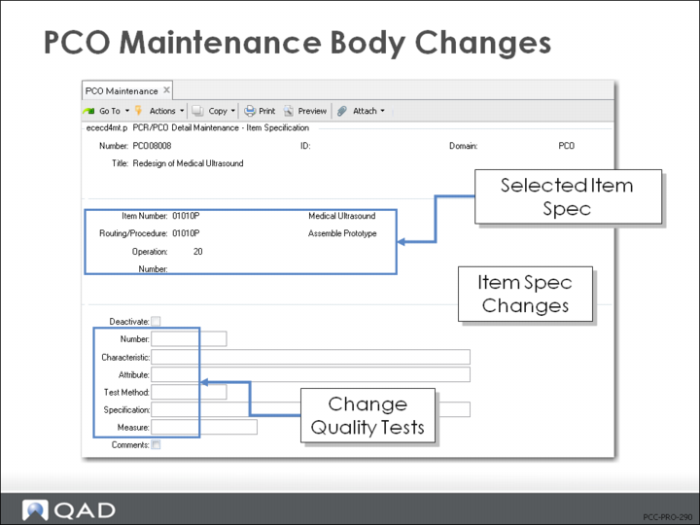
PCR/PCO Detail Maintenance – Item Specification
• Add test steps
• Deactivate test steps
• Sets an end effective date when PCO is incorporated
• Modify existing test steps
Exercise: Create a PCO with Item Spec Changes
Engineering has found that the test procedure for 50001 is not strict enough.
1 Use PCO Maintenance (1.9.2.13) to modify the Quality Management specifications to make the inspection use stricter standards.
Let QAD EE assign the PCO number.
Field | Data |
Assign Type | PCO |
Design Group | DESIGN |
Write down the PCO number assigned for later reference: ____________________
2 Title and Reason fields are optional. Leave them blank, or create a simple description for this PCO:
Field | Data |
Title | Test Spec |
Reason | Modifying Item Specs for 50001 |
3 Continue past the header. Choose Item Specification Maintenance. From this menu select Copy Item Specification from Quality Module.
a Item Number = 50001; Routing Code = 50001
b Click in the number field (an asterisk should appear next to the sequence). click Next to continue.
4 Click Back and choose Item Specification Maintenance, then PCR/PCO Detail Maintenance – Item Specification. Tab down to modify each of the records copied in the last step.
a For Test Sequence 1, Voltage, change the specifications to a range of
0.4<= Voltage =<1.0
5 Save the record without adding any information to the trailer. Click Next, Back and Back.
6 Use PCR/PCO Detail Inquiry (1.9.2.8) to review your PCO and verify that your changes were all included.