Route PCO for Approval
• Send the PCO to members of the Approval group for their consideration, approval, comment, rejection, or reapproval
• Once the PCO has been routed, QAD EE restricts any changes to the document to ensure that the approved version is the most current version
Route PCO for Approval (1.9.2.16)
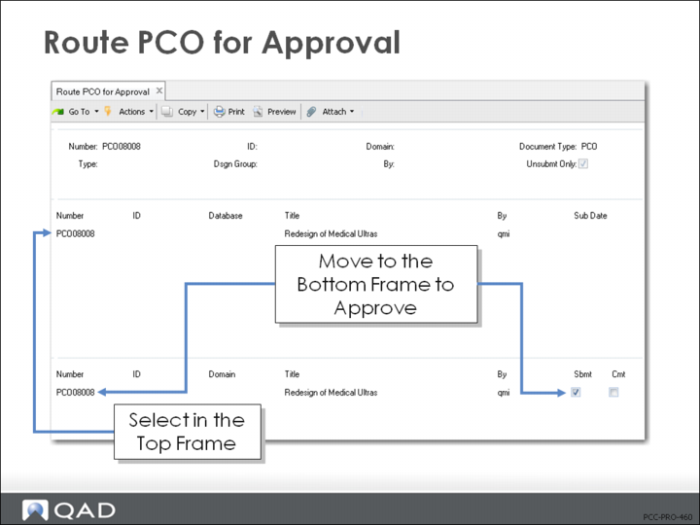
• Lists PCOs in order, beginning with the PCO you enter in the first frame
• Unsubmit Only = Yes selects all PCOs that have not been routed for approval yet
• When you select a PCO for submittal in the top frame, it copies to the bottom frame
• Submit = Yes submits the PCO for approval
Exercise: Route PCOs for Approval
Submit your first three PCOs to start the routing and approval process, using Route PCO for Approval (1.9.2.16).
1 Select the first three PCOs you created in these exercises (refer to the PCO numbers you recorded). Leave the number field blank, enter Type = PCO and Dsgn Group = Design, leave Unsubmit Only = Yes. This will filter for just your unsubmitted PCOs.
a Select a PCO in the first frame and click Next.
b When it appears in the second frame, verify Sbmt = Yes. Click Next to submit.
2 Use PCR/PCO Status Browse (1.9.11) to review your PCOs to verify that their status changed. You should see:
Three records with Status | Submit |
The remaining PCOs with Status | Unsubmit |