Release and Distribute PCO
When the approval process is complete and there are no more rerouting steps for reapproval, the PCO moves to Release and Distribution.
• Release signals a change in ownership
• Distribution is based on the routing slip
• Release is final and irrevocable once it is distributed
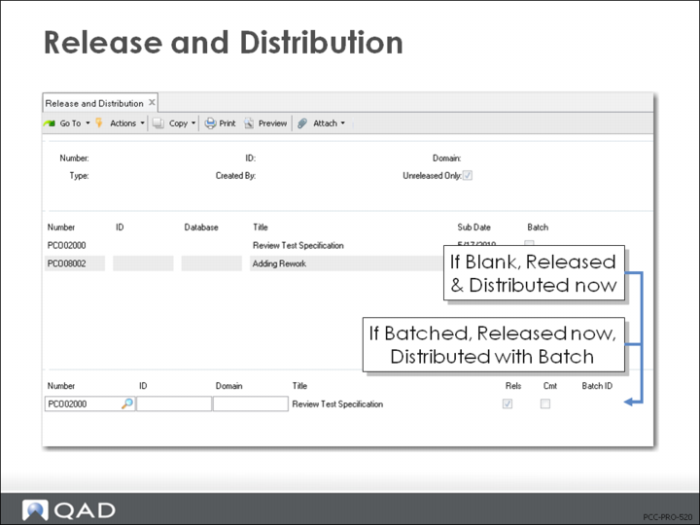
Release and Distribution (1.9.7.1)
• Select PCOs in the first frame, scroll through second frame, and select a PCO for release/distribution
• Set Rels = Yes and enter a valid Batch ID or leave blank
• Once you enter a Batch ID, the PCO is released; the PCO is distributed when the specified batch is executed
• If Batch ID is left blank, then the PCO is released and distributed immediately
• Released PCOs can be unreleased if they have not been distributed
• Run Release and Distribution with Unreleased Only = No, select the PCO, and then set Rels = No
• Distributed PCOs cannot be unreleased or modified
• When a PCO is released and/or distributed, its status changes and the dates of release and distribution are recorded
• When the PCO is distributed, it is printed for all members of the distribution group and becomes visible to Incorporation Selection (1.9.7.4)
Exercise: Approve PCOs
Approve your first three PCOs, using PCR/PCO Approval (1.9.6.1).
1 Select the first three PCOs you created in these exercises (refer to the PCO numbers you recorded). Enter the first PCO number, make sure that Document Type is PCO, and leave Unsigned Only = Yes.
Note: Be sure to enter your login as User ID (qmi).
This will filter for just the unsubmitted PCOs. Ensure the Document Type is set to PCO.
a Select a PCO in the first frame and click Next.
b When it appears in the second frame, verify Appr = Yes. Click Next to submit. Continue until all are approved. Approve for all Appr Grps.
2 Use PCR/PCO Status Browse (1.9.11) to review your PCOs to verify that their status changed from Submitted to Approved.