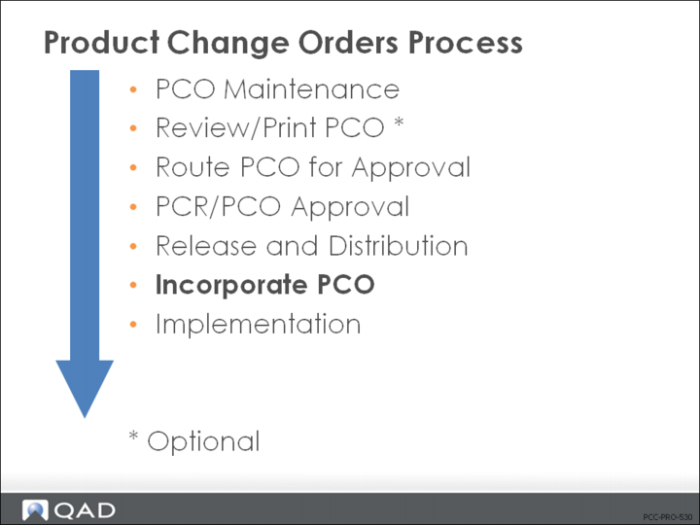
Incorporate PCO
• Incorporation specifies an effective date for PCO changes to move into the production tables
• Makes the changes available for planning
• Moves the changes in the PCO that affect product structures, formulas, processes, routings, and item specifications into the planning tables once there is an effectivity date
• Makes data available to MRP, DRP, and other pre-production QAD EE modules
• Until implemented, a PCO incorporation date can be changed and re-incorporated
Note: Incorporation of different revisions of the same parent item must be done in revision sequence.
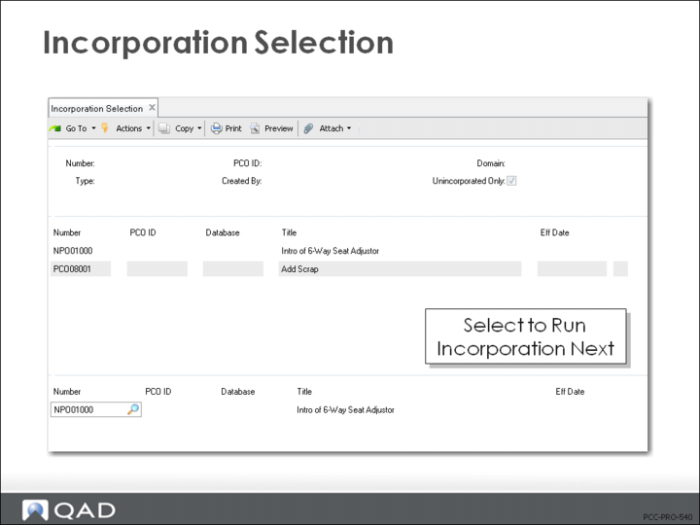
Incorporation Selection (1.9.7.4)
• Displays released and distributed PCOs, beginning with PCO specified in Number
• Unincorporated Only allows you to filter display to pending PCOs
• If two PCOs change data for the same item, they must be incorporated in revision level sequence
• Select PCOs for incorporation and specify incorporation date
• Incorporation does not happen until Incorporation (1.9.7.5) is run
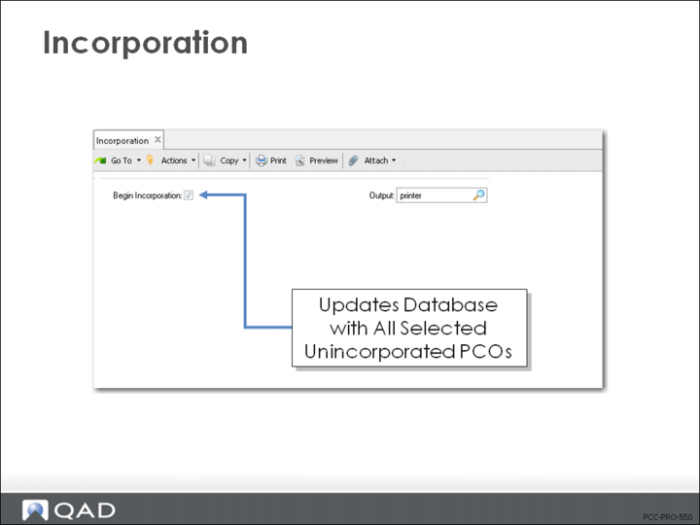
Incorporation (1.9.7.5)
• Updates the production database with all unincorporated PCOs that have effectivity dates
• Normally run as a batch process
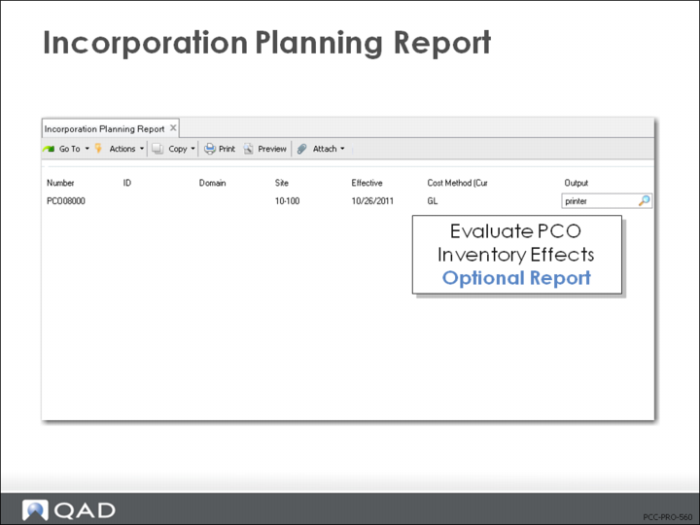
Incorporation Planning Report (1.9.7.3)
• Incorporation makes PCO information available to planning
• Use this optional report to evaluate the effects of the PCO on inventory
Exercise: Release and Distribute PCO
Use Release and Distribution (1.9.7.1) to release and distribute your first PCO. Incorporate these changes into QAD EE for planning consideration.
1 Select your first PCO for release.
a Leave the Number field blank.
b Type = PCO
c Unreleased Only = Yes
2 Then select the first PCO in the top frame to copy to the bottom frame. Verify Rels = Yes and click Next to release (leave Batch ID blank). You should see a message that the PCO was distributed successfully.
3 Use PCR/PCO Status Browse (1.9.11) to review your PCOs and verify the PCO that was released and distributed. You should now see Status = Released for your first PCO.
Exercise: Incorporate PCO
4 Use Incorporation Selection (1.9.7.4) to select your released PCO for incorporation. Leave the Number field blank, Type = PCO, and Unincorporated Only = Yes.
a Select the PCO in the first frame to bring it into the bottom frame. Assign the Eff Date = today.
5 Use Incorporation (1.9.7.5) to incorporate all PCOs with effective dates for today. Enter your initials if PAGE or PRINTER is not allowed. Ignore warning message.
6 Use PCR/PCO Status Browse (1.9.11) to review your PCOs and verify the latest status change. You should now see Status = Incorp for your first PCO.