PCR Maintenance
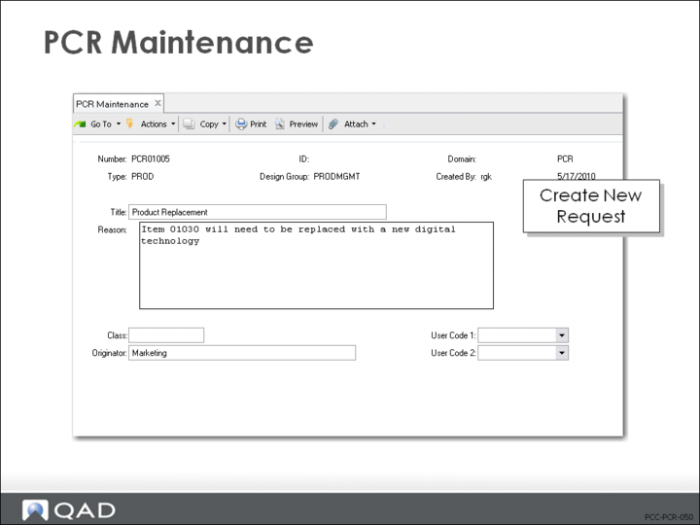
• Design and build Product Change Requests (PCRs)
• All of the functions required to create product changes are contained in this program
• Submitted PCRs can be modified using PCO Maintenance, but a warning displays
• Closed PCRs can be accessed, but the only menu option available is Trailer Maintenance
• CIM load is not used to load data into PCR Maintenance
• Use PCR/PCO Import/Export (1.9.13)
PCR Maintenance (1.9.2.1)
• PCRs are unique for each Number, ID, and Domain combination
• ID and Domain are typically used to split up large or complex engineering changes into more than one PCR
• If you open a PCR with the same Number, but different ID or Domain as another PCR, you will receive a warning that related PCRs exist
PCR Maintenance Options
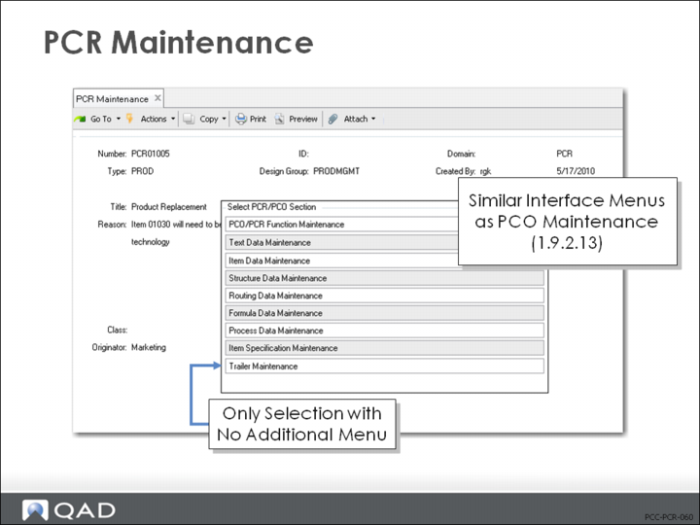
• Just like PCO Maintenance, pop-up menus allow you to select which kinds of changes to make
• Just like PCO Maintenance, a second pop-up menu gives you access to detail modification
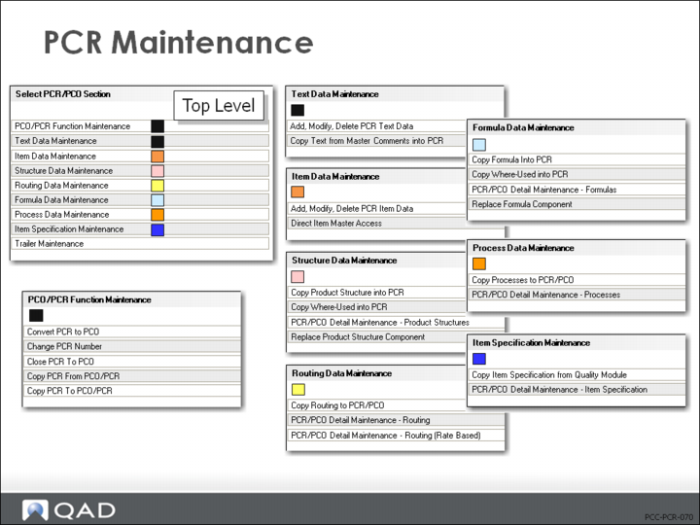
• Each menu item (except Trailer Maintenance) leads to another menu
• Trailer Maintenance is the only menu option that can be used for closed PCRs
PCR Maintenance Options Lower Levels
Exercise: Create PCR with Where-As Changes
You received a request to make black cases (industrial housing) in place of your existing white cases. To analyze the feasibility of this product change, you need a new paint similar to 60060 White Paint, and you need Where-As replacements to substitute the new paint. In this exercise you create a PCR to evaluate and approve these changes before converting them to PCOs.
1 Let QAD EE assign the PCR number. The number will be assigned when you complete the Type and Design group fields and click Next.
Field | Data |
Assign Type | PCR |
Design Group | DESIGN |
a Notice the different numbering from the PCOs in the last chapter.
b Write down the PCR number assigned for later reference: ____________________
Hint: Use PCR Maintenance (1.9.2.1).
2 Title and Reason fields are optional. Leave them blank, or create a simple description for this PCR:
Field | Data |
Title | New Paint |
Reason | New Item 60061 Black paint Where-as to Replace 60060 |
3 Click Next to continue past the header. Choose Item Data Maintenance, then select Add, Modify, Delete PCR Item Data.
a Add the item record for 60060 White paint to your PCR.
b End Product = Yes.
c Comments = Yes. Add a comment to instruct “Being replaced by Black Paint.”
d Exit the PCR and print the record, or review the Detail Inquiry (1.9.2.8) and write down the Item Data information about 60060. You need it to create the new item 60061. Return to PCR Maintenance when you have the 60060 information.
4 Re-enter the PCR Maintenance function and choose Item Data Maintenance from the menu, then select Direct Item Data Access.
a Add a new item 60061 Black paint. Be sure to use the same Product Line, Unit of Measure, Status Code, and all other Item Data codes as 60060. Refer back to your copied record for accuracy.
An alternative method to add the new item to the Item Master would be to use Item Master Copy (1.4.12) and copy the 60060 record to create the 60061.
5 Return and choose Item Data Maintenance, then Add, Modify, Delete PCR Data.
a In the last step you added the item to the Item Master but not to the PCR. Add the new item record for 60061 Black Paint to the PCR. End product = Yes, Comments = No.
6 Return and choose Structure Data Maintenance. Then select Copy Where Used into PCR.
a Component Item = 60060.
b Select each product structure by clicking it with the mouse. An asterisk appears next to each parent item number. Click Next to save the records.
7 Select Structure Data Maintenance and then Replace Product Structure Component.
a Component Item = 60060.
b Replace with Item = 60061, Multiplier = 1.0 (a one-for-one replacement).
c Click Back to Continue and Please Confirm Update = Yes.
8 Choose Structure Data Maintenance and then PCR/PCO Detail Maintenance – Product Structures.
a Review the records created with this copy procedure. Arrow down to scroll through each record. You should see that the product structure records include the old item number 60060 with Deactivate = Yes and the new item number 60061 with Deactivate = No.
9 Save the record, click Next, without adding any information to the trailer.
10 Review your PCR to be certain your changes were all included. Note the double records for product structure changes using PCR/PCO Detail Inquiry (1.9.2.8).