PCR Maintenance
PCR Maintenance (1.9.2.1) is the same as PCO Maintenance (1.9.2.13) except for the Convert PCR to PCO and Close PCR to PCO functions, which are only options when you modify a PCR.
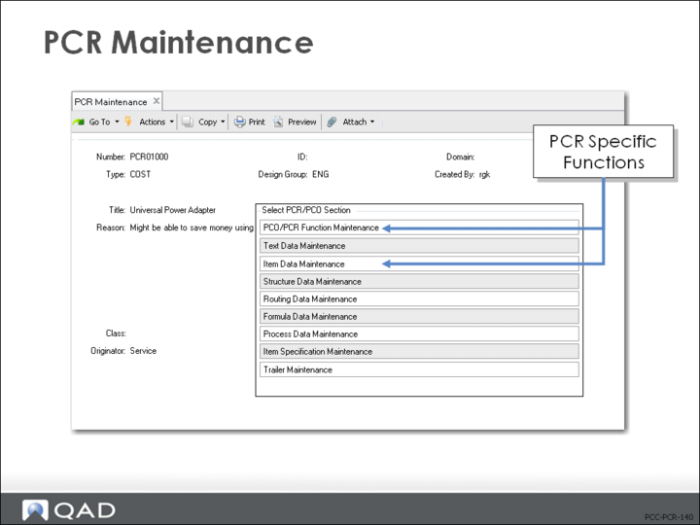
PCR Maintenance (1.9.2.1)
PCO/PCR Function Maintenance
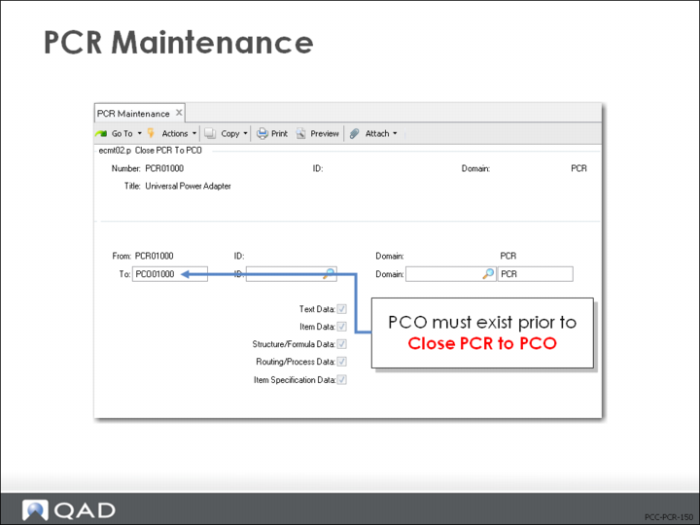
Close PCR to PCO
• Used to merge details from PCR to an existing PCO
• PCO must exist first before using this function; it cannot create a new PCO
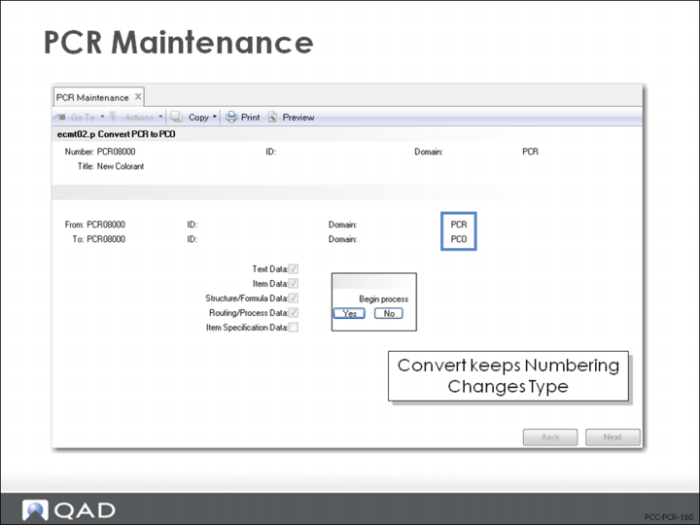
Convert PCR to PCO
Changes document types from PCR to PCO, but does not change the number, when you provide the new PCO type and design group.
Exercise: Close PCR to PCO
1 Your company requires a new PCO that will only contain the contents of this PCR.
a Create a new PCO. Allow QAD EE to automatically assign the next number. Type = PCO, Design Group = DESIGN.
Hint: Use PCO Maintenance (1.9.2.13).
b Write down the PCO number assigned for later reference: ____________________
c Finish the header of the new PCO and exit without adding any changes or trailer information.
Field | Data |
Title | New Paint Applied |
Reason | PCR Changes Approved. Production Order for Black Paint. |
2 Return to PCR Maintenance, select your Black Paint PCR, and click Next until you move past the header.
Hint: Use PCR Maintenance (1.9.2.1).
3 Select PCO/PCR Function Maintenance. Then choose Close PCR to PCO.
a Assign the PCO number you recorded in the previous step. Verify that the To: document is a PCO document type.
b Affirm copying the PCR data to the PCO. Ignore the message Warning: Target Exists; Duplicated Records Will Not Copy. Assign Continue? = Yes.
c Further detail changes to the PCR are not allowed. At this point you can modify the trailer of your PCR. For the purposes of these exercises, there are no trailer modifications.
4 Review your PCR and PCO Status. The old PCR should show a Status of Closed. The new PCO should show Status of blank. The PCO is now ready for routing.
Hint: Use PCR/PCO Status Browse (1.9.11).
Summary