QAD Enterprise Edition Training Guides
>
Reporting Framework
>
Introduction
>
Search Conditions
Search Conditions
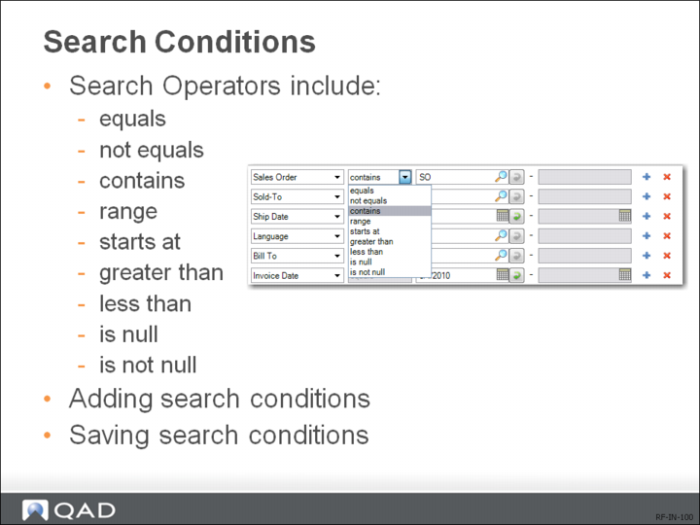
By default, a report will display all the records available in the source data. However, you can retrieve a range of records in the report; for example, sales records between last September and this March. You do this by setting search conditions to filter data in the report. You can also use filters to load existing search conditions.
To refine your search further, click the plus (+) icon to add another search row. You can add as many rows as needed, each with different search values and operators. When you specify several criteria, note that multiple criteria for the same field are treated as a logical AND condition. To remove a search criteria row, click the delete (X) icon.
If a report always contains a certain range of data and is exported to a certain format, you do not have to define the filter criteria and output settings every time you generate the report. You can save the search conditions and output settings as a filter and open it to load the same set of configurations when you run the report later.
A filter is a personalized set of search conditions and settings, which means that the filters you created can only be accessed and managed by you and the administrator, and no one else.